When are Progress Reports sent and how do I find them?
Progress reports will be sent during the 3rd, 6th and 8th week of the fall semester, and the 3rd, 6th and 10th week of the spring semester. If you are assigned as an instructor for a course, you will receive an email (at your UVM email address) asking you to complete a Progress Report.

To start the Progress Report please click on the link at the bottom of the email stating “Click to Begin Entering Student Feedback”. This will directly take you to the Report with no Login required.
Alternatively, you can login into Navigate360 https://uvm.campus.eab.com/home and see the Progress Report Request at the top of your Professor Homepage.
How do I complete the Progress Report?
The Progress Report will list all students you are assigned to as an instructor for a semester (withdrawn students may still appear, if they withdrew after the Progress Report was issued).

If you do not have feedback for a student, you can simply select no, if you do have feedback, you can add an Alert, or optionally absence total, estimated grade and comments. (Comments are only visible to students if an alert is issued)
Once you are done you can either click “Submit only Marked Student (but I’m not done)” this will save your progress and allow you to revisit the progress report for other unmarked students in the future.
You can also click “Submit unmarked students as not At-Risk (I’m all done)”. This submits the students you have marked as indicated and submits any other unmarked students as no feedback.

How do I add an Alert to a Progress Report?
To add an alert to a Progress Report, click the Alert reason box for the student you want to issue the Alert for. Then select the Alert for the student; once you submit the Progress Report the Alert will be issued to the student with any additional comments.

What happens when I add an Alert to a Progress Report?
There are three options for Alerts on a Progress Report
• Low Attendance
• Low Grade(s)
• Low Participation/Effort
When you add an alert to a Progress Report it will send an email to the student notifying them.
Emails will also be sent to all Assigned Advisors for a student notifying them of the alert.
Low Attendance Email
Email Subject: {$student_name}, we haven't seen you in {$course_name}
Hi {$student_first_name},
I am reaching out to check in with you about {$course_name}. First, I want to make sure you know that you are enrolled in the course. If you wish to drop or withdraw from this course, please check the academic calendar for the add/drop and withdrawal deadlines and schedule a meeting with your Academic Advisor as soon as possible to understand the potential impacts of that decision. You can make an appointment through Navigate360.
If your plan is to continue in this course, please know that your success is important to me. I encourage you to contact me so we can find a time to discuss your progress and participation in the class. You are welcome to stop by during my office hours, speak with me after class, or email me to set up an appointment.
You may be facing challenges that are making it difficult to attend class. UVM offers a variety of resources that may be helpful, including academic resources and health/wellbeing resources. I encourage you to take advantage of these services. We consistently hear from students, “I wish I had reached out for support sooner.”
I look forward to meeting with you.
Sincerely,
Professor {$completer_name}
Low Grade(s) Email
Email subject: Action Needed in {$course_name}
Hi {$student_first_name},
I am reaching out to check in about your progress in {$course_name}. I am concerned that you may be experiencing challenges that are affecting your performance in the course, as your current course grade is lower than expected.
As a faculty member I am always interested in meeting with students and learning about their course experience. I invite you to contact me so we can find a time to discuss your progress in the class. You are welcome to stop by during my office hours, speak with me after class, or email me to arrange a meeting.
Another great resource is your academic advisor, who can discuss how this course fits into your academic plans and connect you to other student support resources. You can set up an appointment with them through Navigate360. Maybe you are struggling with something outside of class that is affecting your academic performance. I encourage you to explore the academic resources and health/wellbeing resources that may be helpful.
Your academic success is important to me, your academic advisor, and others at UVM. We are here to support you on your educational journey, and I encourage you to take advantage of these services sooner rather than later. We consistently hear students say, “I wish I had reached out to support services sooner.”
All UVM students face challenges at one point or another. You can overcome this challenge, just as you have overcome challenges you may have faced in the past. I look forward to meeting with you.
Sincerely,
Professor {$completer_name}
Low Participation/Effort Email
Email Subject: How is {$course_name} going for you?
Hi {$student_first_name},
I am reaching out to check in with you about {$course_name}. I am concerned that you may be experiencing some challenges that are preventing you from doing your best in my course. Specifically, your effort and participation are not currently meeting course expectations.
As a faculty member, I am always interested in meeting with students and learning about their course experience. I invite you to contact me so we can find a time to discuss your progress and participation in the class. You are welcome to stop by during my office hours, speak with me after class, or email me to schedule an appointment.
Another great resource is your academic advisor, who can discuss how this course fits into your academic plans and connect you to other student support resources. You can set up an appointment with them through Navigate360. If you are struggling with something, know that support is available. I encourage you to explore the academic resources and health/wellbeing resources that may be helpful.
Your academic success is important to me, your academic advisor, and others at UVM. We are here to support you on your educational journey. Please take advantage of these services, sooner rather than later. We consistently hear students say, “I wish I had reached out to support services sooner.”
I look forward to meeting with you.
Sincerely,
Professor {$completer_name}
How do comments work on Progress Reports?
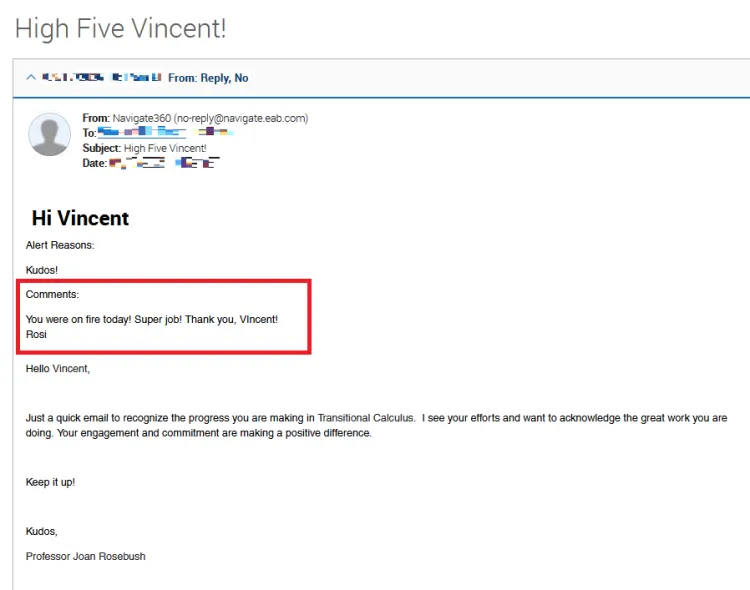
You can add comments to any student on your Progress Report. Please note that students are only able to see comments if an Alert is issued alongside the comment on a Progress Report.
How do I issue an Ad-Hoc Alert?
Ad-Hoc Alerts can be issued as needed at any point in the semester. Either on your Professor Homepage Actions.

Or under the “Students in My Courses” with the Actions.

How do comments work on Ad-Hoc Alerts?
Most Ad-Hoc alerts will send an email to the student notifying them. You can check to see if the alert will send an email to the student at the bottom of the Alert Box. You can also add additional comments to any Ad-Hoc Alert. For the comments to be visible to students the alert must send an email to the student, and you must check the box “Send Comment to Student”.
