What is Navigate360?
Navigate360 is UVM’s student advising and success platform. Through the mobile app or webpage you can use Navigate360 to:
• Schedule an appointment with your academic advisor.
• “Raise you hand” to let us know you need additional assistance.
• View your class schedule.
• Join Study Buddies to connect with peers for collaborative study groups.
• Schedule peer tutoring and study skills appointments.
• And more!
How do I access the mobile app?
Can I use Navigate360 if I don’t have a smart phone or tablet?
Yes! While the Navigate360 mobile app is the most convenient option for many students, we know that some people may prefer access through their desktop. To access the desktop app, visit https://uvm.navigate.eab.com and login with your UVM netID.
How do I see who my academic advisor is?
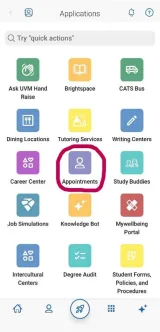
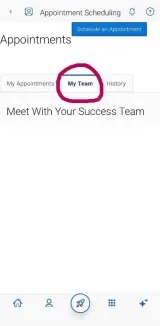
From the Applications page, click on ‘Appointments’, followed by the ‘My Team’ tab. This area will list out your primary advisor as well as instructors to which you are taking courses during the current semester.
How do I schedule an appointment with my academic advisor?
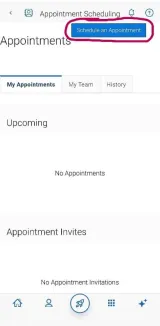
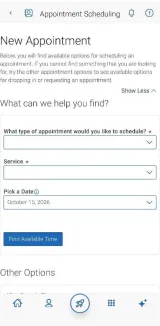
To schedule an appointment, click the ‘Appointments’ icon on the app page. Next, click ‘Schedule an Appointment’ and answer questions about your preferred service, date, time, and location. You can also view available drop-in times or request appointment times for your preferred service. If you are not able to find an available time, reach out to your advisor or student services office directly.
Where can I find appointment notes?
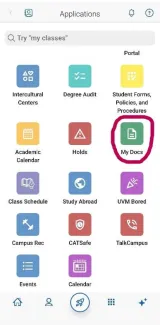
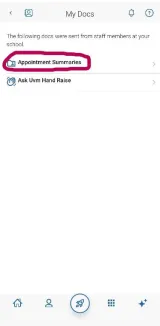
Appointment Summaries, Notes, and/or Progress Reports are viewable from the ‘My Docs’ tile on the Applications page.
How can I cancel an appointment?
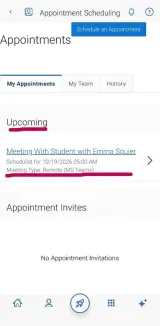
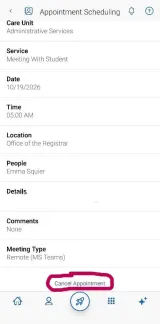
Click on the ‘Appointments’ icon under your applications. From there, go to the “My Appointments” tab. Click on the upcoming appointment, scroll to the bottom of the page, and click on ‘Cancel Appointment’. You will be able to type in a reason for the cancellation. Please note, if your appointment is within a couple hours, you may not have the option to cancel and should reach out to the person you scheduled the appointment with directly.
How do I schedule a Tutoring appointment?
- To schedule a Tutoring appointment, click the ‘Appointments’ icon on the app page and select Tutoring for the appointment type.
- In the Service dropdown menu, choose either Peer Academic Coaching or Subject Area Tutoring*.
- If desired, you can use the Specific Tutor, Meeting Type, and Course filters to narrow your search.
- Available appointments will appear on the right-hand side of the screen. To book a session, select a 45-minute tutoring appointment that fits your schedule.
- Review the appointment.
*Don’t see any tutors for your class? Complete the Tutor Inquiry Form at go.uvm.edu/utcif or email tutoring@uvm.edu.
What is Ask UVM Hand Raise?
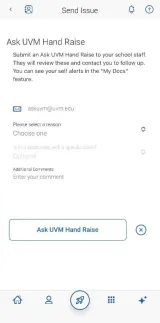
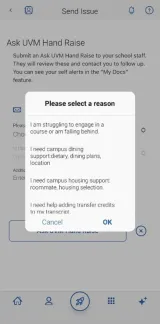
Ask UVM Hand Raise allows you to “raise your hand” or issue a self alert to get the support you need. Once you create a hand raise, it will automatically be assigned to the appropriate staff member depending on your need. For example, if you selected ‘I need support with academic success skills & habits’, your request would connect you with a staff member in the Tutoring Center for additional help.
How do I initiate an Ask UVM Hand Raise?
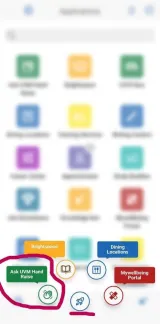
In the Navigate360 app, click on ‘Ask UVM Hand Raise’ located on the Applications page or in the Rocket. From there you can choose the appropriate reason, associate the hand raise with a specific class, and leave additional comments. Once your request is sent, the appropriate staff member will review it and contact you to follow up. You can always see your self alerts in the “My Docs” feature on your Applications page in the app.
What is the Ask UVM Knowledge Bot?
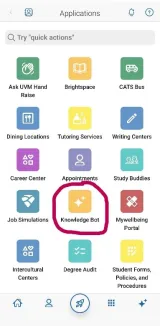
The Ask UVM Knowledge Bot is an AI-powered virtual assistant available 24/7 to help UVM students. It can answer questions about university services and processes, provide guidance, and connect you with relevant campus resources and support services whenever you need assistance.
What happens if the Ask UVM Knowledge Bot can’t answer my question?
If the bot can't answer your question, it may suggest relevant UVM resources or direct you to the office best equipped to help. Some questions may require assistance from a UVM staff member.
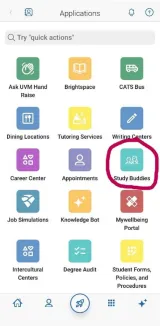
What is Study Buddies and how do I join?
Study Buddies allows you to identify classmates who are interested in group study and access their contact information directly in the app.
- Opt-in to Study Buddies for the courses you would like help in.
- Once other students have opted into Study Buddies, select the names of the students you want to contact.
- You will be directed to email these students.
I had a hold that was removed. Why do I still see it in Navigate360?
Navigate360 pulls information from our Student Information System (Banner) on a nightly feed. Please ensure 24 hours have passed since your hold was removed before reviewing Navigate360.
How do I set up notifications?
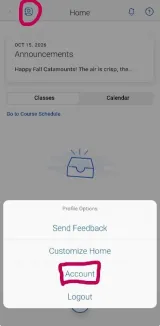
- Choose the ‘Account’ button on your app (top lefthand corner) or on the desktop site (top lefthand corner).
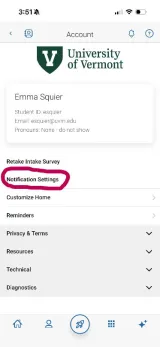
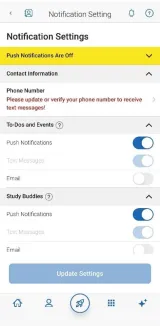
- Select ‘Notification Settings’. Scroll to find content categories such Study Buddies.
- Select your preferred method of notification.
- If you select the Text option, ensure that your cell phone number is accurate in Navigate360.
Whom do I contact if I have another question?
Ask UVM is a great place to start! They are located on the 3rd floor of the Davis Center, suite 301 right across from the bookstore. You can also use the Ask UVM Hand Raise and Ask UVM Knowledge Bot features in your Navigate360 app.