1. Home
  2. Network and Connectivity
  3. UVM Wireless – Remove outdated profile

UVM Wireless – Remove outdated profile

Every year, the UVM wireless network receives a new security certificate, replacing the previous year’s expired certificate. In some cases, macOS computers may not accept the new certificate automatically, and you will need to remove the expired certificate prior to reconnecting to eduroam or UVM wireless.

If you’re using a macOS computer and having trouble connecting to UVM wireless, it’s possible you need to remove an outdated profile using the steps below.

Before attempting the steps below, try forgetting the wireless network and restarting instead.

macOS 13 Ventura and newer
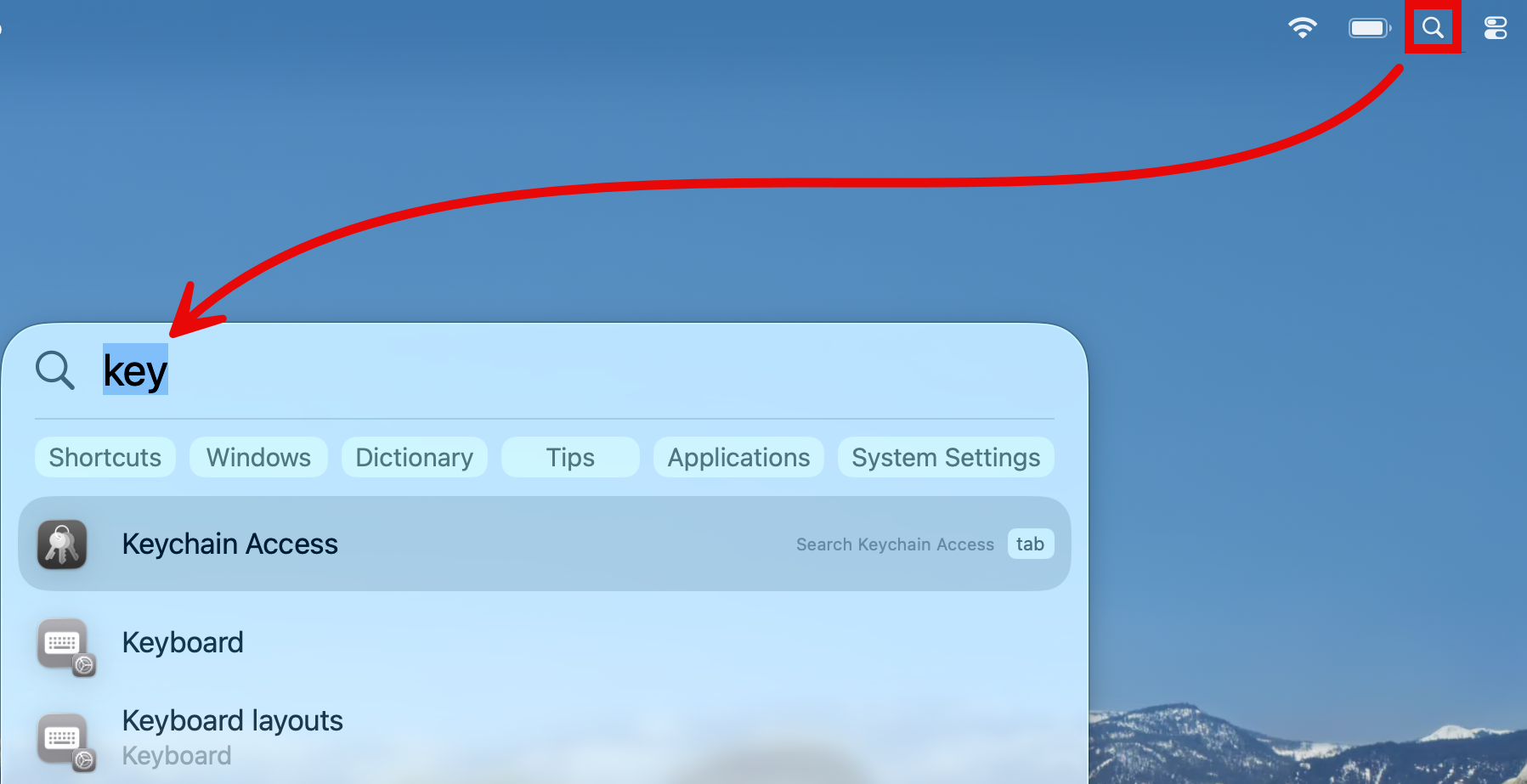
  1. Click the magnifying glass icon in the top right corner of your screen, search for “Keychain Access”, and double-click Keychain Access from the drop-down menu that appears.
    macOS Tahoe Spotlight search for Keychain Access
  2. Select the login tab from the left side of the Keychain Access window.
  3. Select radius.uvm.edu and hit the Delete key on your keyboard.
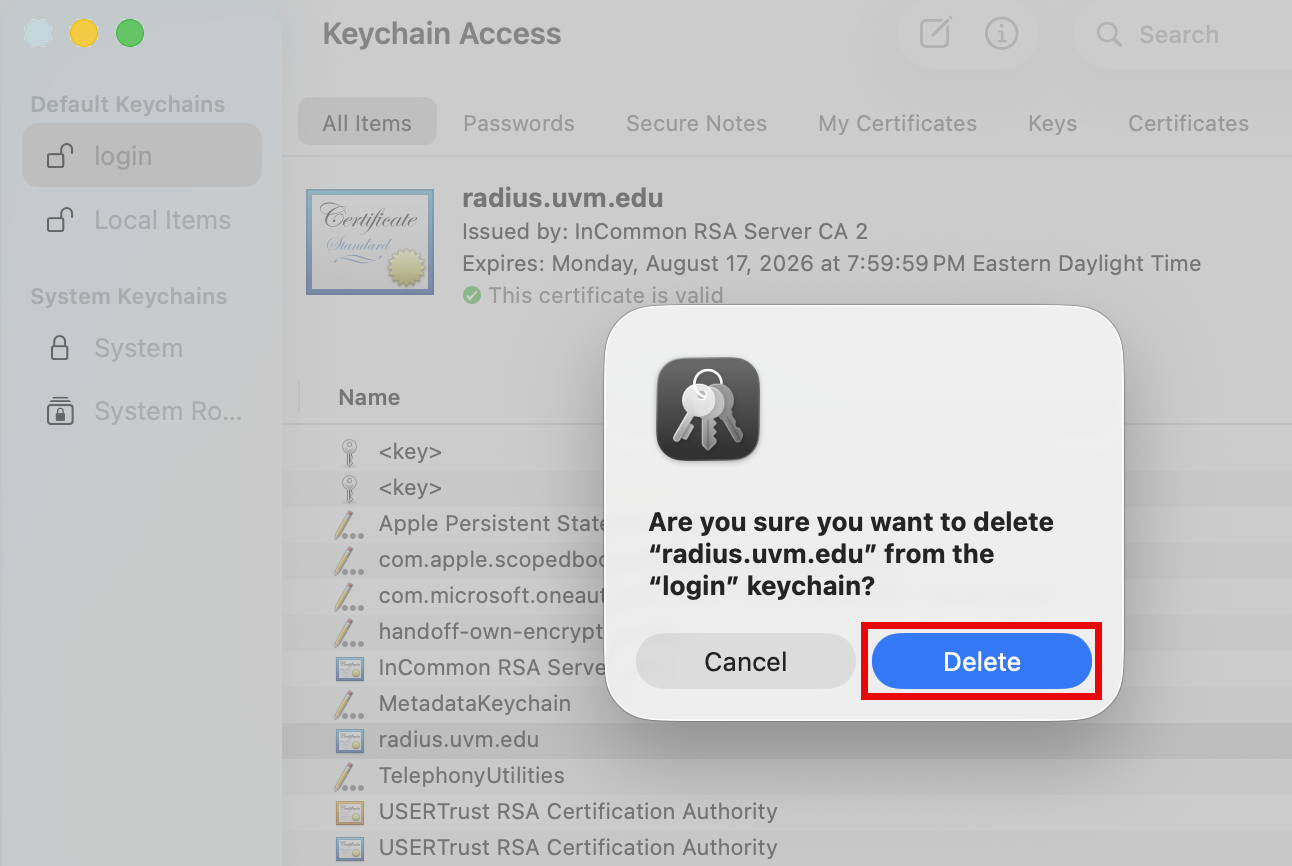
  4. Click Delete to confirm deletion.
    Keychain Access Delete button
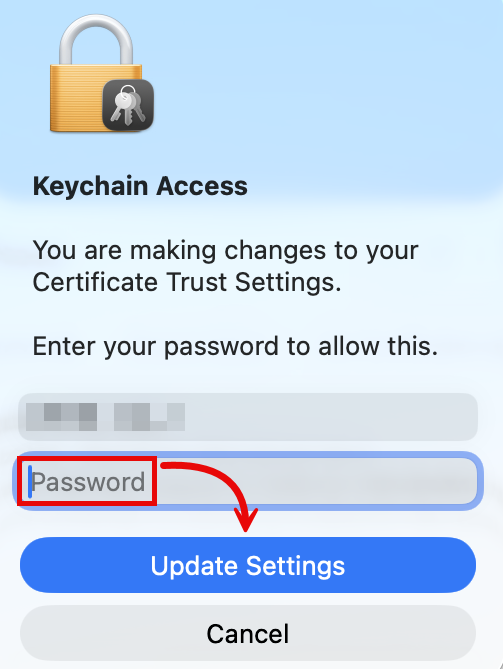
  5. Enter your computer’s admin password and click Update Settings.
    macOS Tahoe Admin Password confirmation window
  6. Restart your computer and attempt to connect to the eduroam Wi-Fi network again.

macOS 12 Monterey and earlier

  1. Click the Apple  in the top left corner of your screen and select System Settings.
  2. In the System Settings menu, click on Profiles.
    NOTE: If you do not have a Profiles icon, the issue you’re experiencing is different in nature than the one addressed in this guide. Please submit a help ticket.
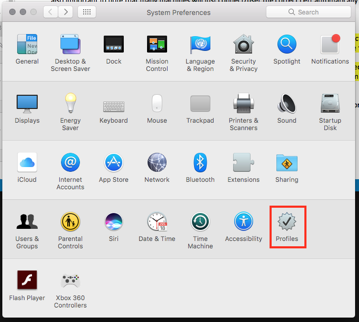
    Mac System Preferences Profiles.
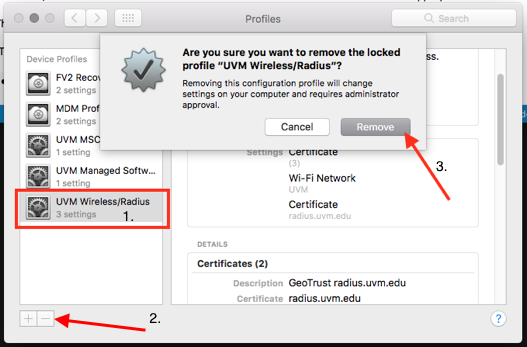
  3. From the Profiles menu, select the UVM Wireless profile, then click the minus button. Click Remove.
    Mac Remove Radius Profile.
  4.  If prompted, enter your computer password to confirm removal of the outdated profile. Mac Enter password to confirm changes.
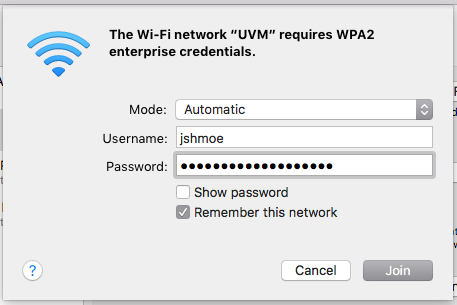
  5. Attempt to reconnect to the eduroam wireless network. You may be asked to enter your UVM username and password.
    Mac UVM Wireless Username and Password window.

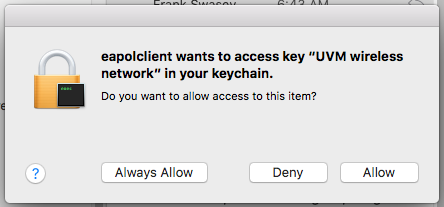
    1. Some machines may prompt for access to your Keychain. If you receive similar prompts, click Allow.
      Mac Allow Keychain access.
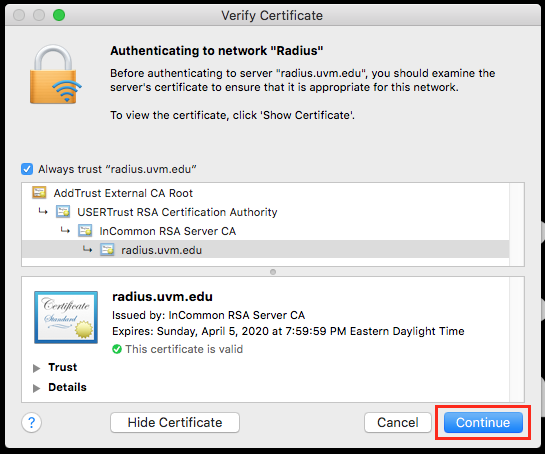
  6. If prompted, accept the new radius.uvm.edu certificate by clicking Continue.
    Mac Continue to confirm certificate.
  7. You should now be connected. You can verify by connecting to a website, such as Outlook Online.

Updated on February 9, 2026

Related Articles

Not the solution you were looking for?
Don’t worry we’re here to help!
Submit a Help Ticket