Mozilla Thunderbird is a free and open-source email client. While it is possible to add a UVM email account to Thunderbird, some features (such as the Calendar) do not work with Microsoft 365. Microsoft has an article on setting up email in Thunderbird that includes advanced settings that UVM does not assist with.
Setup
Installing Thunderbird
- Visit https://www.thunderbird.net/en-US/ and click the download button.
- Find and open the installer file.
- Follow the on-screen menus to install Thunderbird.
Adding a UVM Email Account to Thunderbird
- Mozilla recommends the Automatic Account Configuration. Follow that link to get started.
- However, the UVM-specific server settings will likely need to be configured manually. Use Mozilla’s Manual Account Configuration instructions along with the UVM Server Settings found at the bottom of this article to complete the setup.
- Alternatively, Mozilla has implemented the Exchange account type, which simplifies the setup process, but comes with some limitations. See their Thunderbird and Exchange article for the setup steps and list of limitations.
Removing an Email Account from Thunderbird
Typically, the quickest way to resolve Thunderbird email account issues is to remove and re-add the account.
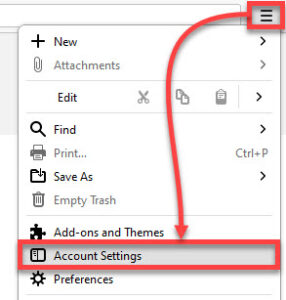
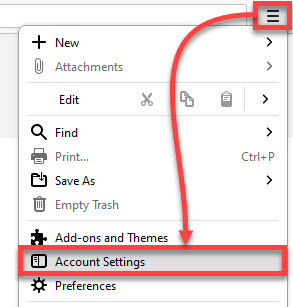
- Click the icon in the top right corner of Thunderbird, and then click Account Settings.
- Click the account you want to remove to highlight it.
- Click Account Actions in the bottom-left corner, and then Remove Account. Or, depending on the version of Thunderbird you have, click Delete in the upper-right corner.
- Check the box next to Remove message data, click Remove, then click OK.
Server Settings
Mail Server (IMAP) settings
These settings configure the server to which Thunderbird will connect to access and store your email.
Server Name: outlook.office365.com
Port: 993
User Name: Your email address as netid@uvm.edu
Connection Security: SSL/TLS
Authentication Method: OAuth2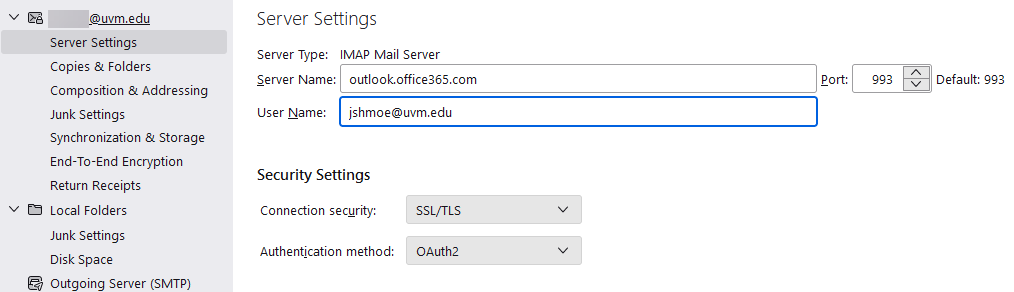
Outgoing Server (SMTP) settings
These settings configure the server to which Thunderbird will connect to send outgoing email messages.
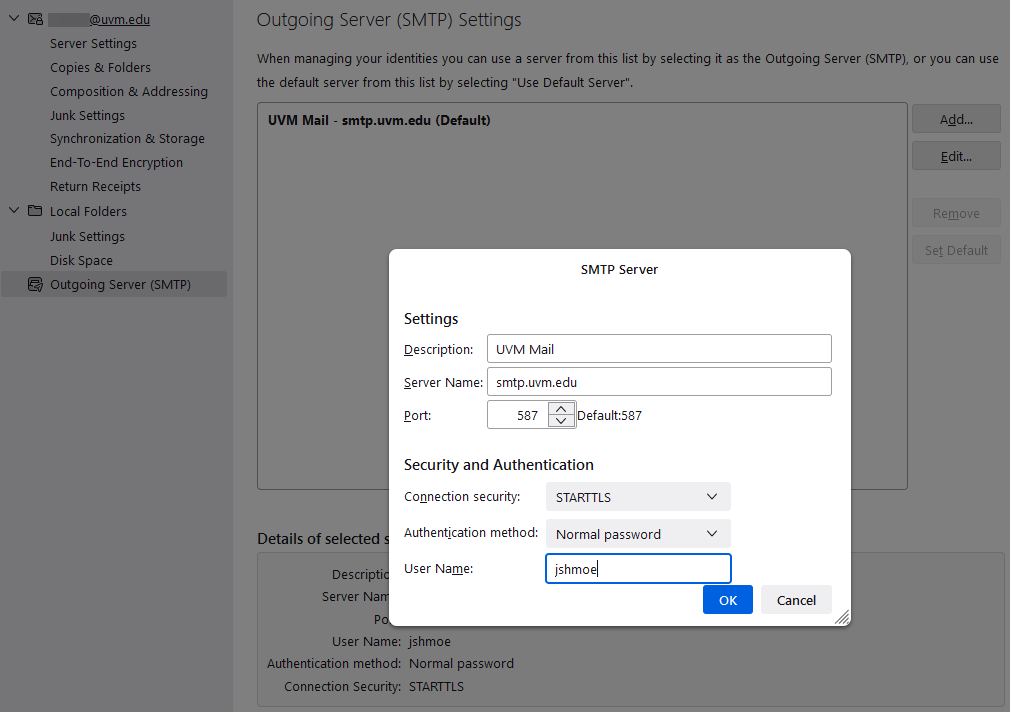
Server Name: smtp.uvm.edu
Port: 587
Connection Security: STARTTLS
Authentication Method: Normal password
User Name: Your NetID