
Microsoft Teams Sign language mode is an accessibility feature designed to support Deaf and Hard-of-Hearing participants and sign language interpreters during meetings. When enabled, Teams prioritizes participants who are signing or interpreting by keeping their video feeds visible, larger, and higher quality – even when content is shared or other speakers are active. This helps ensure uninterrupted visual access to signing throughout the meeting.
For additional details, please see Microsoft documentation on Sign language mode.
Enable Sign Language Mode
You can turn on Sign language mode either before a meeting or during a meeting.
Enable Before a Meeting
-
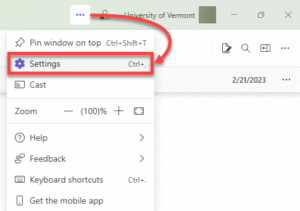
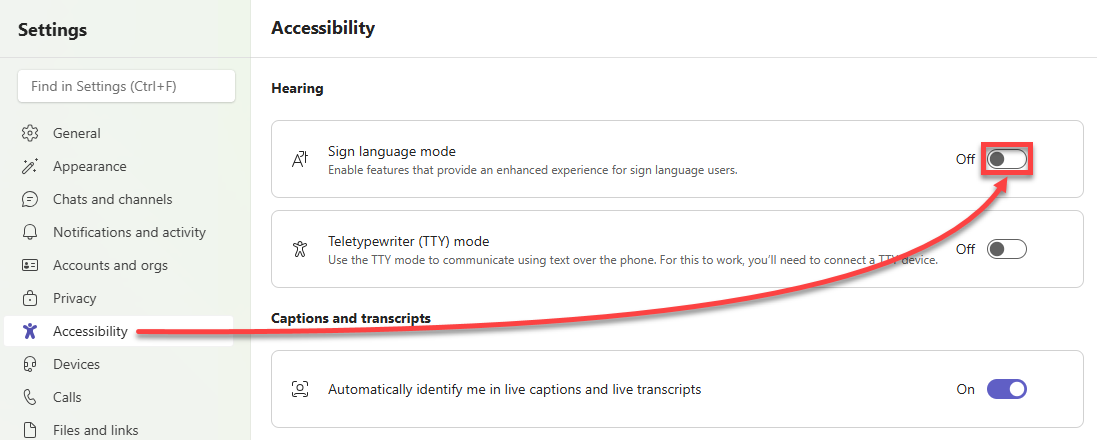
- In Microsoft Teams, click the three dot menu (…) near the top-right and select Settings.
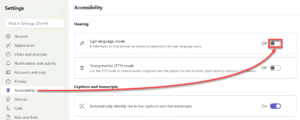
- Under the Accessibility section, toggle on the Sign language mode.
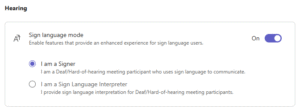
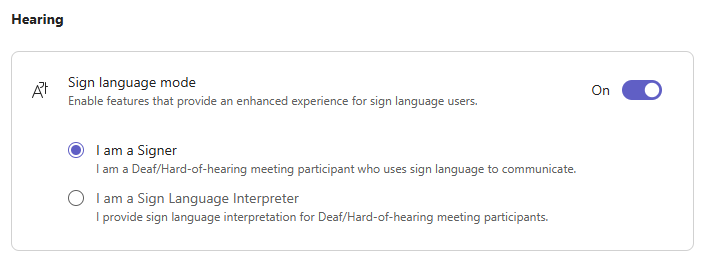
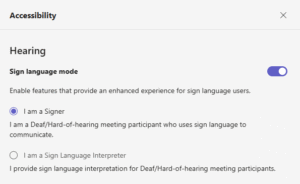
- Once Sign Language Mode is on, you can select your role:
- I am a signer (for Deaf or Hard-of-Hearing participants who use sign language)
- I am a Sign Language Interpreter (for participants providing interpretation)
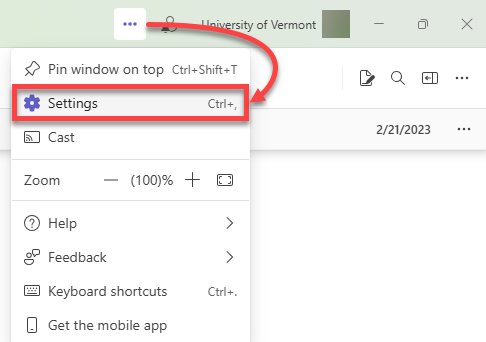
- In Microsoft Teams, click the three dot menu (…) near the top-right and select Settings.
Enable During a Meeting
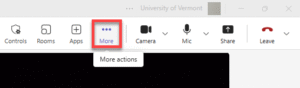
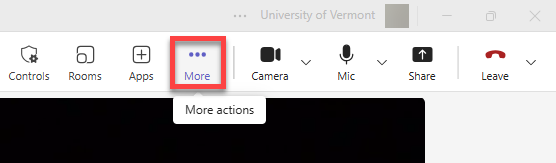
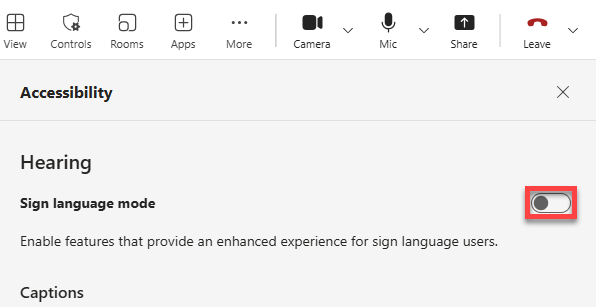
- During a Teams meeting, click the three dot (…) More menu near the top-right.
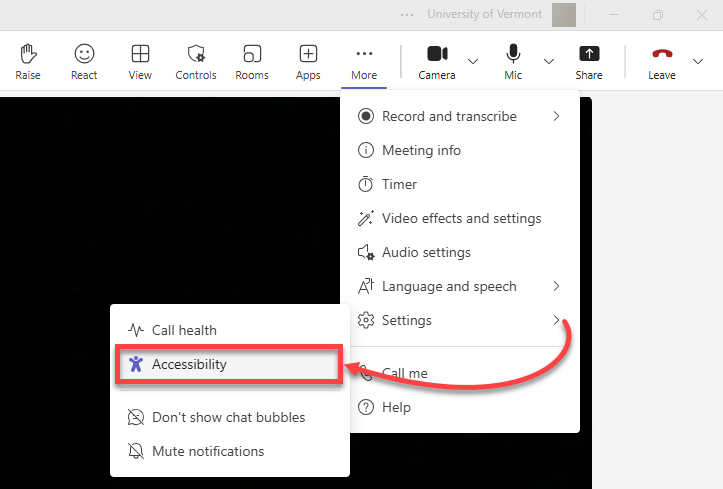
- Under the Settings section, open Accessibility.
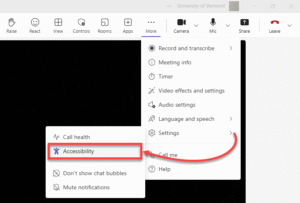
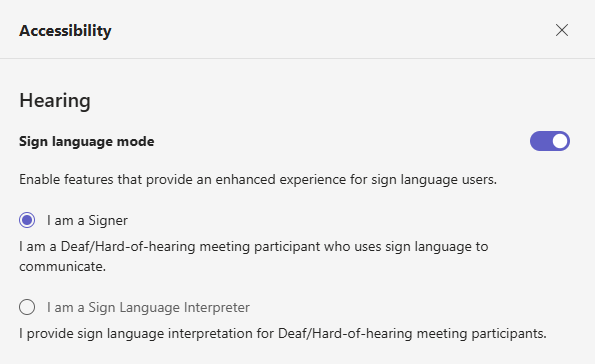
- Toggle Sign language mode to On.
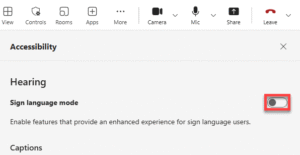
- Once Sign Language Mode is on, you can select your role:
- I am a signer (for Deaf or Hard-of-Hearing participants who use sign language)
- I am a Sign Language Interpreter (for participants providing interpretation)
What Changes With Sign Language Mode Enabled?
After enabling Sign language mode:
- A Sign language view is added to your available meeting views and becomes your default view.
- You can switch between views at any time using the View menu.
- Participants identified as signers or interpreters are prioritized visually, even when someone is sharing their screen.
- Interpreters are clearly labeled as Sign Language Interpreter in the participant roster.
- Signers are marked with a visual indicator in the roster.