
Some accounts at UVM have elevated permissions to perform various actions on the Domain. These accounts cannot be reset through https://account.uvm.edu.
Examples:
| Account Type | Username |
|---|---|
| Tech | NetID.tech |
| Admin | NetID.adm |
Change Domain Account Password
Horizon VDI using Ctrl-Alt-Del
For more details about connecting to the VDI, see the UVM VDI – Sign in, Install, and Troubleshooting KB article. For this process, you’ll use the UVM Windows Workstation VDI pool.
- Navigate to desktop.uvm.edu or open the Horizon Client Application. If you don’t want to or can’t install the Horizon Client to your computer, you can choose Omnissa Horizon Web Client to connect via your web browser.
- Login with your regular NetID and Password.
- Enter a Passcode from your Duo Mobile app, or enter one of the numbered options to choose an alternative second-factor, and click Continue.
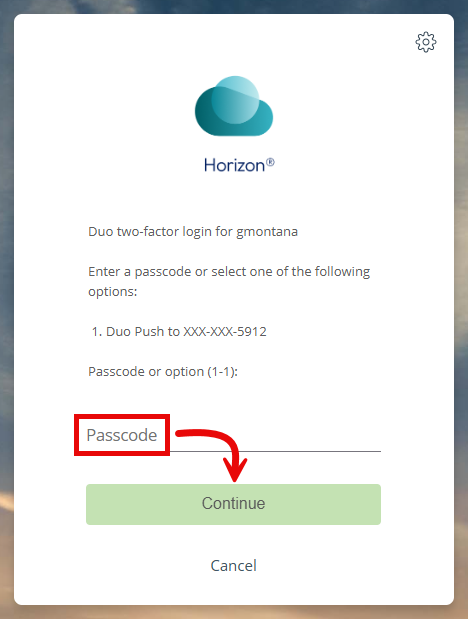
- Continue through the two-factor login process if needed, approving the push or entering the appropriate code.
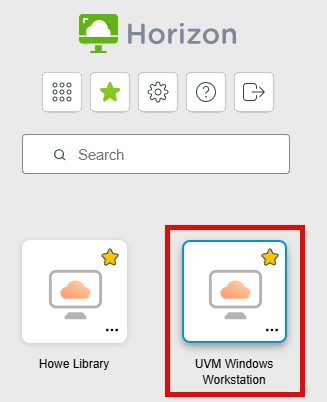
- Select UVM Windows Workstation from the list of VDI Pools.
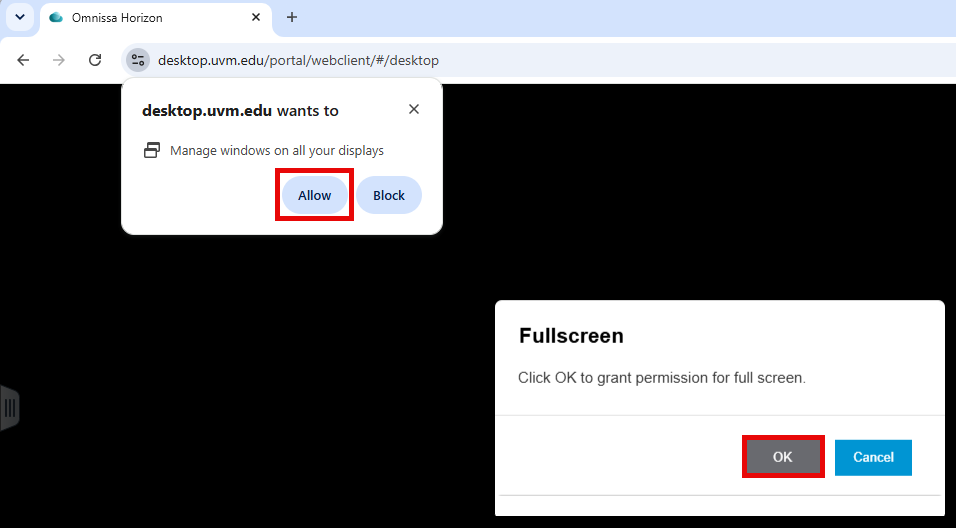
- If prompted to grant permissions for full screen or microphone and camera, click OK and/or Allow.
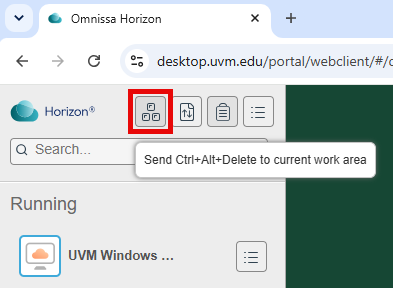
- Expand the Horizon sidebar by clicking the three lines button on the left side of the window.

- Send Ctrl+Alt+Delete to current work area by clicking the button showing three keys at the top of the sidebar.
- Click Change a password.
- Add .tech or .adm to the end of the user name so it says “CAMPUS\” followed by the account whose password you’re changing.
- Enter your old .tech or .adm password, choose a new one and enter it twice, and click the right arrow button ().
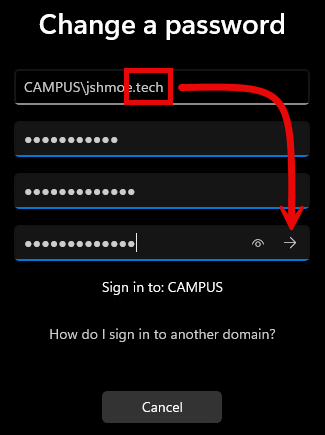
- If you get the Your password has been changed message, it worked! Click OK, and then Sign out of the remote computer.
Horizon VDI using PowerShell
For more details about connecting to the VDI, see the UVM VDI – Sign in, Install, and Troubleshooting KB article. For this process, you’ll use the UVM Windows Workstation VDI pool.
- Navigate to desktop.uvm.edu or open the Horizon Client Application.
- Sign in with your regular NetID and Password and respond to the Duo prompts.
- Select UVM Windows Workstation from the list of VDI Pools.
- Open Windows PowerShell on the remote computer. One way to do this is to right-click the Start Menu () and select Windows PowerShell.
- Run one of the following commands:
runas /user:CAMPUS\<your NetID>.tech powershell
runas /user:CAMPUS\<your NetID>.adm powershell
- Enter your current .tech or .adm password and hit Enter. This will open a new PowerShell window, running as the user you specified in the previous step.
- Run the following command:
Set-ADAccountPassword -Server 'campus.ad.uvm.edu' -Identity $env:Username
- Choose a new password and enter it twice, hitting Enter after each time.
- Close the PowerShell window and Sign out of the remote computer.
CAMPUS Domain-Joined Windows Computer (legacy)
The steps below only work on a CAMPUS domain-joined Windows computer. These computers are becoming more rare as they are replaced by machines managed by Microsoft’s cloud platform, Intune. If you are unsure if you have a CAMPUS domain-joined computer or if you have a Mac, use the Horizon VDI instructions above instead.
If you are not on campus connected to the UVM network, connect to the VPN before completing these steps:
- Log into your workstation (a Domain-joined Windows machine) with the account that needs a password change.
- After logging in, press ctrl+alt+del.
- Click on Change a password.

- Enter your current password, a new password, and a password confirmation.

Creating a Secure Password
Before entering a new password using one of the methods above, ensure it meets modern security standards:
- Length is key: Use 14+ characters or a passphrase of 4+ random words
- Avoid predictability: Don’t use personal info, common words, or simple patterns
- Unique for every account: Never reuse passwords across different services
- Consider a password manager: Securely store and generate complex passwords
Need inspiration for a strong password? You can use online tools like password generators to create highly secure combinations. For more comprehensive guidance on protecting your UVM credentials, see our official resource: Protecting Your NetID & Password.
If you are off-campus, you may need to connect to the VPN.