1. Home
  2. Brightspace
  3. Non-Credit Student Portal
  1. Home
  2. Accounts and Access
  3. Non-Credit Student Portal

Non-Credit Student Portal

The Non-Credit Student Portal is UVMs registration and management system for Non-Credit courses. You can use this portal to register for non-credit courses, view your enrollment history, access certificates, and access Brightspace UVM’s LMS (Learning Management System) for course materials.

Sign into the Non-Credit Student Portal at ncro.uvm.edu

Non-Credit Schedule of Courses

The UVM Non-Credit Schedule of Courses and Course Access Information can be found here.

Signing in with your NetID

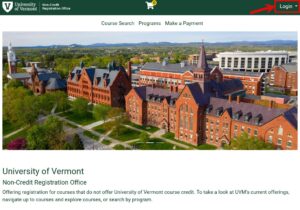
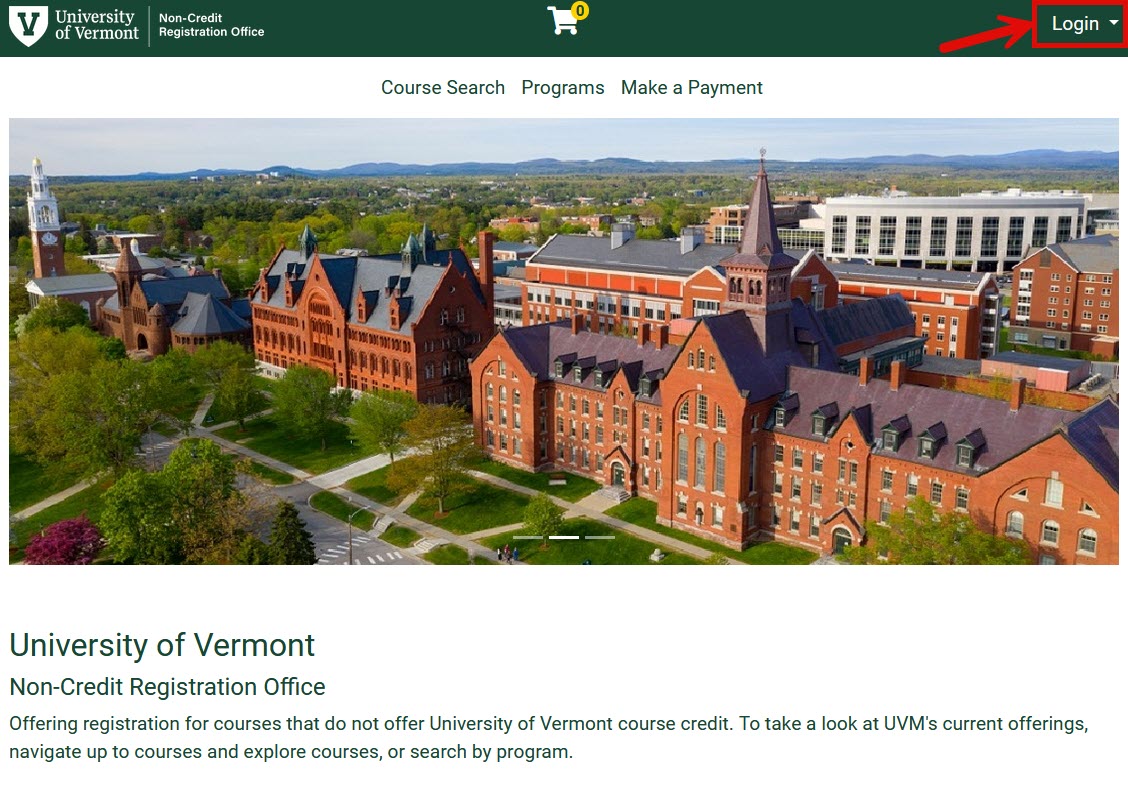
  1. Click Login in the top right corner of the Non-Credit Student Portal homepage.screenshot of the non-credit student portal landing page
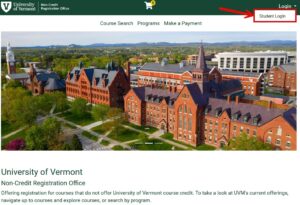
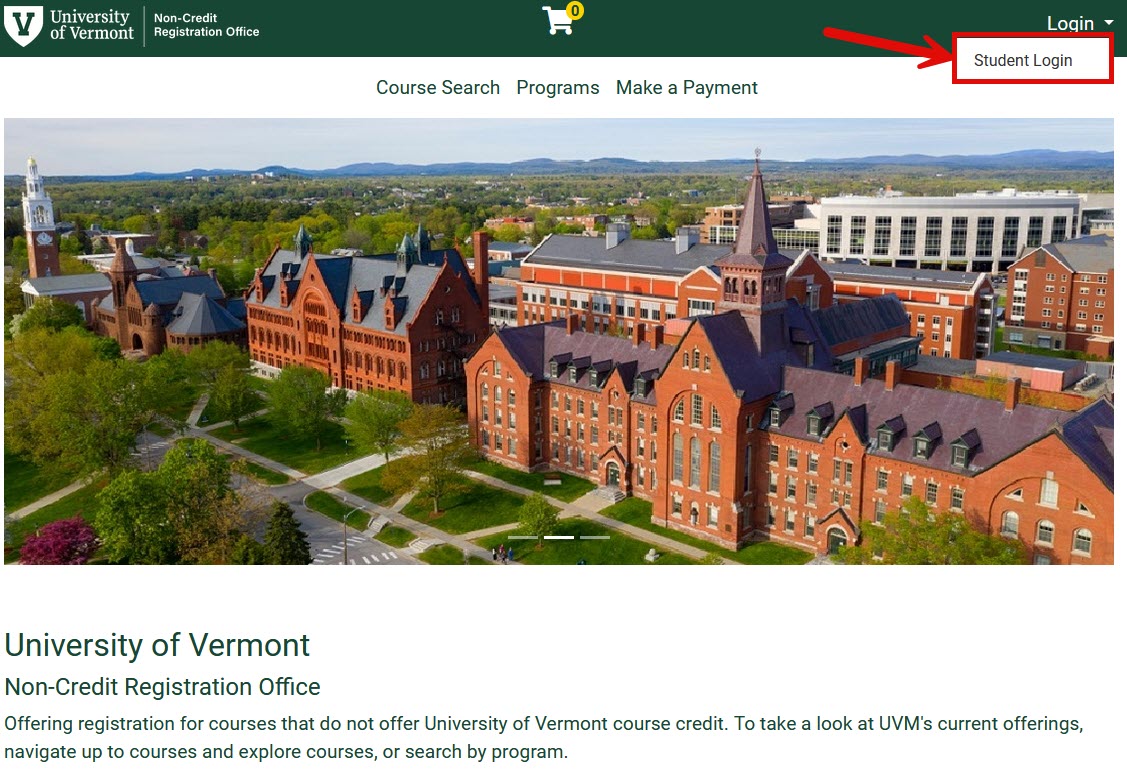
  2. Click Student Login.screenshot of the non-credit student portal landing page
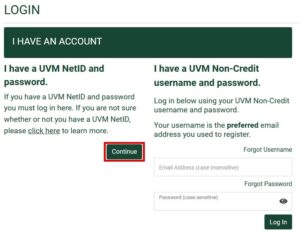
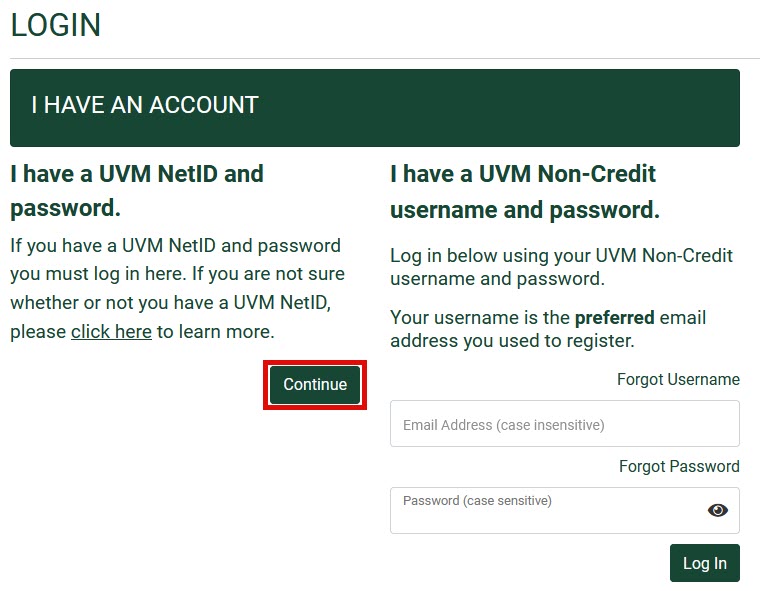
  3. Click Continue under “I have a UVM NetID and password.”screenshot of the non-credit student portal login options
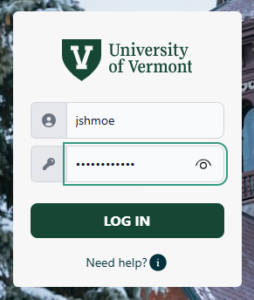
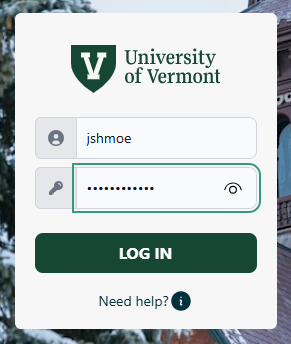
  4. Enter your NetID and NetID Password and click LOG IN.SSO NetID Login prompt

Signing in with your Non-Credit Account

  1. Click Login in the top right corner of the Non-Credit Student Portal homepage.screenshot of the non-credit student portal landing page
  2. Click Student Login.screenshot of the non-credit student portal landing page
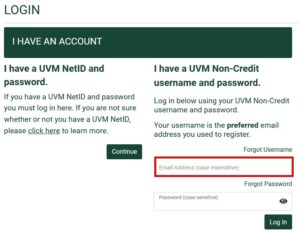
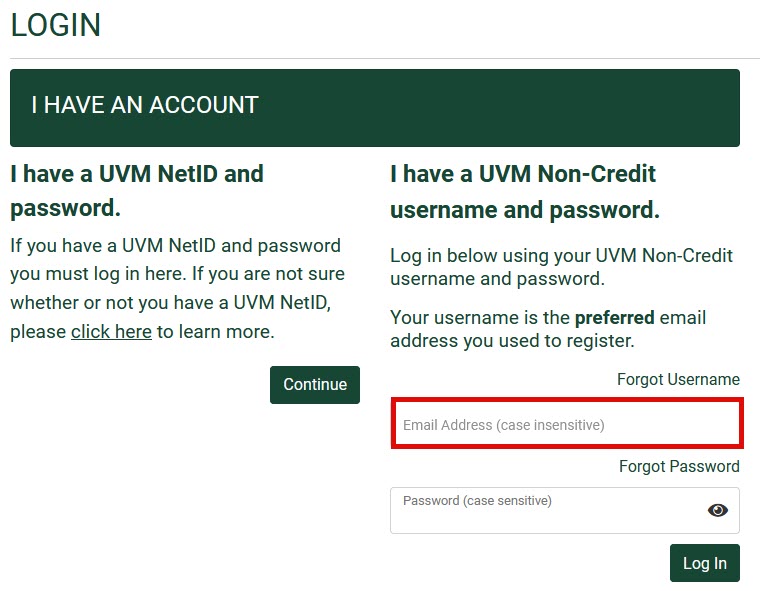
  3. Enter the preferred email address you used to register.screenshot of the non-credit student portal login options
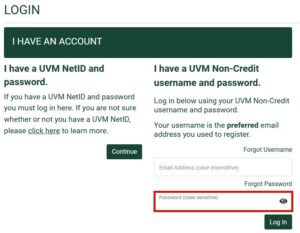
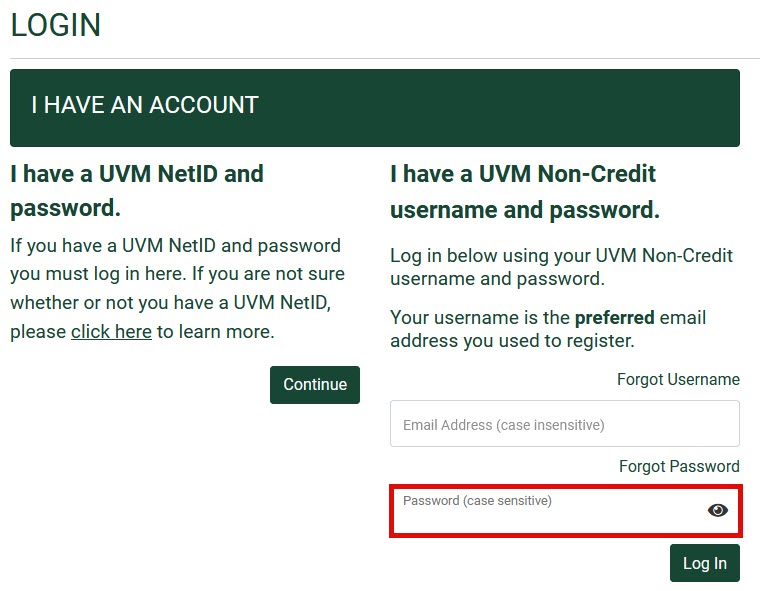
  4. Enter your password.screenshot of the non-credit student portal login options
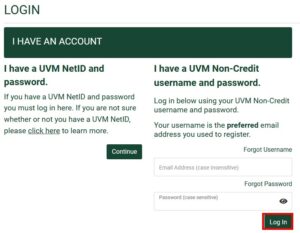
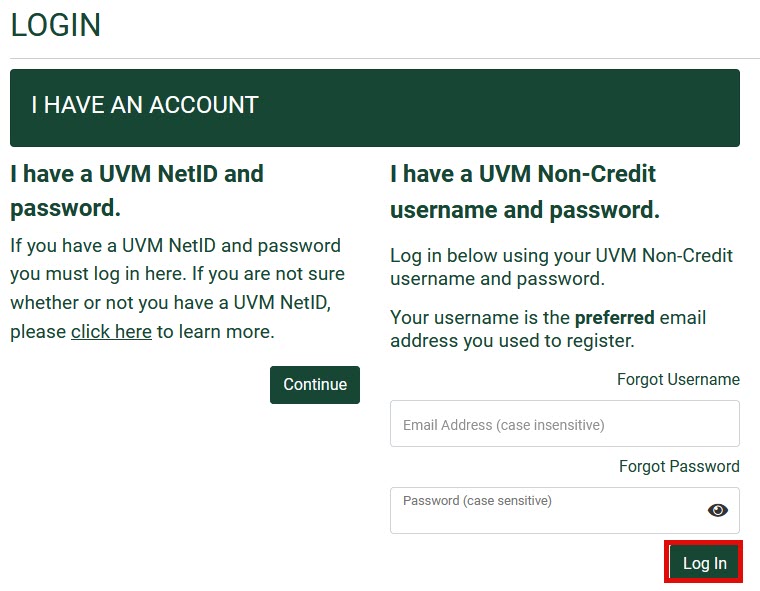
  5. Click Log In.screenshot of the non-credit student portal login options

Resetting the Password for a Non-Credit Account

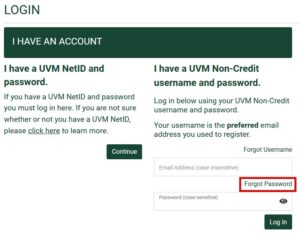
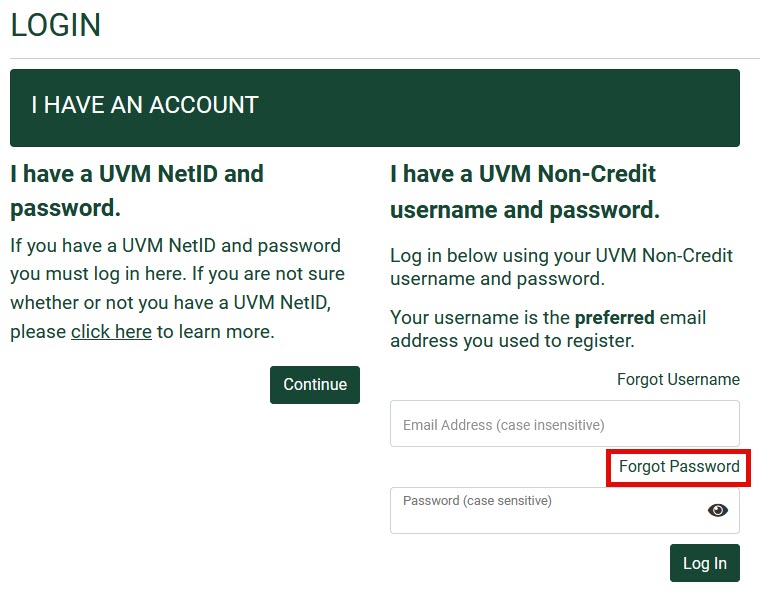
  1. Click Forgot Password under “I have a UVM Non-Credit username and password.”screenshot of the non-credit student portal login options
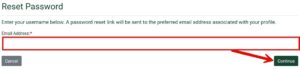
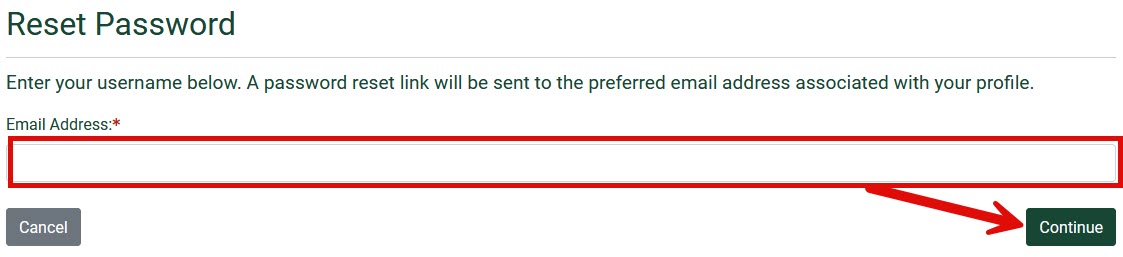
  2. Enter the preferred email address you used to register and then click Continue.screenshot of the non-credit student portal password reset form
  3. Check the preferred email address associated with your account for further reset instructions.
Accessing Brightspace

Privacy Agreement

Before being able to access Brightspace you may have to complete the privacy agreement by entering your initials into the two boxes at the bottom of the Contact Preferences tab and clicking Save.

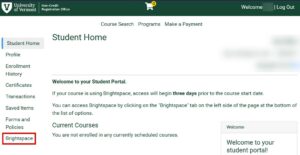
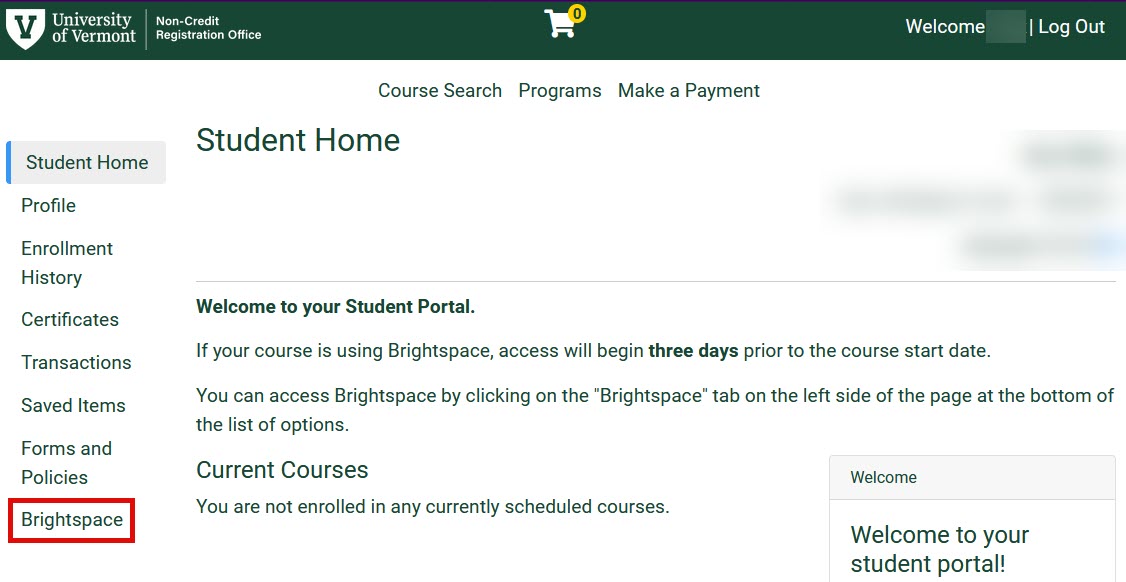
  1. From your Student Home page click Brightspace from the list of options on the left hand side. You will then be automatically redirected to the Brightspace homepage.screenshot of the non-credit student portal home page


Updated on April 6, 2026

Related Articles

Not the solution you were looking for?
Don’t worry we’re here to help!
Submit a Help Ticket