What is Bulk Feedback?
Bulk feedback allows you to apply the same feedback text to multiple learners at once (or to all learners) in an Assignment or Discussion submission. Bulk feedback lets you:
- Select a subset of students and give them shared feedback
- Give feedback to all students simultaneously
- Save feedback as a draft (so students don’t see it yet) or publish immediately
When to Use Bulk Feedback
Use it when you want to:
- Insert a general comment or reminder for many students
- Release the same feedback to all learners at once
- Standardize a message (e.g., “Be sure to check your citations”)
How to Use Bulk Feedback on Assignments
How to Use Bulk Feedback on Assignments
Add Feedback to Select Learners
To use bulk feedback to add feedback for select learners on an assignment, locate the assignment you want to assess:
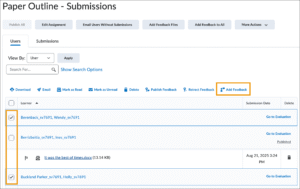
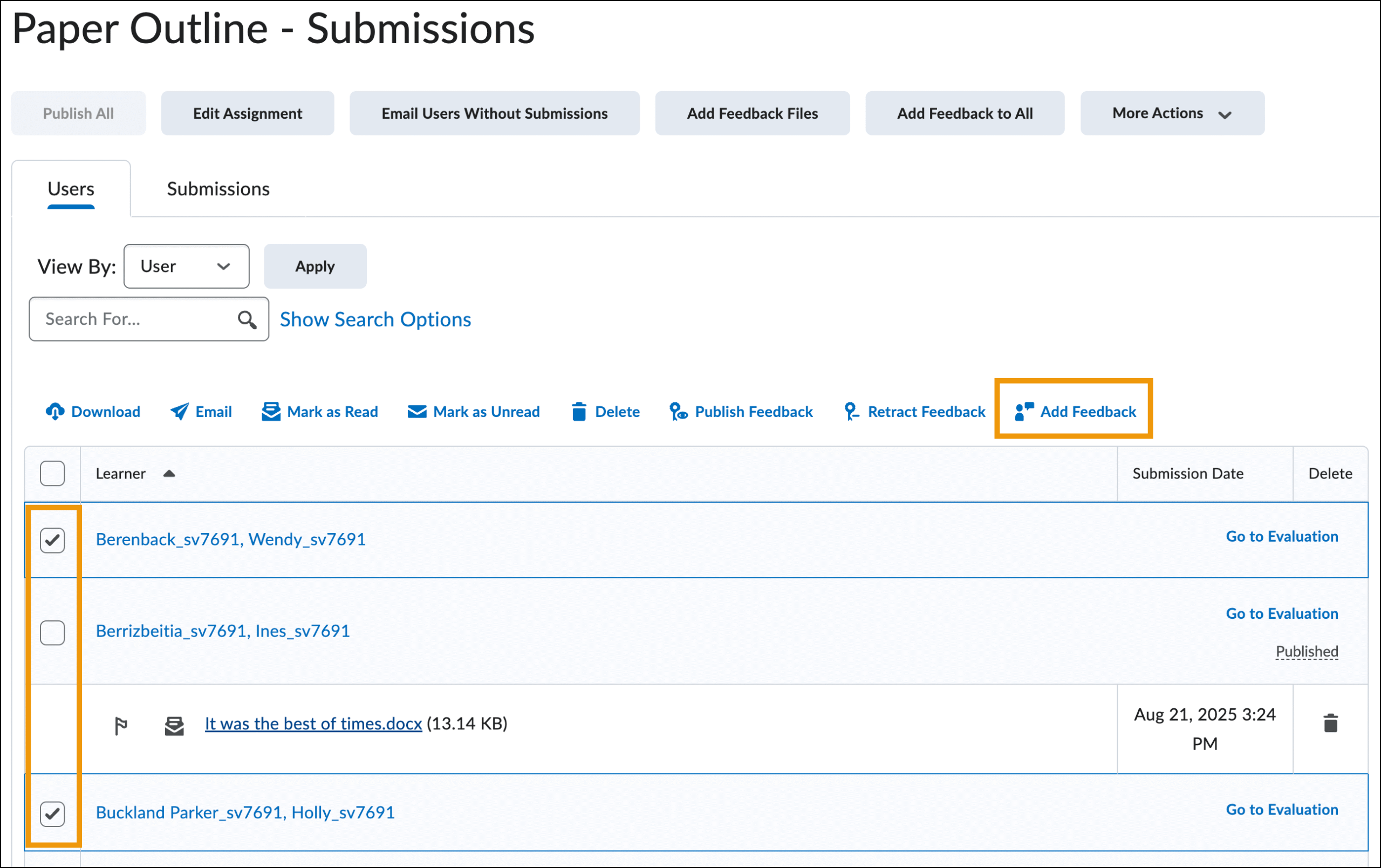
- From the assignment submissions page, select the learners for whom you want to add feedback, then click Add Feedback.
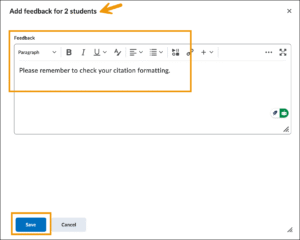
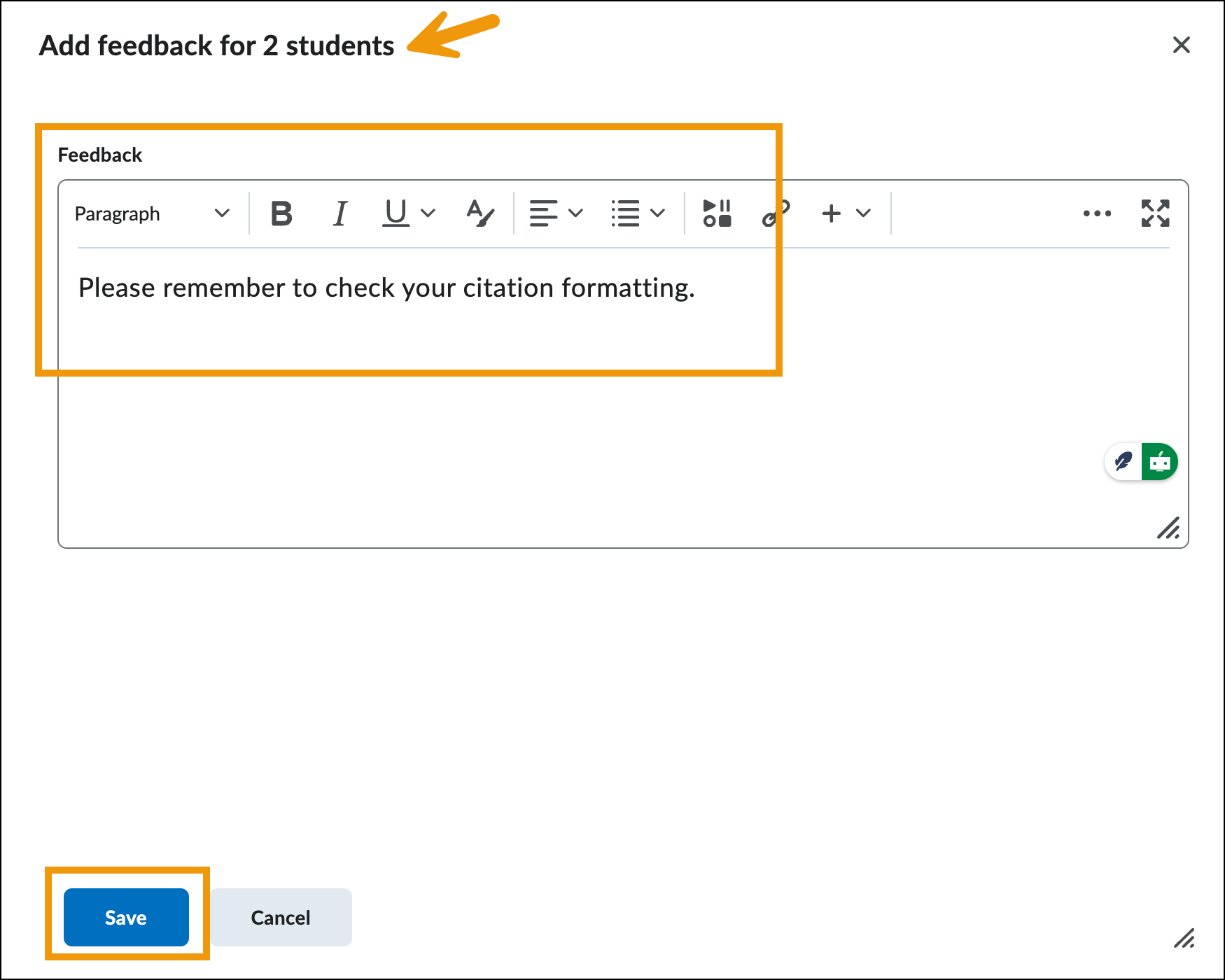
- The dialog box will confirm that you are adding feedback for selected learners (two students in this example). Enter your written feedback in the Feedback field and click Save.
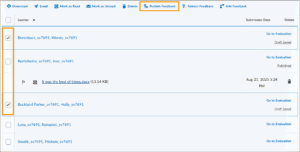
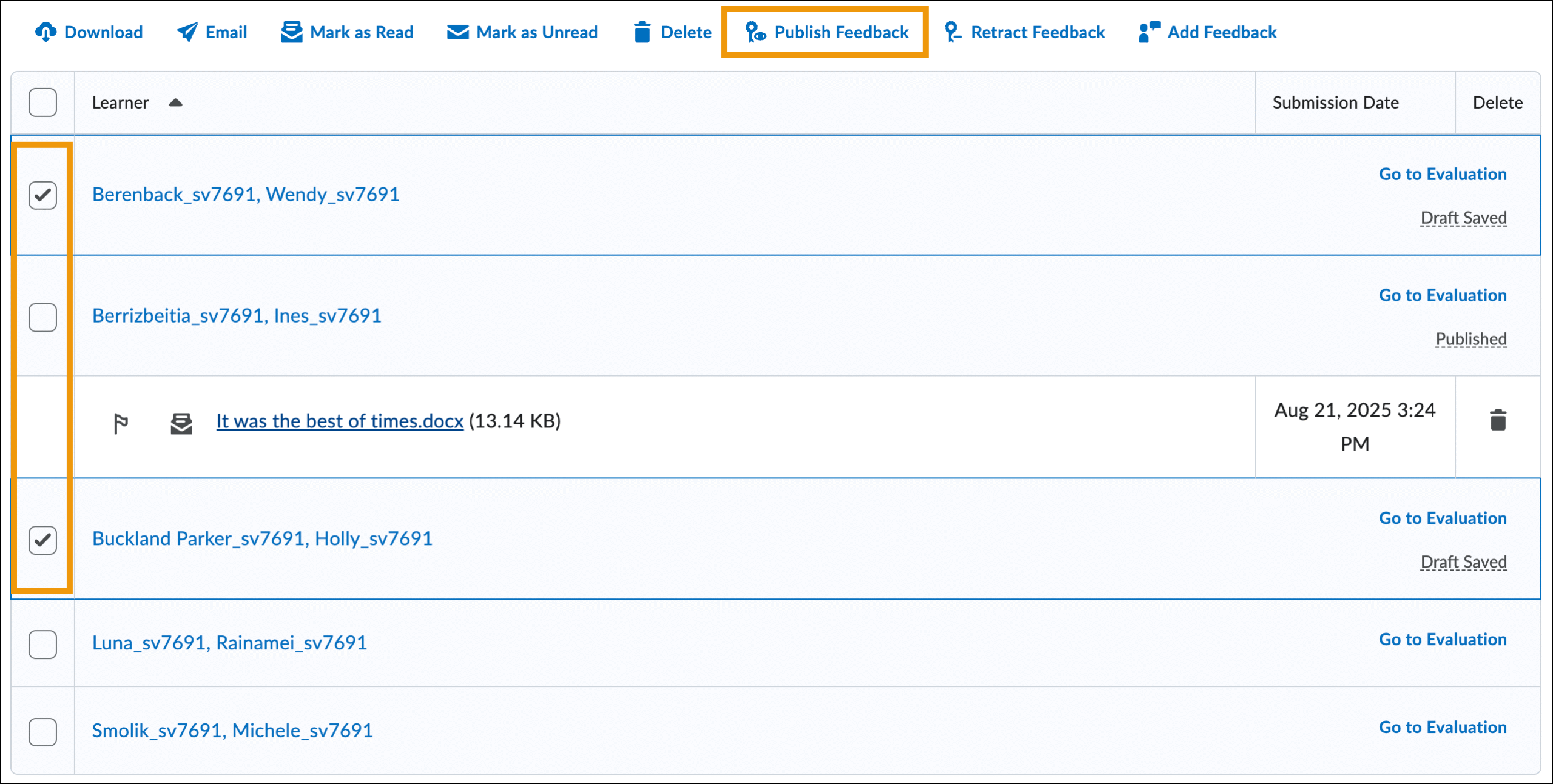
- You will see a confirmation message indicating that feedback has been added for two learners. If you are ready to publish the feedback, leave the boxes next to the two learners and click Publish Feedback.
Add Feedback to All Learners
To use bulk feedback to add feedback to ALL learners on an assignment, locate the assignment you want to assess:
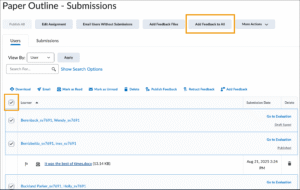
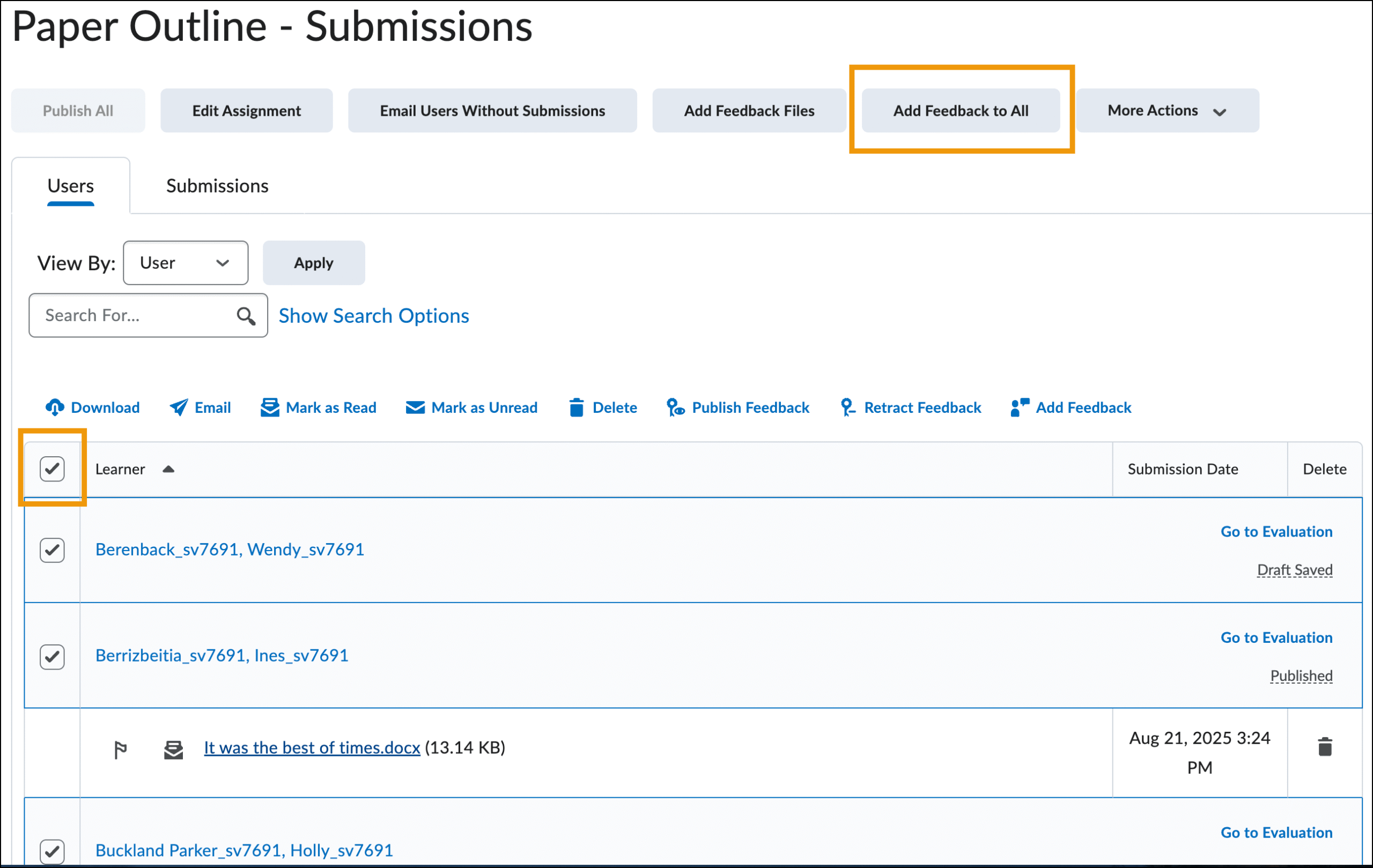
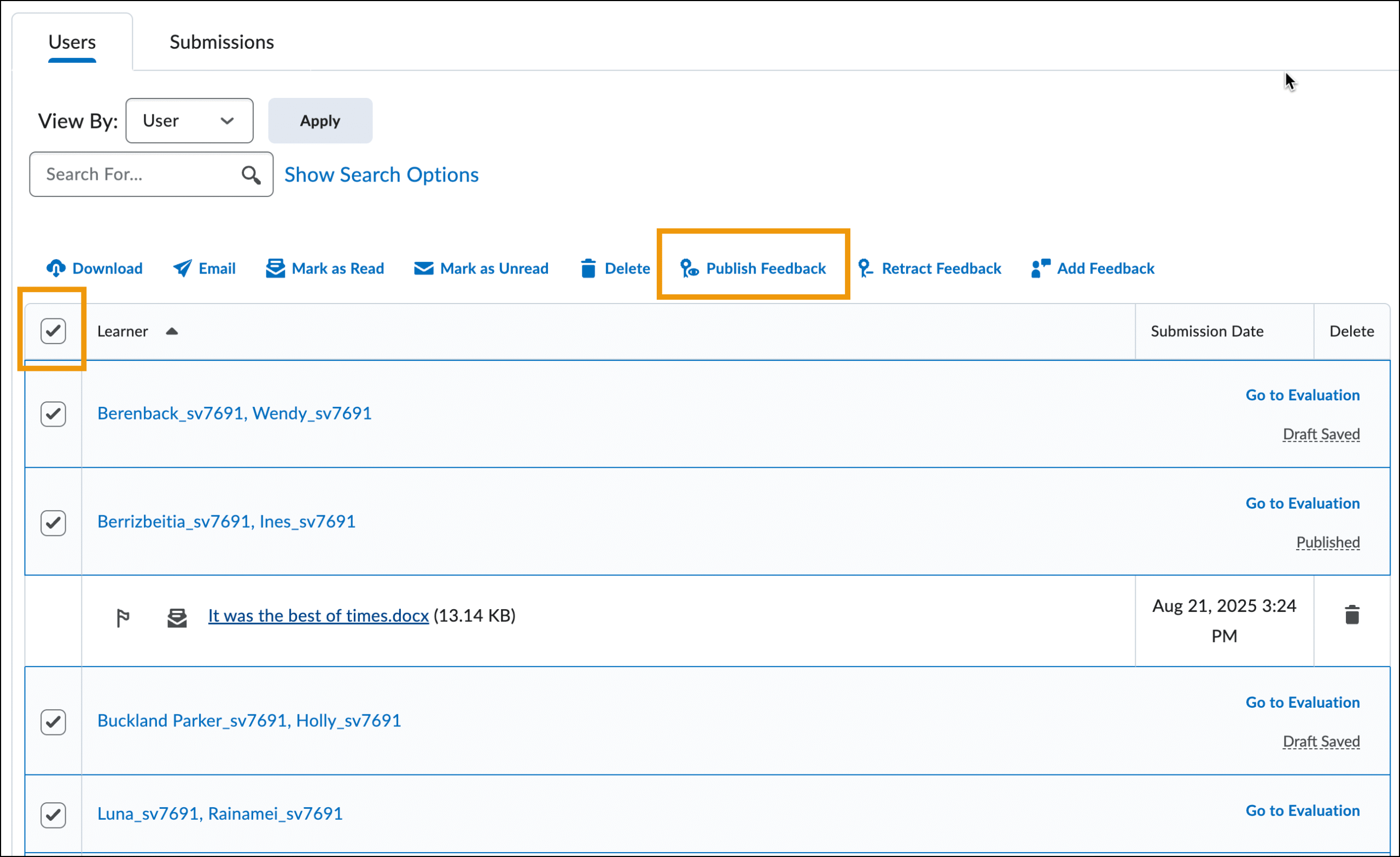
- From the assignment submissions page, check the box next to Learner to select all learners in the course, then click Add Feedback to All.
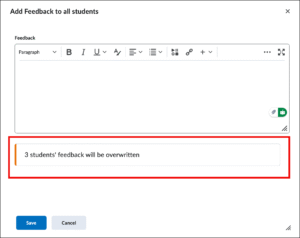
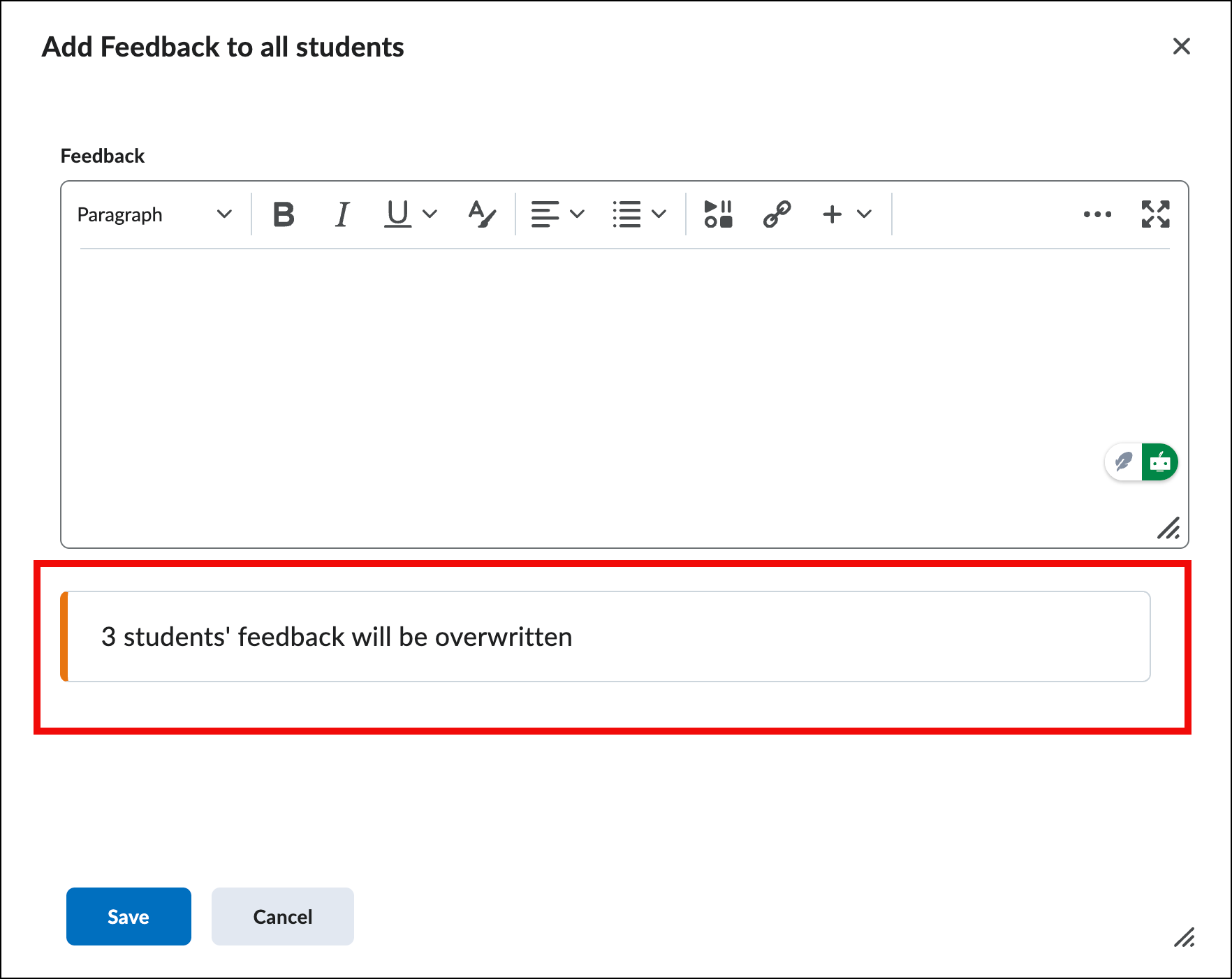
- NOTE: You will receive a message indicating that some learners’ feedback will be overwritten (in this example, three learners).
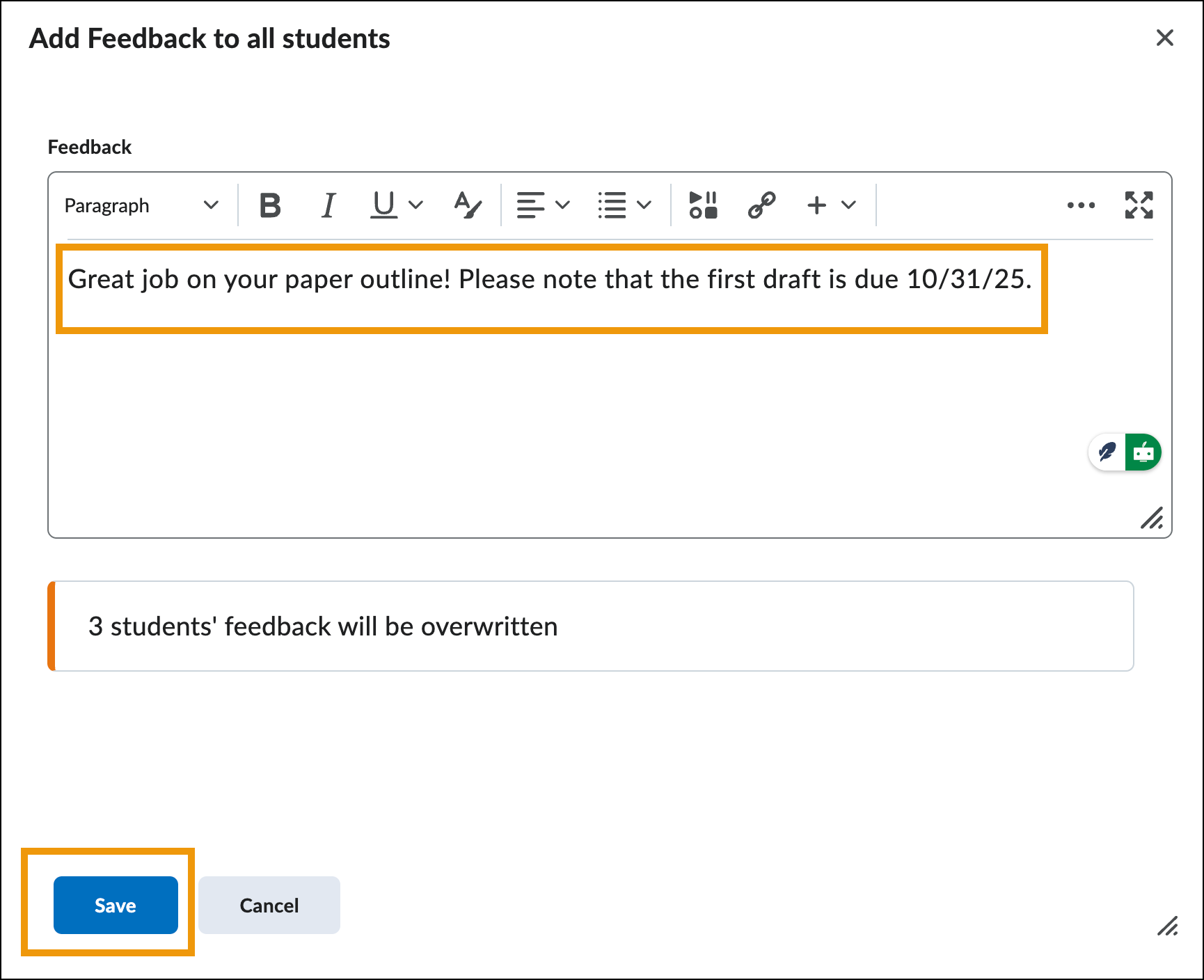
- To proceed and leave the same feedback for all users, enter your feedback in the Feedback field, then click Save.
4. You will see a confirmation message indicating that feedback has been added for all learners. If you are ready to publish the feedback, leave the boxes next to all learners checked and click Publish Feedback.
How to Use Bulk Feedback on Discussions
How to Use Bulk Feedback on Discussions
Add Feedback to Select Learners
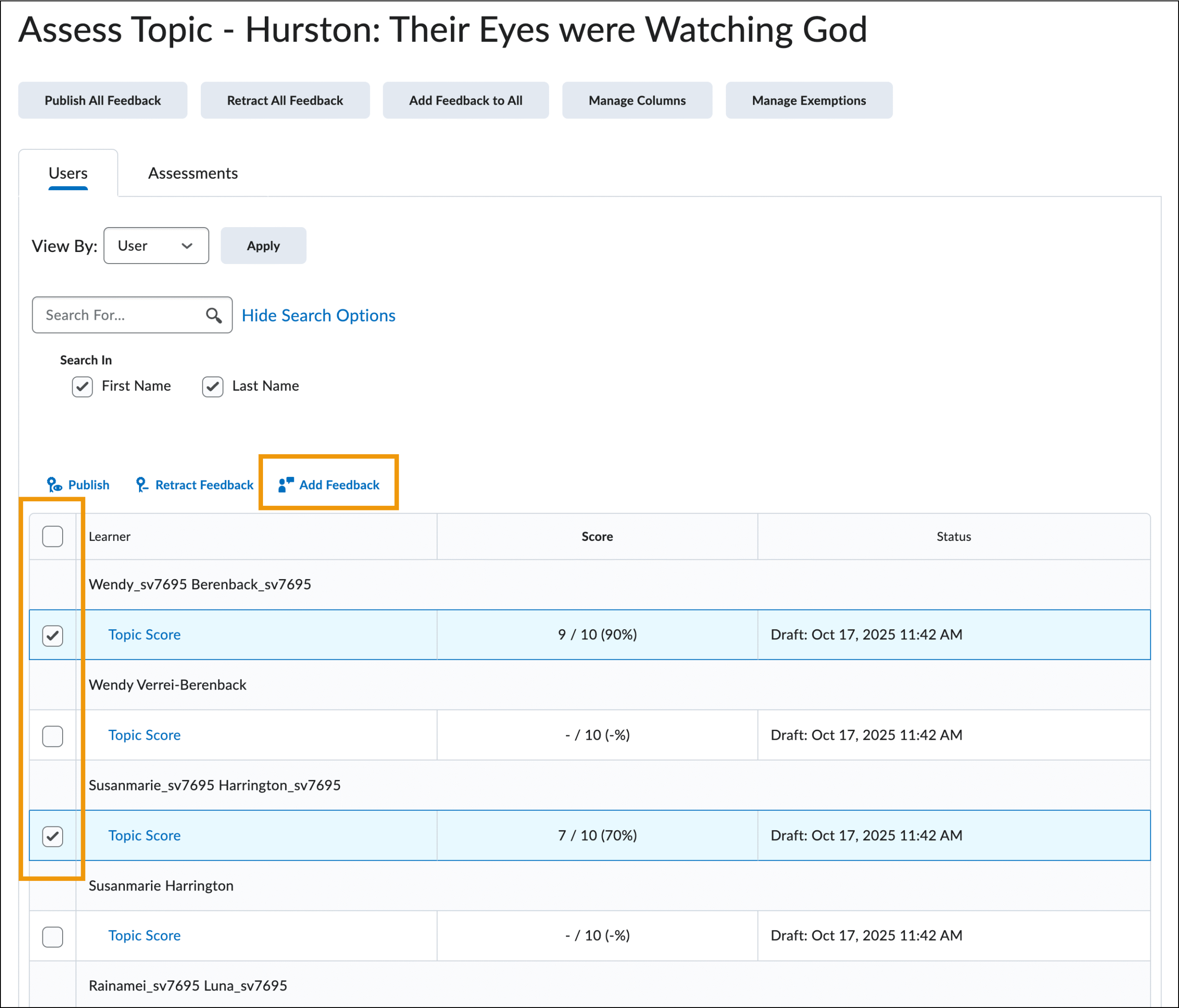
To use bulk feedback to add feedback for select learners on a discussion assignment, locate the discussion topic you want to assess:
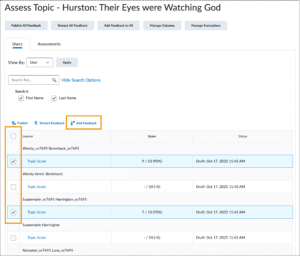
- From the submissions page, select the learners for whom you want to add feedback, then click Add Feedback.
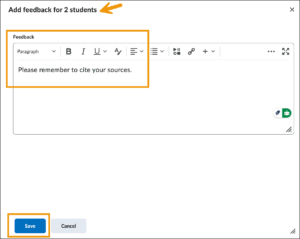
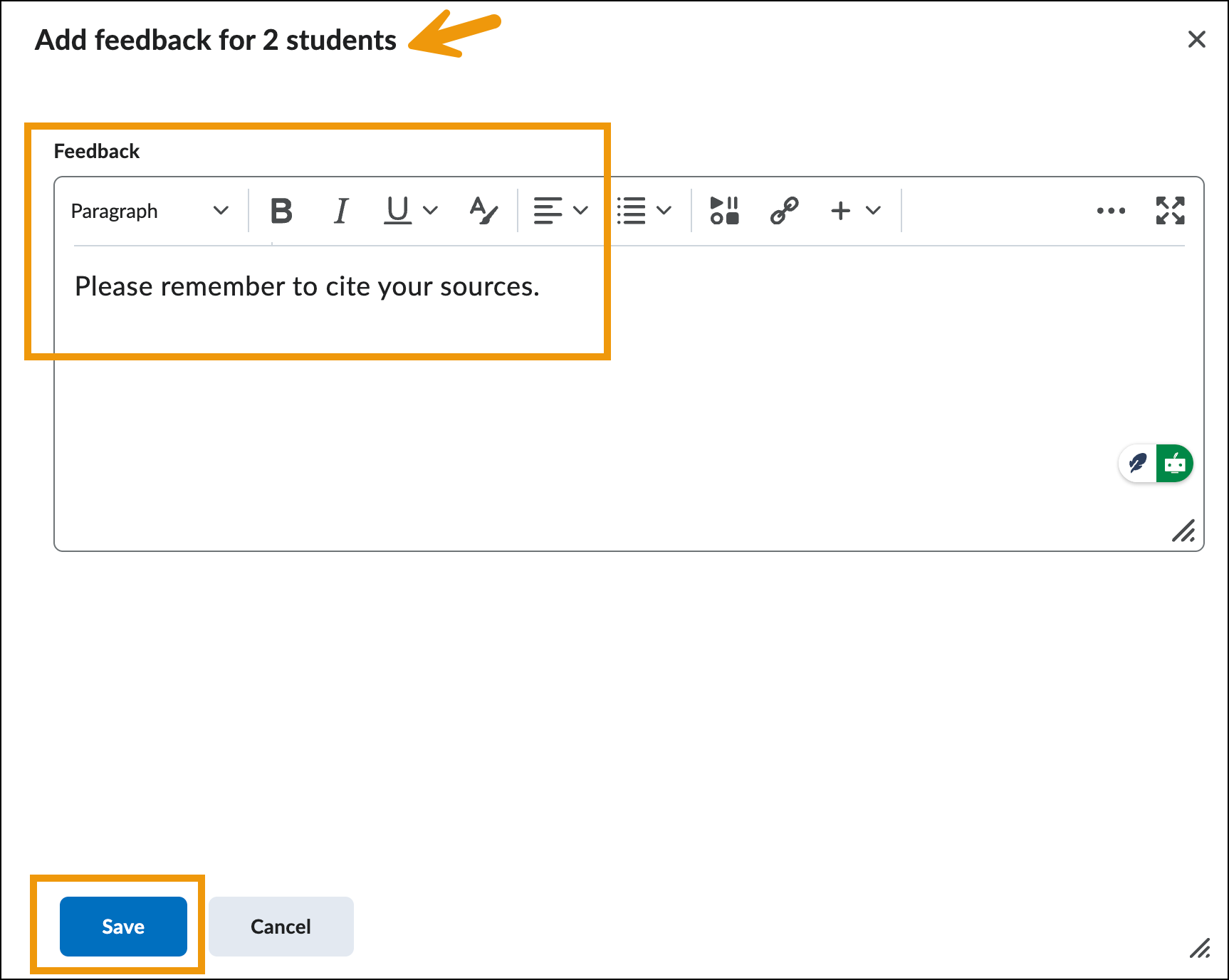
- The dialog box will confirm that you are adding feedback for selected learners (two students in this example). Enter your written feedback in the Feedback field and click Save.
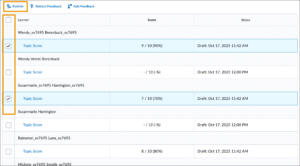
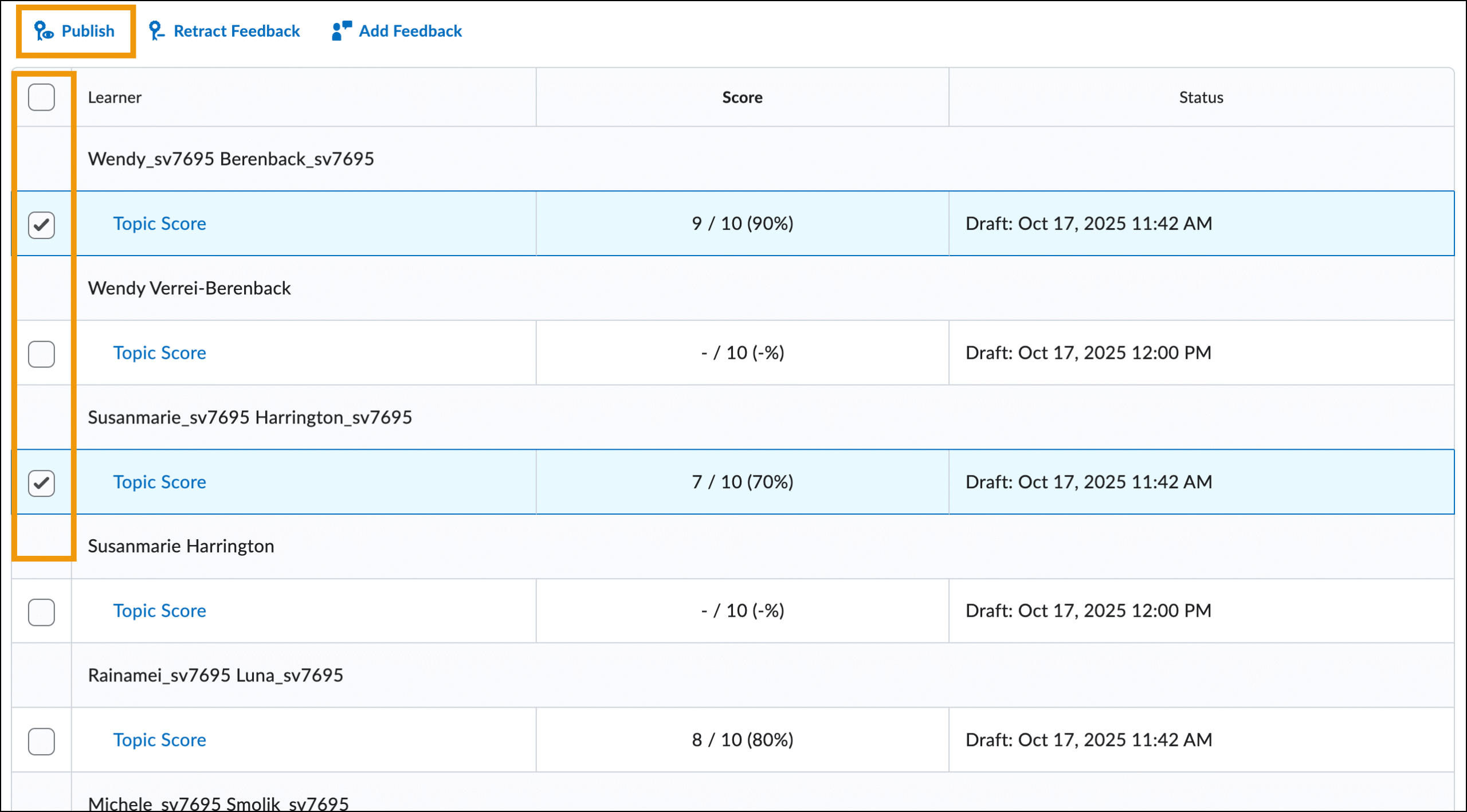
- You will see a confirmation message indicating that feedback has been added for two learners. If you are ready to publish the feedback, leave the boxes next to the two learners checked and click Publish Feedback.
Add Feedback to All Learners
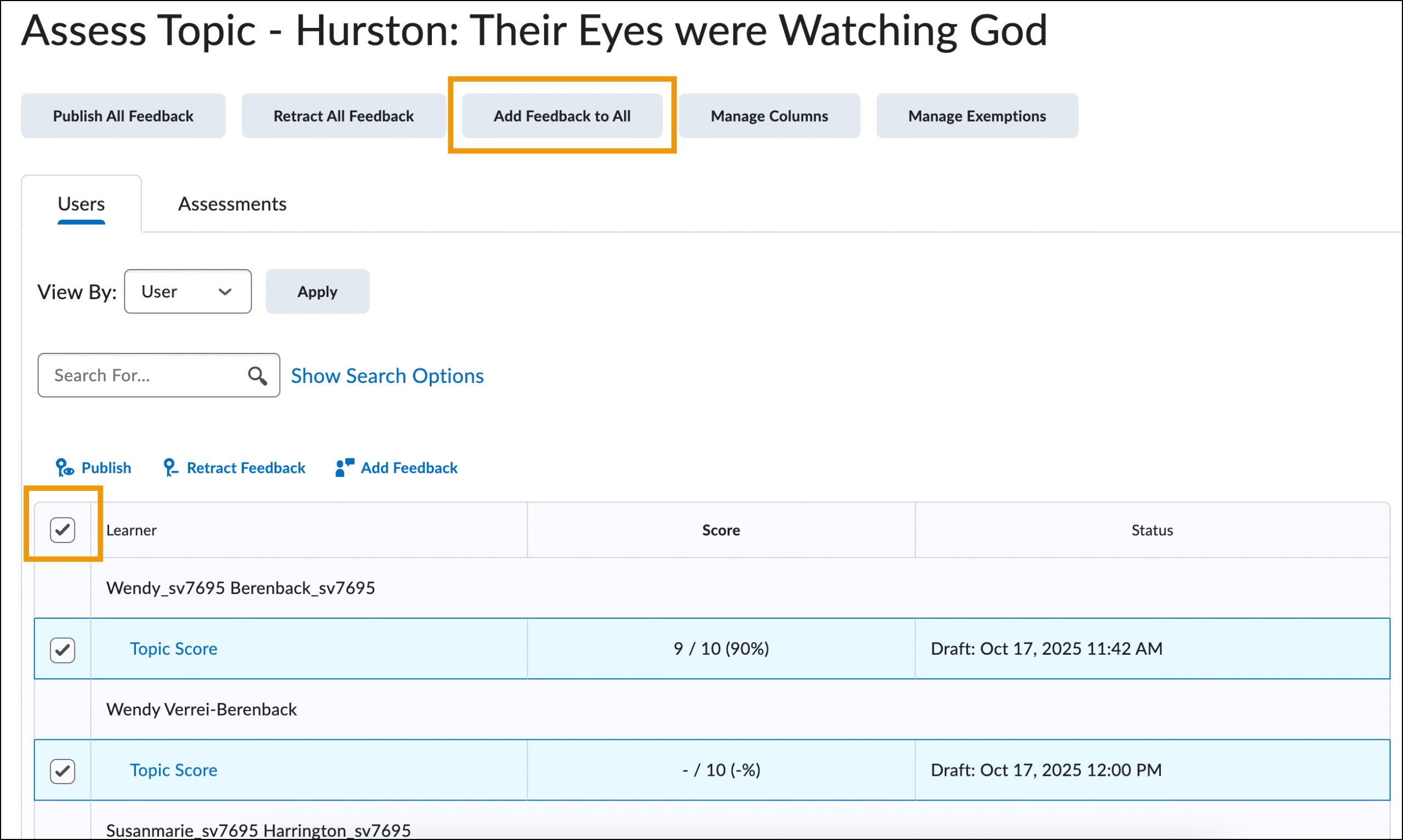
To use bulk feedback to add feedback to ALL learners on a discussion, locate the discussion topic you want to assess:
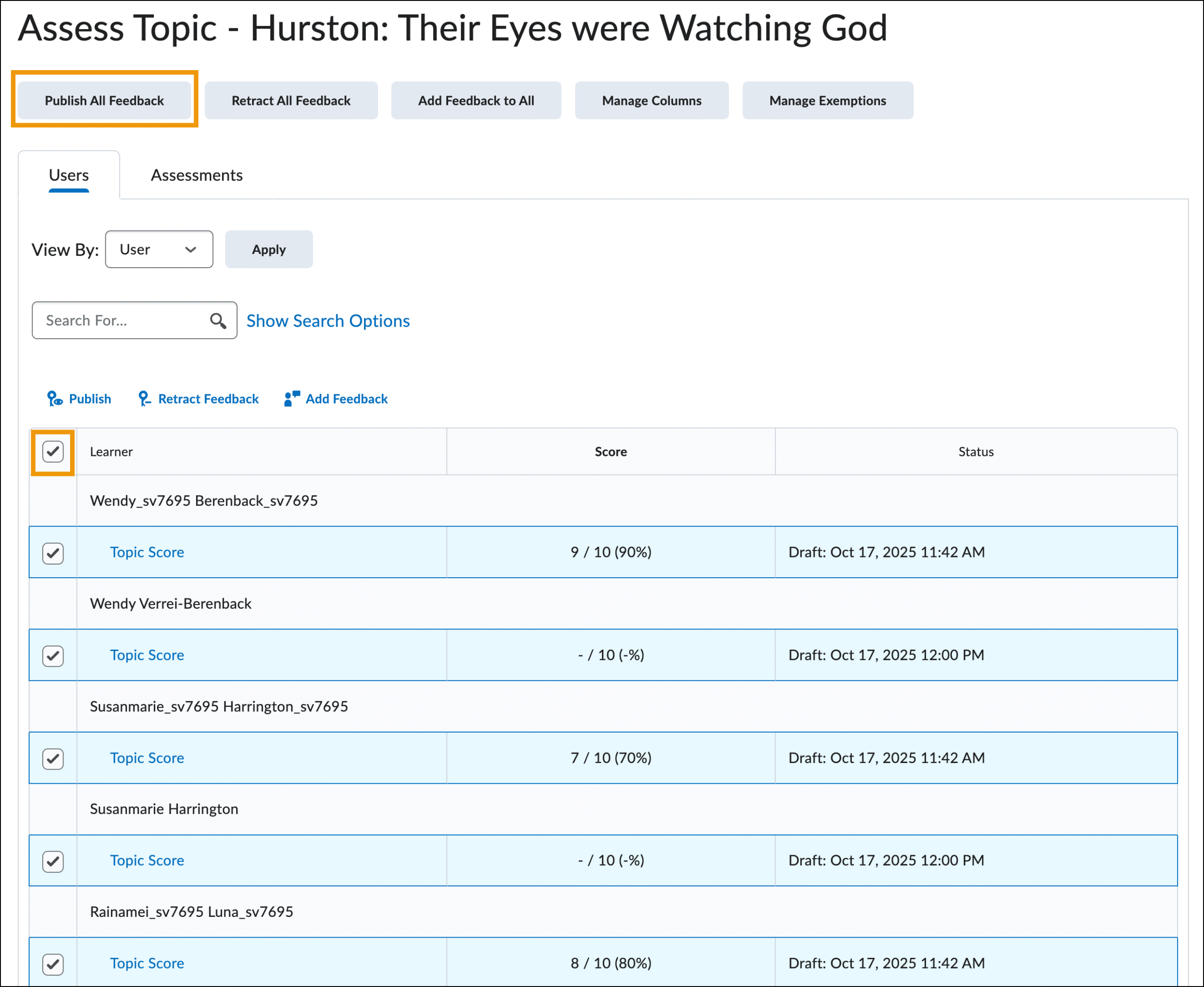
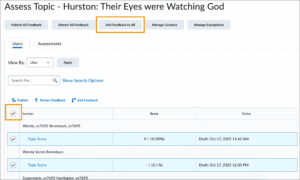
- From the submissions page, check the box next to Learner to select all learners in the course, then click Add Feedback to All.
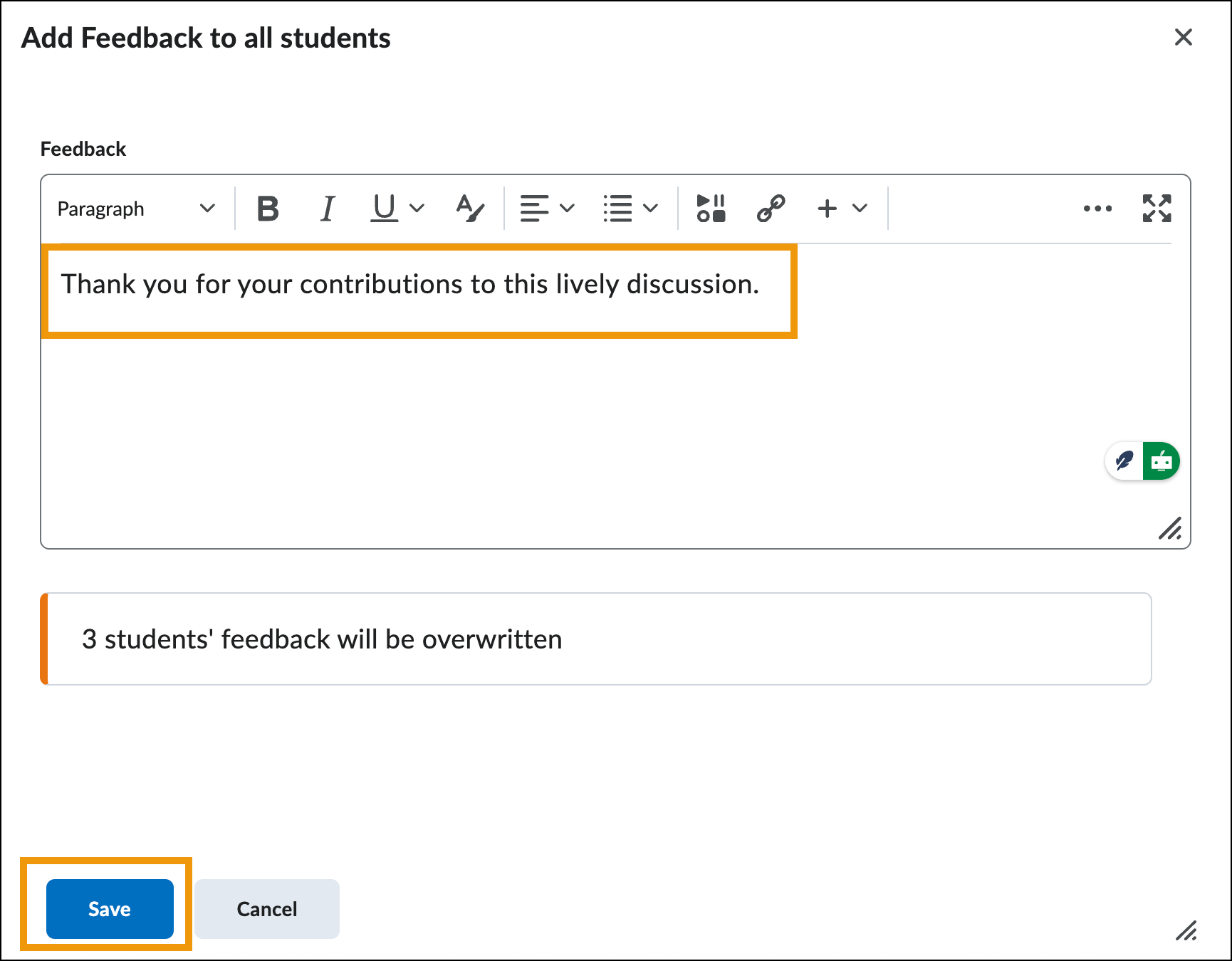
- NOTE: You will receive a message indicating that some learners’ feedback will be overwritten (in this example, three learners).
- To proceed and leave the same feedback for all users, enter your feedback in the Feedback field, then click Save.
4. You will see a confirmation message indicating that feedback has been added for all learners. If you are ready to publish the feedback, leave the boxes next to all learners checked and click Publish Feedback.