
Overview
Course announcements appear on the home page of your course. Instructors will see the small down-arrow next to “Announcements” and they can click there to:
- Make a new announcement
- Go to the Announcements tool (the management page where you can delete, edit, etc.)
- Reorder announcements
Create an Announcement
To create an announcement,
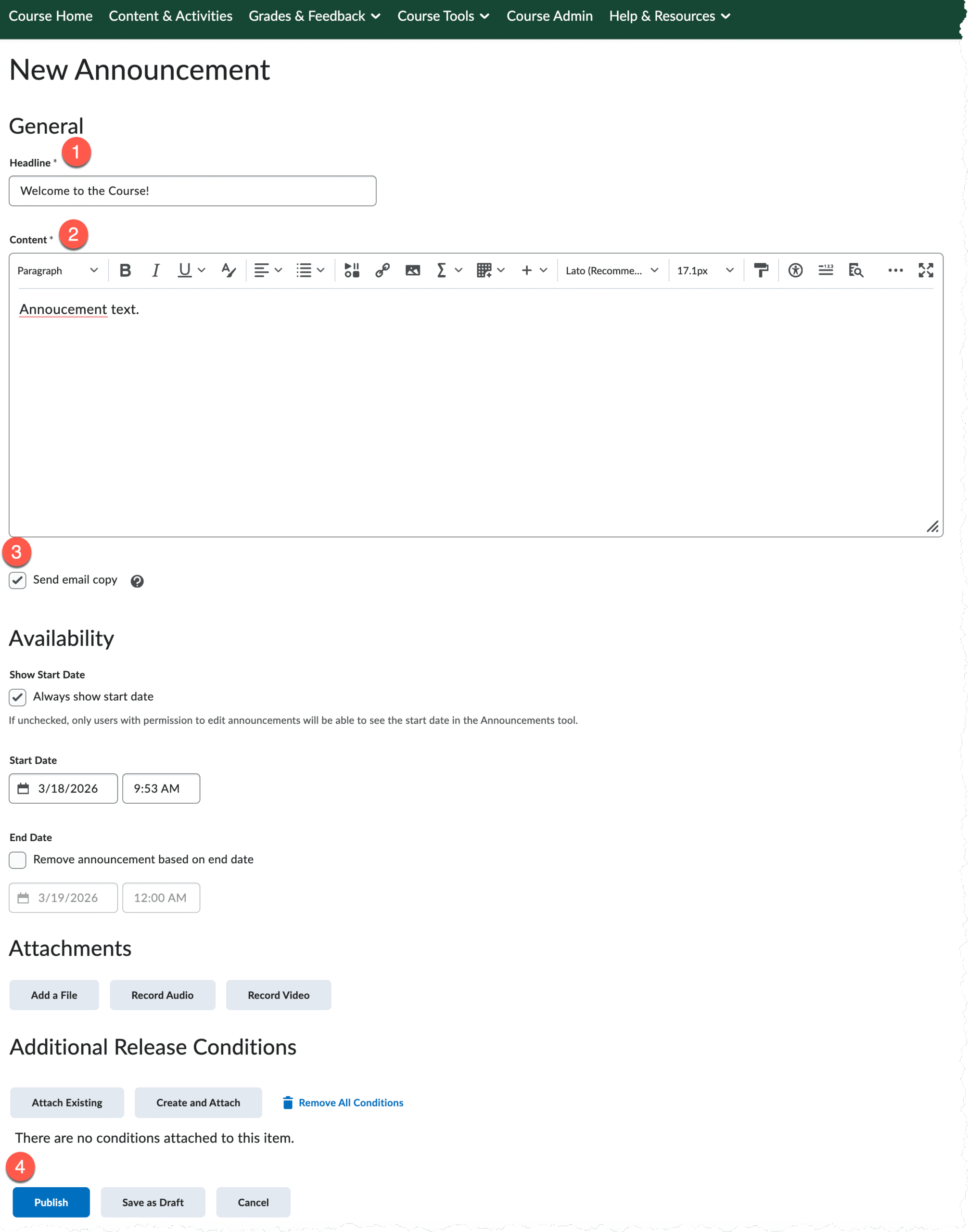
Click the dropdown arrow next to Announcements on your course home page and select New.
- Enter the announcement title in the Headline field.
- Enter the announcement text in the Content field. NOTE: You can use the Brightspace editor to add images, videos, and other content to your announcement.
- To send a copy of the announcement to your Classlist, check the Send email copy box.
- When you are ready to publish your announcement, click Publish.
Managing Announcements
To edit them or add new announcements, go to Course Admin in the Course Navigation Bar, and click “Announcements.”
Click the drop-down menu to the right of the announcement on the list to:
- Delete announcements
- Change the dates of visibility
- Edit any of their contents, including text, images, etc.
By checking the box next to an individual announcement(s) and choosing More Actions, you have other options, such as reordering.
If you have an initial “welcome” announcement, you can click the dropdown menu next to it and select “Edit.” Then uncheck the “Always Show start date” checkbox. This will allow you to re-use this announcement each semester without confusing students by displaying an old date.
Hide an Announcement
- Go to Course Admin in the green nav bar and select Announcements.
- Once there, go the Announcement you want to hide, and click the down arrow next to it. Change the end date to a prior time to hide it from view.
- NOTE: dismissing the announcement only hides it from your own view.
More Information
Please see Brightspace documentation for more information about managing Announcements.(editing, pinning, deleting, restoring and copying).