
You can update your UVM Microsoft 365 profile to include biographical information, skills, interests, current projects, educational history, and more. This information will be displayed in the “About Me” section of the contact card that is visible in M365 apps such as Teams and Outlook.
To do so, first navigate to https://uvmoffice-my.sharepoint.com/ and enter your netid@uvm.edu email address:
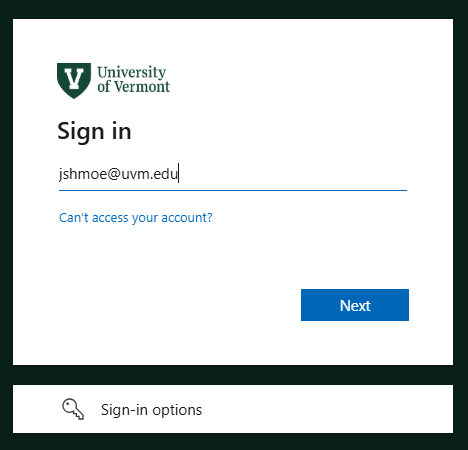
Click “Next”, and then proceed to log in using your NetID, password, and Duo MFA.
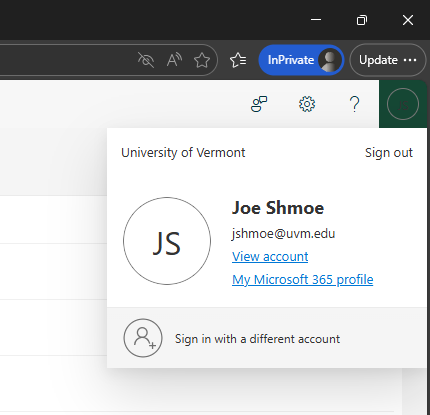
In the upper right corner of the new window, click your profile picture or initials (in a circle) and choose “My Microsoft 365 profile”:
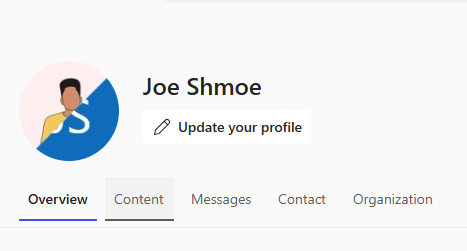
From there, click the “Update your profile” link under your name:
 And then the “About” menu option:
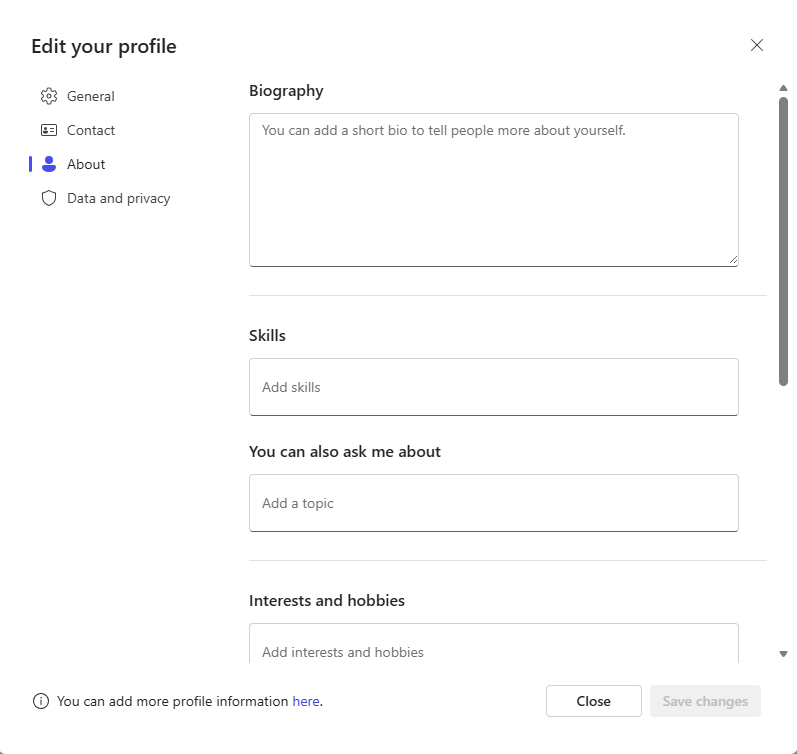 When you’re finished editing, click “Save changes”.