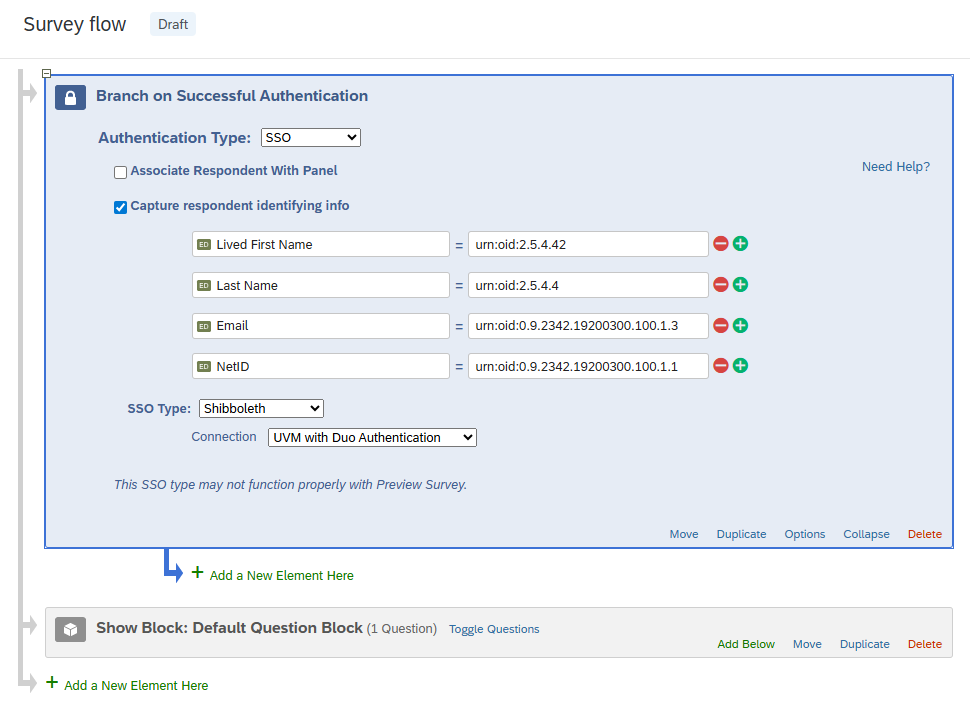
The following guide describes how to automatically collect information from responding users with UVM credentials. This data will be stored alongside user responses in the Results tab.
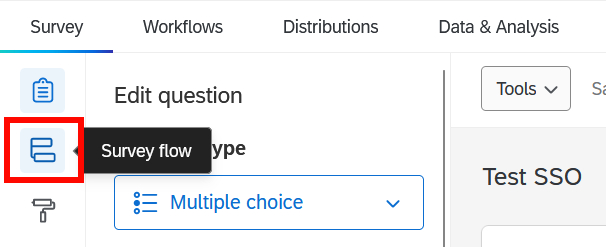
- From within the Survey tab, select Survey Flow from the options on the left.
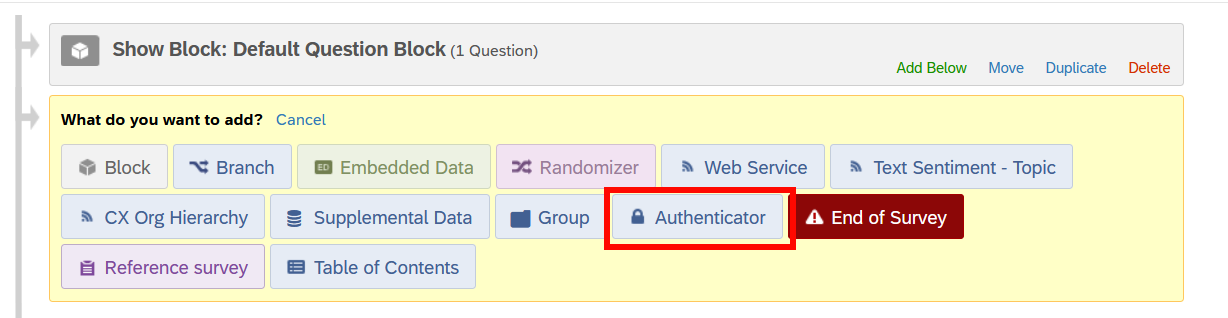
- Click + Add a New Element Here.

- Select Authenticator from the list of elements.
- Set the Authentication Type to SSO.
- Uncheck the checkbox next to Associate Respondent With Panel.
- Check the checkbox next to Capture respondent identifying info and click Add Embedded Data.
- Copy and paste any or all of the desired capture data from the table below into the corresponding fields, clicking the plus symbol () to add additional rows:
Embedded Data to Set… Field from SSO Lived First Name urn:oid:2.5.4.42 Last Name urn:oid:2.5.4.4Email urn:oid:0.9.2342.19200300.100.1.3NetID urn:oid:0.9.2342.19200300.100.1.1 - Set the SSO Type to Shibboleth.
- For Connection, select either UVM without Duo Authentication or UVM with Duo Authentication.
- Click Move and then drag the Branch on Successful Authentication block to above the Question blocks.
- Apply your changes.
Final Configuration Example: