
Enterprise Technology Services (ETS) leverages Microsoft Intune to manage UVM-owned Windows devices. To learn more about UVM’s implementation of Intune, please read this article. [link needed]
Windows computers will sync Intune configuration policies and settings automatically but on occasion, users may wish to manually sync settings. The sync occurs between the Windows device and Microsoft Intune, which is entirely cloud based. This means the device will not need to be on campus or connected to the UVM VPN to pull down policies and configurations.
There are two main methods for manually syncing Intune policies: via Company Portal or via Windows Settings.
Intune Sync via Company Portal
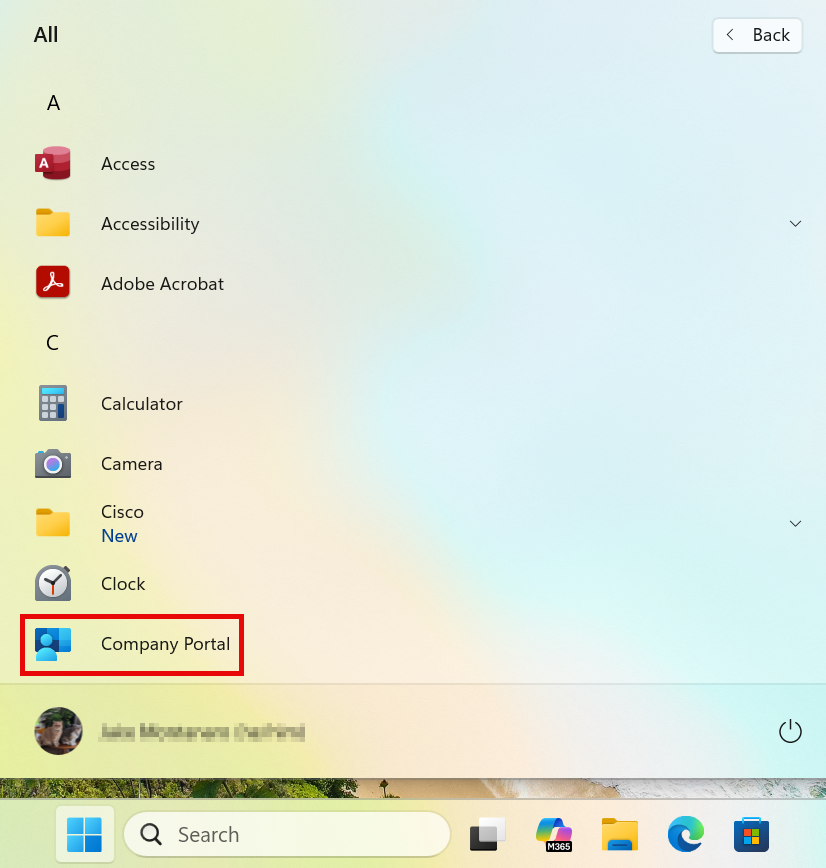
- Click on your Start Menu (or press the key on your keyboard), and then the All button, and then Company Portal.
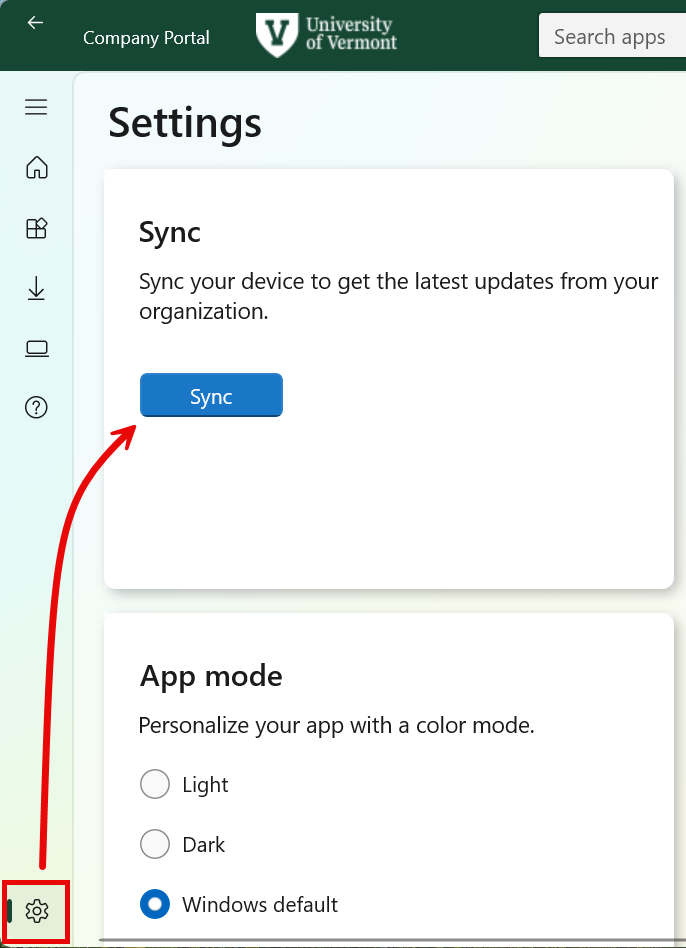
- Once Company Portal loads, click on the Settings tab () in the left hand navigation bar and then click the Sync button.
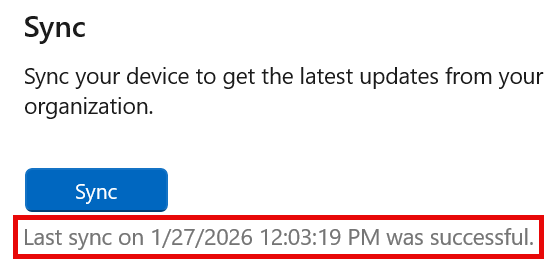
- Once the sync is complete, you will see a message saying “Last sync on” with a timestamp.
If a successful sync does not result in an expected change of settings or behavior, a computer restart may be required.
Intune Sync via Windows Settings
- Open the Settings app. One way to do this is to hold down the Windows Key on your keyboard () and tap the i key (win+I).
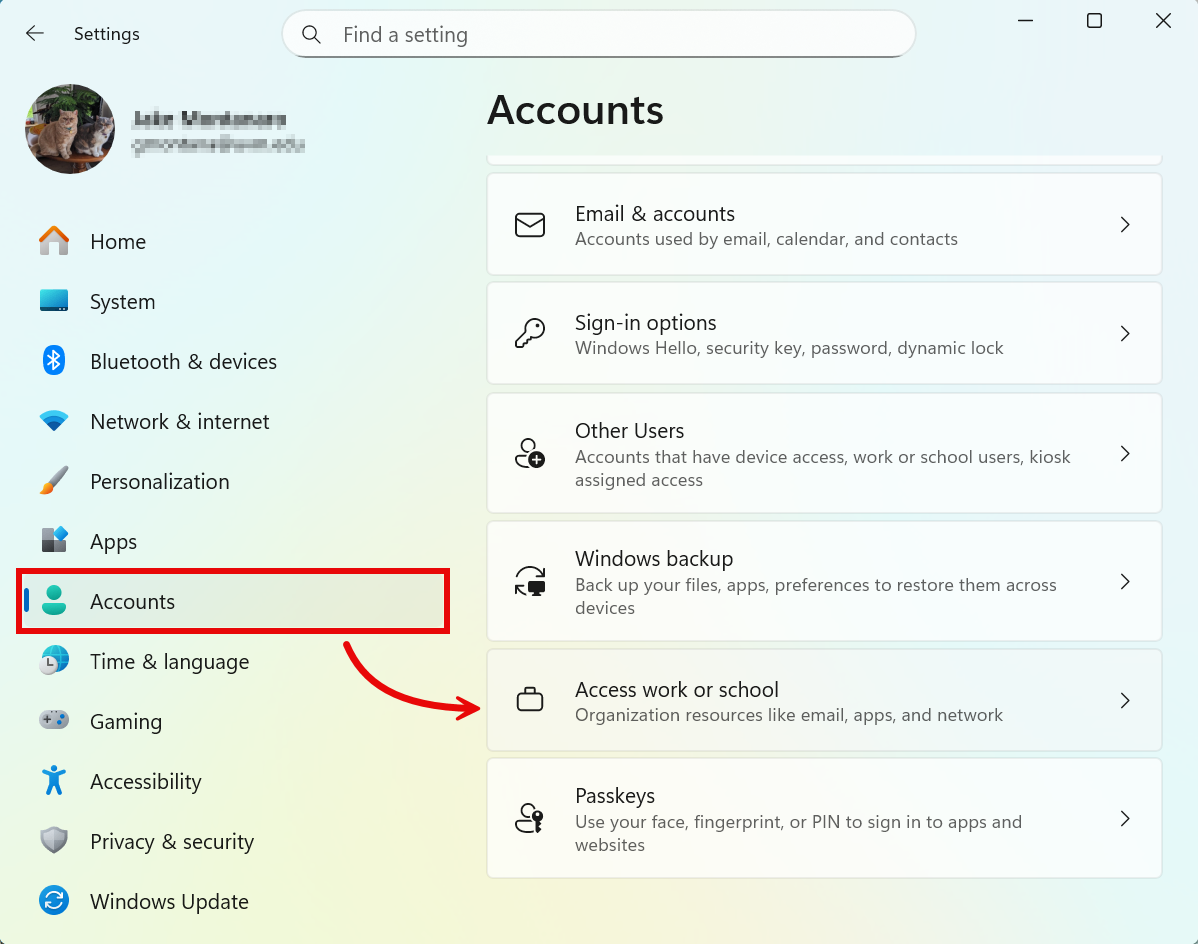
- In Settings click on the Accounts button, scroll down, and select Access work or school.
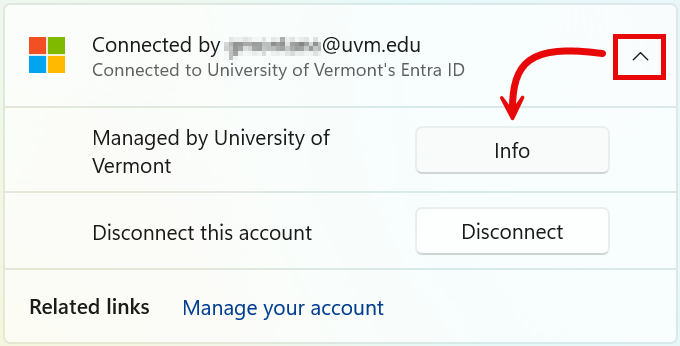
- Expand the account Connected to University of Vermont’s Entra ID, and then click Info.
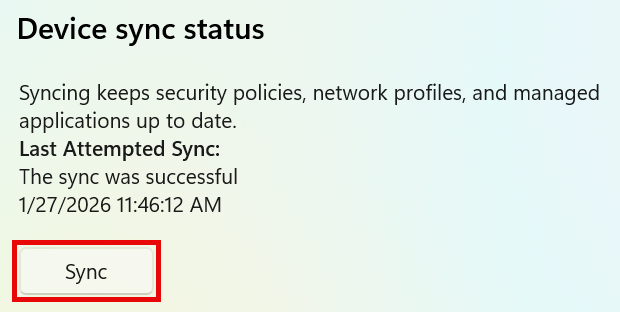
- Scroll down to the Device sync status section and click Sync.
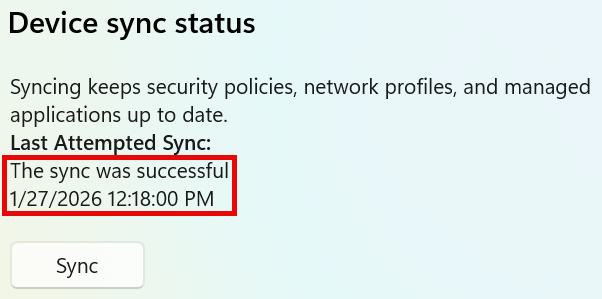
- Once the sync is complete, you will see a message saying “The sync was successful” and a time stamp.
If a successful sync does not result in an expected change of settings or behavior, a computer restart may be required.