
 UVM subscribes to a program that provides Microsoft 365 A3 licenses at no charge to active UVM faculty, students, and staff. This A3 license grants access to Microsoft 365 services, including Microsoft Office desktop and mobile apps and 1TB of OneDrive cloud storage. You can use your UVM NetID to install and activate Office apps on up to 5 desktops/laptops, 5 tablets, and 5 mobile devices. These devices can be UVM-owned or personal devices, and the apps can be used for UVM-related or personal work.
Installation
Please use the appropriate guide below to install Office on your device. On UVM-owned Windows, macOS, and iOS devices, the Office apps should already be installed; check your Start Menu, Applications folder, or app list.
Windows - Install Microsoft 365 apps
- Navigate to go.uvm.edu/getoffice and log in.
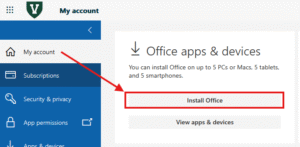
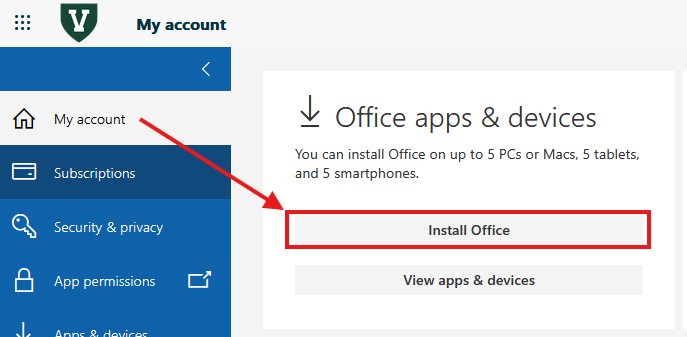
- From the My account tab, click the Install Office button.
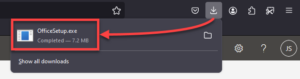
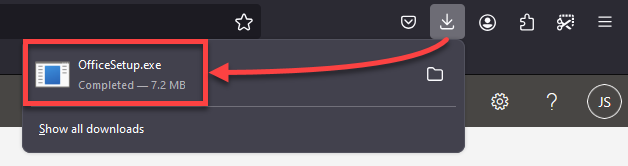
- You may have to choose an install location and click Save. Then the installer will begin downloading to your computer. When the download is complete, locate and launch the downloaded file.
- The installer should download and install everything it needs without more input. When it finishes, the window should tell you “You’re all set!” and have a button to Close the window, which you can click.

- After opening the apps and signing in with your NetID to activate the license, you may be asked to “Sign in to all apps and websites on this device”. Click No, this app only if you share this device with others. Otherwise, click Yes.

macOS - Install Microsoft 365 apps
- Navigate to go.uvm.edu/getoffice and log in.
- From the My account tab, click the Install Office button.
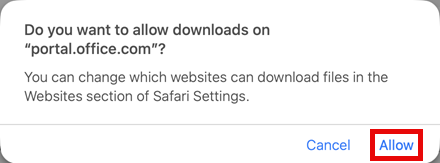
- You may have to Allow downloads.
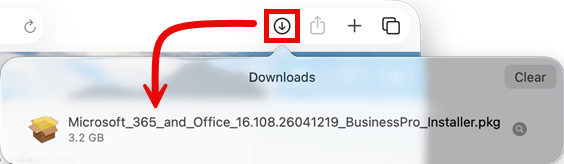
- The the installer will begin downloading to your computer. When the download is complete, locate and launch the downloaded file.
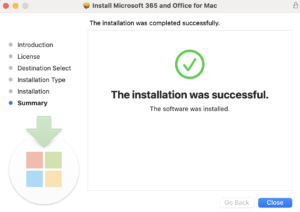
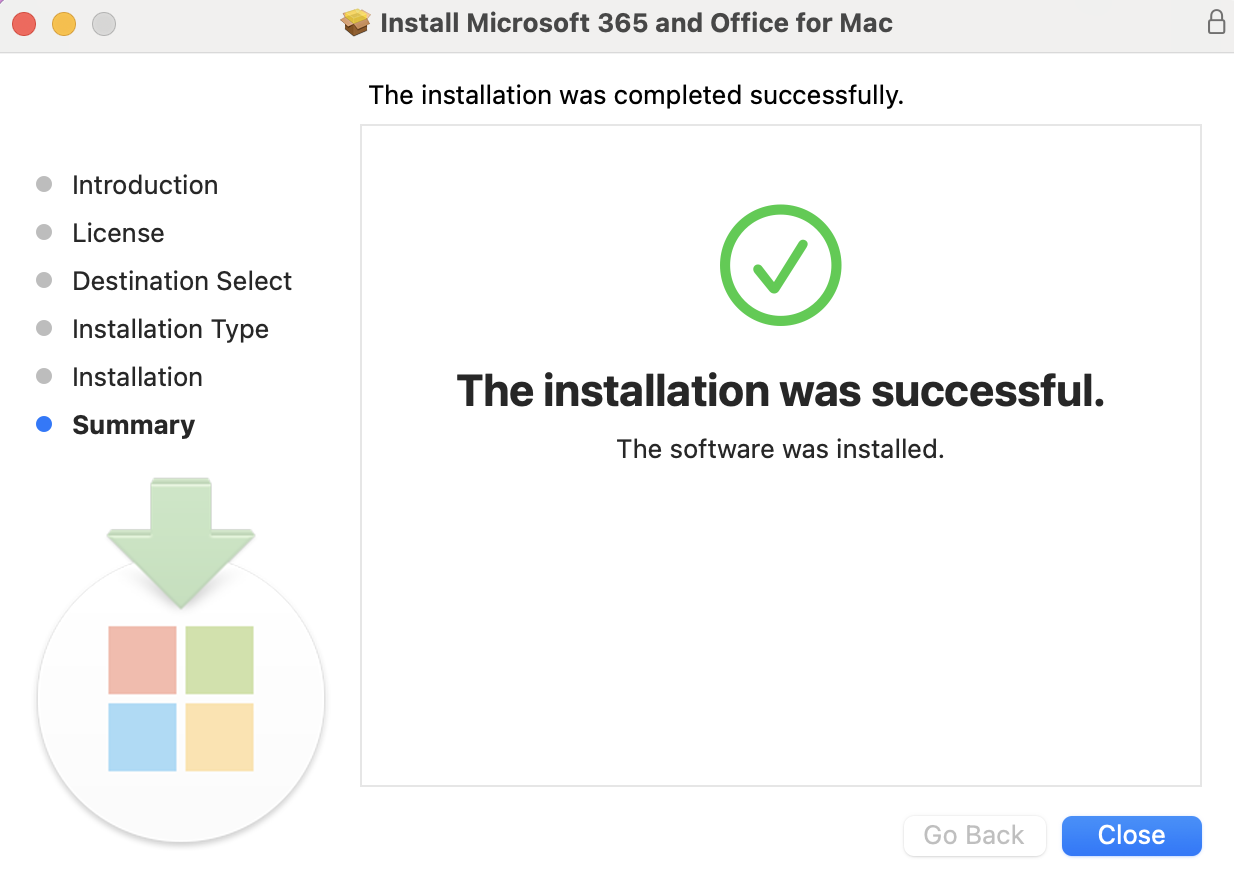
- Continue through the installer’s prompts, choosing the default options, clicking Agree, and typing in your computer password when required. When finished, it should tell you “The installation was successful.” Click Close.
- You’ll find the Office apps in your Applications folder. Open one of them, like Microsoft Excel.
- If you haven’t signed in to any Microsoft apps on this device yet, you’ll need to activate. Click Already have a subscription? Sign in.
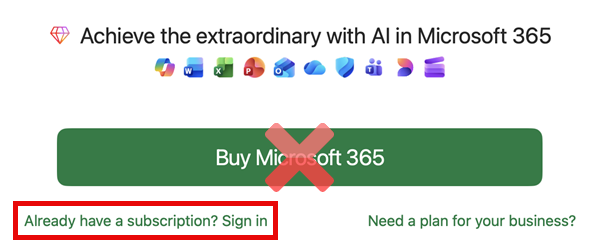
- Continue through the NetID sign in and Duo if prompted. Your Microsoft 365 license should now be activated for all Office apps installed on your Mac.
iOS - Install Microsoft 365 apps
This guide will show steps for installing Microsoft Excel. These steps can be repeated to install other Microsoft 365 apps on your iOS devices.
- Install Microsoft Excel from the Apple AppStore.

- Once installed, open the Excel app.
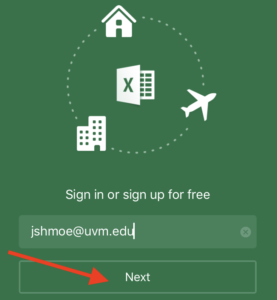
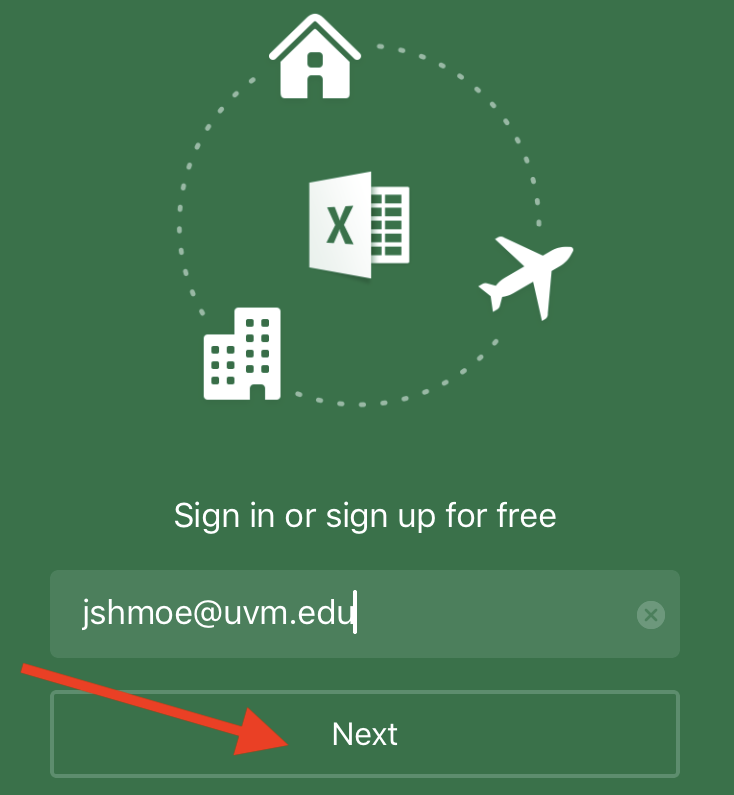
- Enter your email address in the format NetID@uvm.edu.
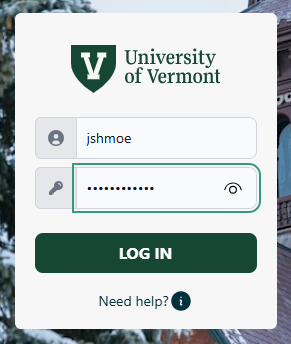
- You’ll be redirected to the UVM WebAuth page. Enter your UVM NetID and password and proceed through the Duo prompts.
- That’s it! The iOS Excel app has been successfully activated. Repeat the above steps for any other Office apps you wish to install (Word, PowerPoint, etc.).
Android - Install Microsoft 365 apps
This guide will show steps for installing Microsoft Excel. These steps can be repeated to install other Microsoft 365 apps on your Android devices.
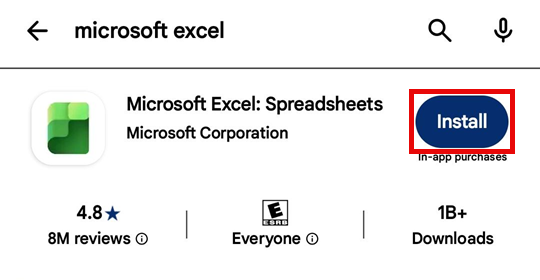
- Install Microsoft Excel from the Google Play Store.
- Once installed, open the Excel app.
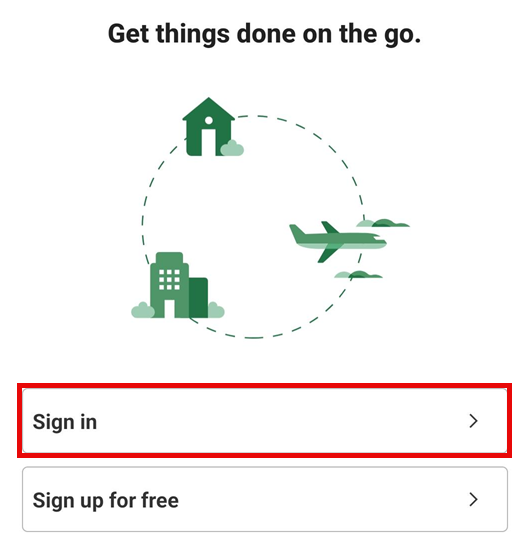
- If you haven’t signed in to any Microsoft apps on this device yet, you’ll need to activate. Click Sign in.
- Enter your email in the format NetID@uvm.edu, and continue through the NetID sign in and Duo if prompted. Your Microsoft 365 license should now be activated for all Office apps installed on your Android device.