What makes a .pdf accessible?
PDFs are technically accessible when they meet all the requirements laid out in the PDF-UA-1 technical specification. But meeting that specification doesn't always mean that a .pdf is easy to use or provides an enjoyable experience for users with disabilities -- especially if users are interacting with the .pdf through assistive technology.
Basic PDF Accessibility
Here are 10 things to consider when ensuring your .pdfs are accessible.
- The PDF is tagged.
- One and only one <H1> is included in the document. It's the title of the document, and is used instead of <Title>.
- Headings are provided to mark different chapters, sections, and subsections, and they're nested appropriately. For instance: an <H3> follows an <H2>, not an <H4> or an <H1>. (Think: matryoshka dolls.)
- The tag tree begins with a <Document> tag at the very top.
- Lists are tagged appropriately to indicate that a set of items in the document are semantically related.
- Color contrast and the logical reading order have been verified by a human being.
- All meaningful images have appropriate alt-text. Non-meaningful images have been marked as decorative.
- All text in the .pdf is selectable, rather than being an image. Selectable text is text you can select with your mouse and highlight, copy and paste.
- Forms and tables have no error messages when checked with an automated accessibility checker.
- All document errors, such as a missing title, or missing language, or missing tags, have been resolved.
PDF Remediation Style Guide
Tagging footnotes and endnotes
There are two commonly used ways to tag footnotes and endnotes in a .pdf: The Reference-Note Method and the Alt-Tag Method. The UVM Office of Accessibility Services strongly recommends the Reference-Note Method, and created the video below to demonstrate the Reference-Note method using Adobe Acrobat Pro.
Please note: it's important walk your tag tree for footnotes before making any changes. If the .pdf was created in Microsoft Word, using the Insert Footnote feature, it is unlikely to need manual remediation.
The Reference-Note Method
This is OAS' preferred method for footnote-tagging.
- Open up the Tags panel in Adobe Acrobat Pro. Go to View > Show/Hide > Navigation Panes > Tags (or select the Tags icon on the left/right navigation panel).
- Tag your reference as a <Reference>. Locate the superscript number in your tag tree. It may either be tagged as a <P> or a <Span>. Double-click the tag and change it to <Reference>.
- Tag your citation as a <Note>. Locate the citation itself in the tag tree. It will likely be a <P> tag. Double-click the tag and change it to <Note>. Then, right-click the <Note> tag and add a unique identifier to the ID field. (OAS recommends numbering your citations sequentially.)
- Finally, move the <Note> tag to directly under the <Reference> tag in the tag tree. This will cause both a screen reader and a keyboard user to encounter the reference to the footnote followed immediately by the note, or citation itself.
The Alt-Tag Method
Open up the Tags panel in Adobe Acrobat Pro. Locate the superscript number in your tag tree. It may either be tagged as a <P> or a <Span>. Right-click on the tag and open up "Properties...". There will be a space in the Properties dialog for adding alt-text. Paste the full contents of the citation into the alt-text box for the tag.
Be aware that this will cause screen readers to automatically read out the full citation when they encounter the superscript link. This method is technically accurate, but hearing the full citation announced in the middle of a sentence or paragraph may be less enjoyable or more disruptive for screen reader users.
Creating or tagging a Table of Contents
Long documents (typically seven pages or more) should include navigational bookmarks or a built-in table of contents. Here is the preferred way to tag a Table of Contents in a .pdf.
PDF tags have an entire set of tags that pertain to constructing a Table of Contents that allows users to understand the highest level of document organization, and navigate to each chapter or section.
- Open the Tags Panel. Go to View > Show/Hide > Navigation Panes > Tags (or select the Tags icon on the left/right navigation panel).
- Create the Main TOC Tag. Right-click the parent
<Document>tag in the Tags tree and select New Tag. Choose Table of Contents (TOC) from the type dropdown. - Add TOC Item (
<TOCI>) Tags. Right-click your newly created<TOC>tag and select New Tag. Choose Table of Contents Item (TOCI). Repeat this step for every individual entry listed in your Table of Contents. - Assign Content to Each TOCI Tag. Highlight the text of the first TOC entry on the PDF page. Right-click the corresponding
<TOCI>tag in the Tags panel and select Create Tag from Selection. Repeat for all remaining entries.
Sometimes a file will already include a Table of Contents that is incorrectly tagged. Remember that you can edit tags, or if it's simpler, you can use the Fix Reading Order tool to Clear Page Structure... and start this process from Step 1.
Tagging page numbers
Often when you are tagging a .pdf you need to decide what to do with page numbers on the actual pages of a document: Are they content? Are they artifacts? And should they match the page numbers Adobe Acrobat assigns to each page?
Whether your artifact out page numbers on document pages does not affect the technical accessibility of the overall document, but it can affect the ease with which assistive technology users navigate the document.
Artifact page numbers out on document pages
Page numbers as presented on each document page are not content, per se. They should be artifacted out from each page. Instead, assistive technology track physical page locations via their PDF viewer.
Ensure your Adobe page labels match the physical page numbers
Page numbers are still useful and often needed, so while you do want to artifact them out on the page, you also want to make sure your Adobe page numbers match the physical page numbers.
- Choose Organize Pages in the tools panel (or open the Page Thumbnails pane on the left sidebar).
- Select the thumbnail(s) of the pages you want to renumber (for example, the first few pages with Roman numerals
i, ii, iii). - Right-click the selection and choose Page Labels... (or select it from the Page Thumbnails options menu).
- Under Page Numbering, choose your style:
- Arabic numerals (
1, 2, 3) - Roman numerals (
i, ii, iiiorI, II, III) - Letters (
A, B, C)
- Arabic numerals (
- Select Begin New Section, set your starting number (e.g., start at
1), and click OK.
Tagging PDFs in multiple languages
One of the technical accessibility requirements for PDFs is that the language of the document must be correctly specified. This is so that screen readers can choose the correct set of rules to apply when using the document. But how does that work when a document features multiple languages?
This is actually something that PDFs can do.
Start by setting one main language as the document language
- Open up the Accessibility Checker panel on the right-hand side of the screen. Go to View > Show/Hide > Navigation Panes > Accessibility Checker or select the Accessibility Checker icon on the left/right navigation panel).
- Choose Primary Language from the options under Document. If the Primary language has not been set, right-click (Mac: control-click) on Primary language - Failed, and choose a language from the dropdown menu. If the Primary language is already set to Passed, you are going to need to change the language of the document using the Document Properties dialog box.
- Click on Menu in the top-left corner and select Document properties....
- Go to the Advanced tab in the dialog box.
- Under Reading Options, select the new main language for the document from the Language drop-down.
- Click OK to save your changes.
Mark other languages appearing in the document
It is possible and advisable to tag other languages as they appear in a document. This will allow readers using screen readers to ensure that they are getting all content announced to them appropriately.
Each instance where text in the document is in a language other than the main document language will need to be tagged manually.
Steps to Tag a Different Language for an Entire Paragraph or Section
- Open your PDF in Adobe Acrobat Pro.
- Open the Tags panel by going to View > Show/Hide > Navigation Panes > Tags (or Accessibility Tags).
- Locate the specific tag (such as a paragraph
<P>tag) that contains the foreign language text. - Right-click the tag and choose Properties.
- In the Object Properties dialog, select the Tags tab.
- Choose the correct language from the Language drop-down menu.
- Note: If the language is not listed in the drop-down, you can manually type in the appropriate ISO 639 language code (e.g.,
esfor Spanish orfrfor French) into the/Langentry.
- Note: If the language is not listed in the drop-down, you can manually type in the appropriate ISO 639 language code (e.g.,
- Click Close to save the changes.
Steps to Tag a Specific Word or Short Phrase Within a Sentence
If a foreign word or phrase appears inside an otherwise default-language sentence, isolate it with a Span tag:
- Highlight the specific word or phrase directly on the PDF page.
- Open the Tags panel, right-click the parent tag, and select Create Tag from Selection (or use Find Tag from Selection to locate its container).
- Nest or create a Span tag for that selection.
- Right-click the newly created
Spantag, select Properties, and choose or type the foreign language code under the Tags tab. - Click Close
The UVM Office of Accessibility Services created this short demonstration video, showing how to tag a word or phrase in a different language using Adobe Acrobat Pro.
Tagging a list across multiple pages
According to PDF/UA standards, a list that breaks across multiple pages must remain under a single parent list (<L>) tag rather than being split into separate lists.
How to Structure a Multi-Page List in Adobe Acrobat Pro
- Keep One Parent List (
<L>). Ensure all list items across all pages belong to the same parent<L>tag in the Tags Panel. - Tag Each List Item (
<LI>). Every individual bullet point or numbered item gets its own<LI>tag containing an<Lbl>(label) and<LBody>(body text). - Handle List Items Split Across Page Breaks:
- If a single list item's text or body is split across a page break, tag each segment with an
<LBody>tag. - Open both
<LBody>tags in the Tags Panel. - Drag the content from the second page's
<LBody>tag into the first page's<LBody>tag. - Delete the now-empty second
<LBody>tag so the item flows continuously within a single<LI>structure.
- If a single list item's text or body is split across a page break, tag each segment with an
...except if you have subheadings breaking the list
If you have subheadings within the list, it would be appropriate to start a new list after each heading. A sample tag tree in Acrobat would then look like this:
<L>
<LI>
<Lbl>44.
<LBody>Text Content
<LI>
<Lbl>45.
<LBody>Text Content
<H4>Heading Content
<L>
<LI>
<Lbl>46.
<LBody>Text Content
<LI>
<Lbl>47.
<LBody>Text Content
<H4>Heading Content
<L>
<LI>
<Lbl>48.
<LBody>Text Content
<LI>
<Lbl>49.
<LBody>Text Content
Number of levels needed for Bookmarks
Bookmarks or a table of contents are needed for long documents, in order to satisfy WCAG Success Criteria 2.4.1 (Bypass Blocks - Level A) and 2.4.5 (Multiple Ways - Level AA). "Long documents" are generally documents with seven pages or more.
When you're creating or fixing Bookmarks in Adobe Acrobat Pro, OAS recommends including <H1>, <H2>, and <H3> levels in the Bookmarks in order to create an accessible .pdf.
- If you only have an <H1>, with no <H2>s, then just choose <H1> for your Bookmarks.
- If you only have an <H1> plus <H2>s but no <H3>s, then choose <H1> and <H2> for your Bookmarks.
- If you have an <H1> plus <H2>s and <H3>s, then choose <H1> and <H2> and <H3> for your Bookmarks.
- If you have <H1>, <H2>, <H3> and <H4> (or more), then choose <H1> and <H2> and <H3> for your Bookmarks.
Tagging an interview, or dialogue
When interviews or snippets of dialogue are included in a .pdf, tag them with a <P> for each speaker utterance. If the interview or dialogue is excerpted within the context of a larger piece, place the whole interview or dialogue snippet inside a <Block Quote> tag.
The image below shows preferred tagging style for an excerpt of an interview that's included in the context of a larger chapter.
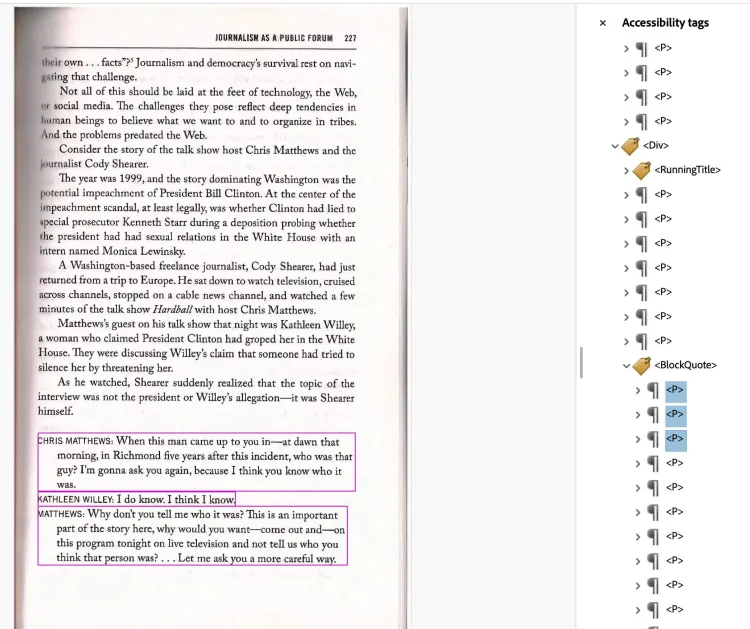
On the left, the page layout of the document page is shown, with pink rectangles surrounding the first three utterances in the interview. On the right hand side of the image, there is a <Block Quote> tag with <P> tags shown as children of the <Block Quote>. The first three <P>s are highlighted, indicating that they match up with the utterances outlined in pink on the document page.
Correcting text in containers
PDFs oftentimes have difficulty translating all of the text in the document layer to the tags layer. This can result in containers inside tags that don't have complete text, or in some cases have gibberish in place of the text.
There are two ways you can correct text in a container.
Editing the PDF document layer
You can in fact edit the PDF document layer directly with Adobe Acrobat Pro, correct the text, and retag the paragraph in question. This method works best for non-scanned (non-xeroxed) .pdfs such as those created by Word, InDesign, Adobe Express, or Canva.
- Select Edit in the global bar.
- In the Edit pane, select Text.
- Select the text box you want to adjust. A bounding box with selection handles appears around the text. Click inside the text box and type into the .pdf.
- When you're finished, click anywhere outside the text box and return to the Accessibility tools.
- Check the tag for the paragraph in the tags tree. The container inside the innermost tag should automatically update with the corrected text. If it does not, retag the paragraph.
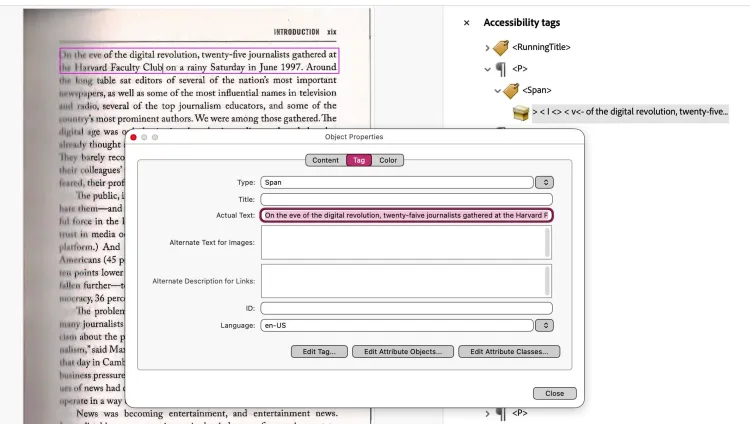
Using Actual Text in a Tag
You can also add what's known as "Actual Text" into the Properties of a container in the Tag tree, and that text will be read in place of the contents of the container. This method works best for scanned (xeroxed) .pdfs, where attempting to amend the text in the document layer causes an ink smudge-like effect. Remember that you will also have sighted readers reading the document layer of the .pdf, so your remediations should leave that layer able to be read.
- Select the Tags tree and navigate to the tag with the text you want to amend. Locate the container inside the tag.
- Right-click (Mac: Control-click) on the container and choose Properties...
- The Properties dialog box will include a field labeled "Actual Text". Type in the contents of what should be announced for the contents of the tag. Reference the highlighted contents of the document layer in order to ensure you're adding only the affected text.
The image below shows corrupted text in a container on the tag tree. On the right, the corrupted container is highlighted, and the beginning of the text is jumbled. On the left, the actual text inside the container is outlined on the document layer.

The image below shows the Properties dialogue box for the corrupted container. You enter all of the text shown in the rectangular highlight into the field marked "Actual Text".