Office of Accessibility Services

Step 1:

Body

Use your UVM credentials to log on at go.uvm.edu/accommodate.
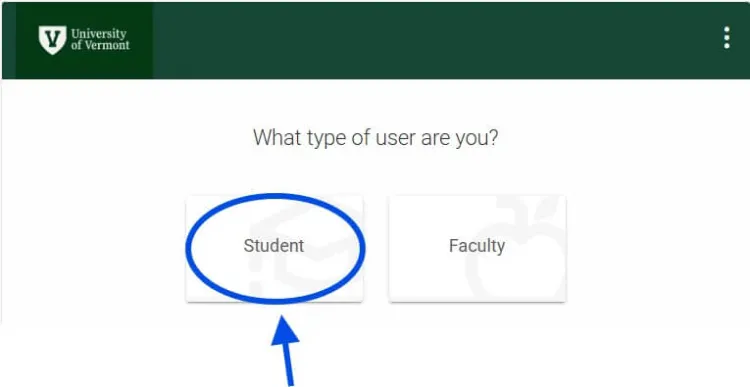
Question: What type of user are you? Two option buttons Student and Faculty. Circle around the Student button.


Step 2:

Body

On the left menu, select Accommodations > Semester Request.
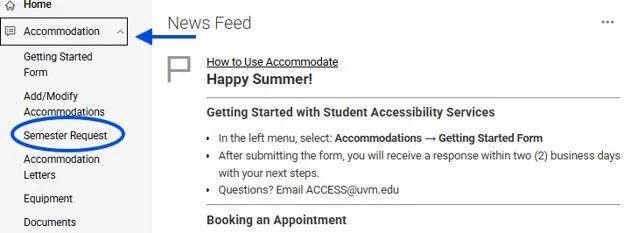
Left hand menu of accommodate homepage. Under Accommodation heading, Semester Request is circled

Step 3:

Body

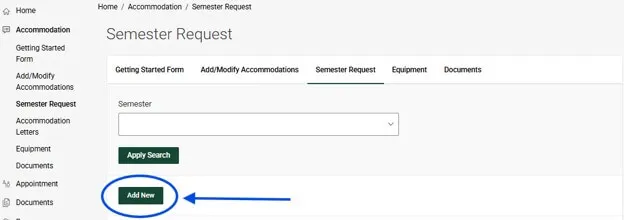
Click the  “Add New” button.

Semester Request webpage with the Add New button circled.

Step 4:

Body

Select the current semester from the drop down menu.
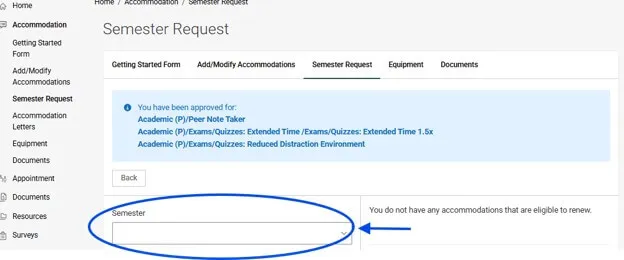
Semester Request webpage with the Semester drop down list circled and an arrow pointing to it.

Step 5:

Body

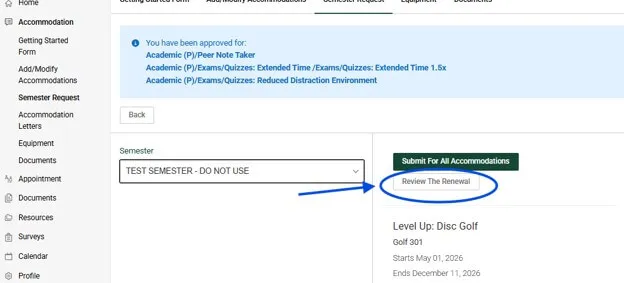
Select “Review the Renewal.”

Semester Request webpage, bottom right side of the page, Review the Renewal button circled with an arrow pointing to it.

Step 6:

Body

Choose which classes you would like to use each accommodation in.
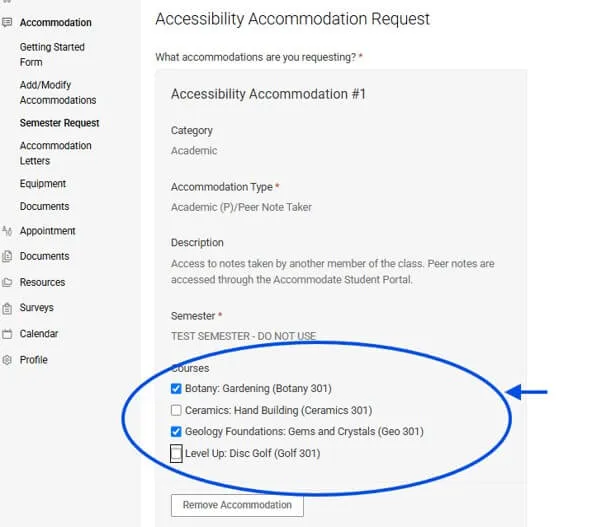
Accessibility Accommodation Request page, bottom of the page, circle around Courses heading and check boxes for each course below.

Step 7:

Body

Select the “Submit” button at the top of your screen.
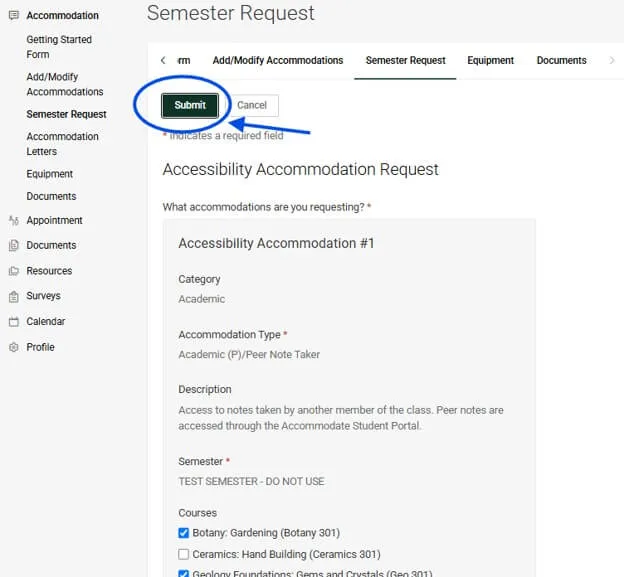
Semester Request webpage, Submit botton circled with an arrow pointing to it.

Step 8:

Body

After clicking “Submit” you can review which accommodations you have requested in each course. You can refer to these at any time throughout the semester. Remember that your Semester Request takes one day to process, and faculty will be notified the following morning after you submit your request*
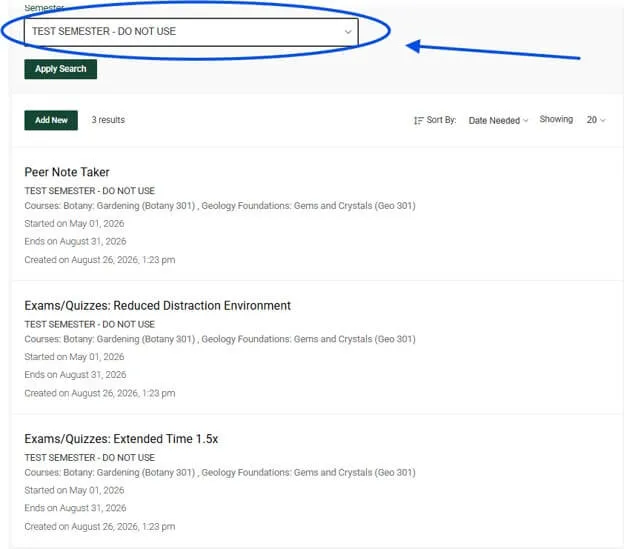
Semester drop down list circled with an arrow pointing to it.

*Students in certain graduate health science programs may need to wait for manual Specialist approval for certain accommodations before their accommodations letters are submitted

Report an Accessibility Barrier

Use our online form to report physical accessibility issues on the UVM campus.