If the module is not visible, check in with your SAS Specialist and your instructor.
In Accommodate, “Alternative Testing Room” is the term used for the dedicated testing spaces the EPC provides for students with accommodations. It's an “alternative” to the classroom.
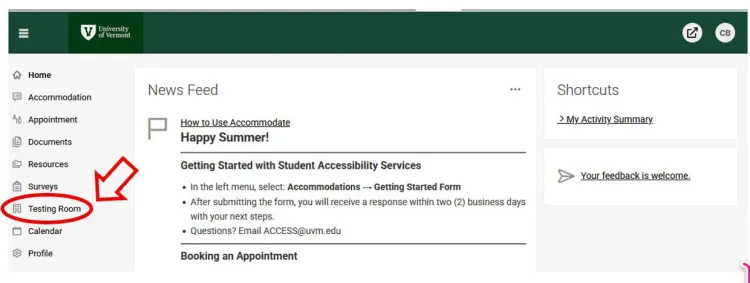
Choosing the Testing Room module on the sidebar will take you to the “Alternative Testing Rooms” page, where you’ll be able to see which of your Booking Requests are Approved or still Pending.
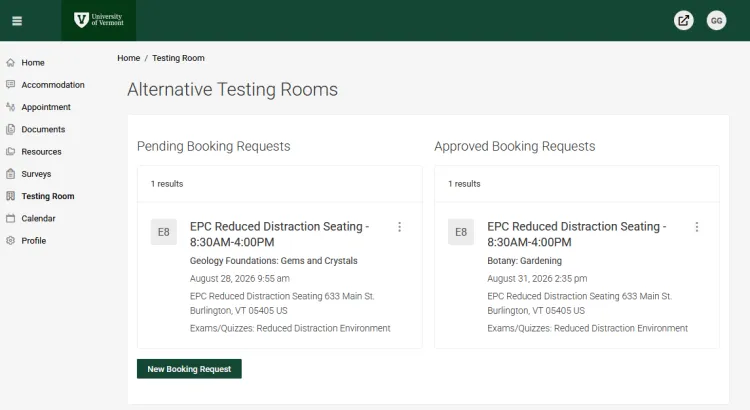
Creating a New Booking Request
At the bottom of “Alternative Testing Rooms” is the button for “New Booking Request.” After choosing that button, you will be taken to a page where the process of scheduling an exam is broken up into three steps.
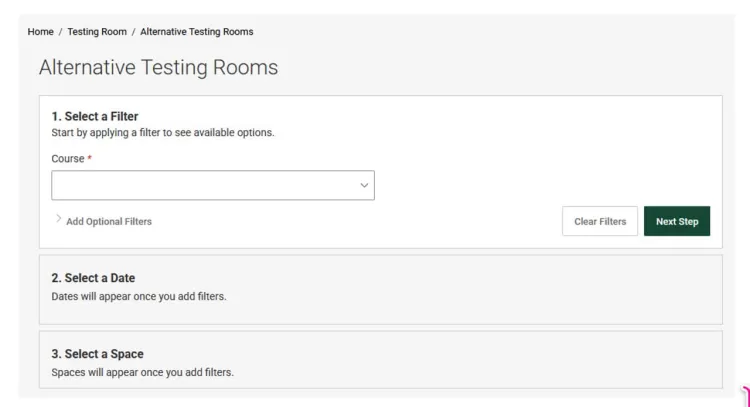
1. Select a Filter
First, select the course of the exam that you’re booking for.
Only instructor-approved courses will appear. After choosing the correct course, then select the specific exam that you will be taking.
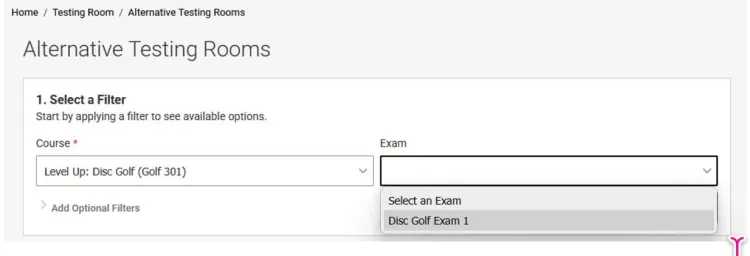
NOTE: If you do not see the correct exam title in the drop-down menu, this means is that your instructor hasn’t uploaded the exam yet. Leave the drop-down blank, or on “Select an Exam.” If you’re booking for the first exam of the semester, and the instructor has not uploaded anything yet, the “Exam” box will not appear.
Is this exam a Final Exam? If not, click “No.”
Next, click on “Add Optional Filters.”
This will cause three drop-down menus to appear: “DO NOT USE,” “Override Course Time,” and “Accommodations.” For our purposes, the only filters students should be using, if any, to book their exams are “Override Course Time” and “Accommodations.”
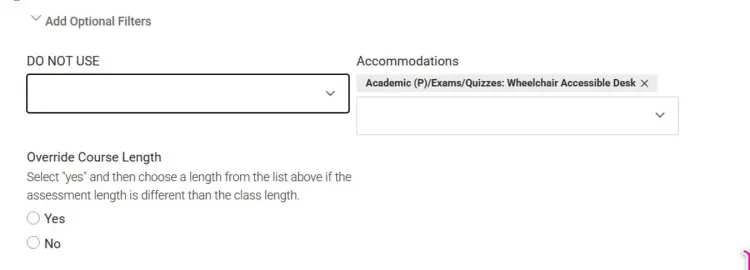
The “Override Course Time” filter does just that— it makes it so that you can manually input an exam length, rather than than having the system simply use the default length of the course. You should make use of this setting only if you are certain that the intended exam length as per the course syllabus or instructor indication is different from the standard lecture meeting length. For example, if your typical meeting length is 50 minutes, but the quiz you’re booking for is 15 minutes. When using this tool you should ALWAYS input the base length of the exam.
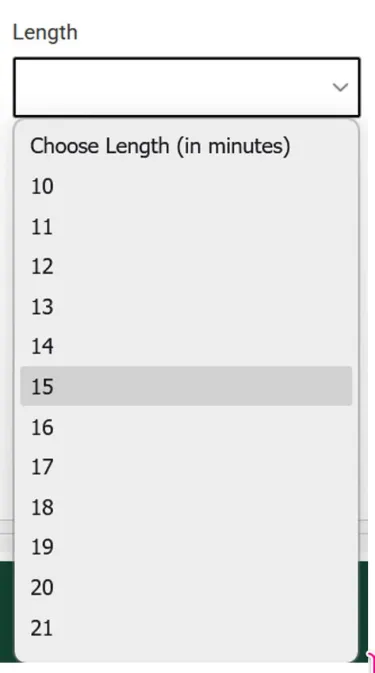
Extended time will always be calculated after the base length is determined, whether that is from the default course length, the student’s overridden exam length, or the instructor’s designated exam length.
NOTE: Exam length will always be subject to change should the student input a length that conflicts with the instructor's. This means that, if you THINK that the quiz is 20 minutes, but the instructor actually intends for it to be 15 minutes, once your instructor actually uploads the exam, the length of your booking will change accordingly.
Then, onto the “Accommodations” menu.
Accommodate utilizes an “opt-out” system— this means all of your accommodations are always active, until you unselect them. It is vital that you select only the accommodations that you wish to use for the exam that you’re scheduling.
NOTE: This includes course-specific accommodations. Meaning, if you are eligible for a Scribe for only one course, you will need to de-select it when booking for all other courses. Neglecting this step will prevent you from booking at all.
This step is mostly relevant for students who have multiple accommodations that would warrant alternative seating arrangements, such as Private Room and Wheelchair accommodations. In this example, the student has opted out of their Voice Dictation accommodation, meaning that they will be booking into Reduced Distraction seating, not a Private Room.
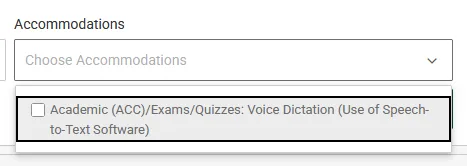
Once you’ve decided which accommodations you want, click “Next Step.” If at any point you want to start over, simply click “Clear Filters.”
2. Select a Date
Clicking “Next Step” should cause the Calendar view to pop up. Unavailable dates will be greyed-out, while available dates will be green.
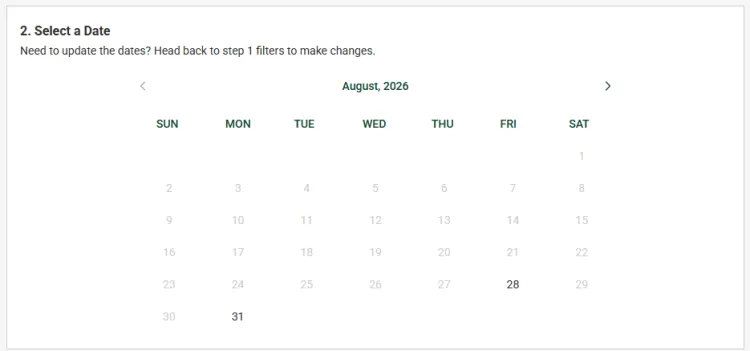
NOTE: A date can be unavailable for a number of reasons, including (but not limited to): the date is outside the instructor’s date-range preference, the student is attempting to book an exam that will exceed the EPC’s open times, the time of scheduling is less than 168 hours before the desired booking time, or the EPC has reached seating capacity. Please contact your instructor and the EPC if you need assistance with booking for an alternative date/time.
Click on the date you want to schedule your exam; this should take you to Step Three.
3. Select a Space
Depending on which accommodations you’ve selected via the “Optional Filters” in Step One, you should see one to three options for booking your exam time: “EPC Reduced Distraction Seating,” “EPC Private Rooms,” and/or “EPC Wheelchair Accessible Desk.” The time range after each option is simply the time the EPC closes on the date that you chose.
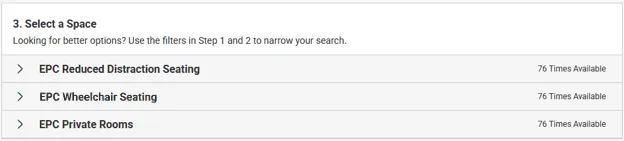
Clicking on the one you want to book into will open a drop-down menu with the different times available, at five-minute intervals. The length of the booking will also be displayed; testing time is auto-calculated for you based on your extended time (if applicable), the scheduled course length, and the professor’s uploaded exam time.
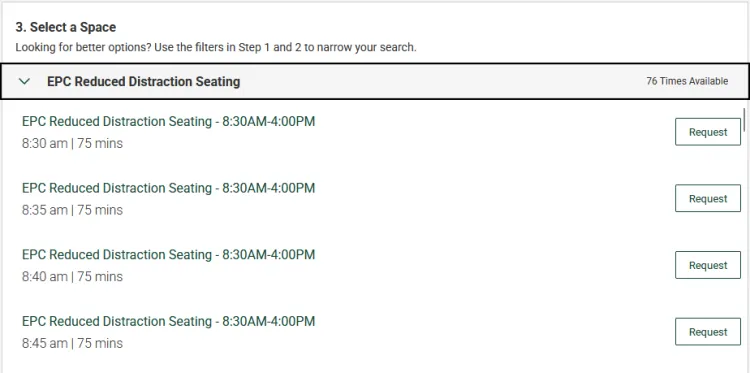
NOTE: If your instructor hasn’t uploaded their exam materials yet, the length of your booking is subject to change. You can easily check if the length of your booking has changed from the Testing Room module, where Approved and Pending Bookings and their information live.
Once you’ve located the time that you want to schedule your exam for, click the “Request” button on the right. This will open the “Confirm Exam Booking” window.
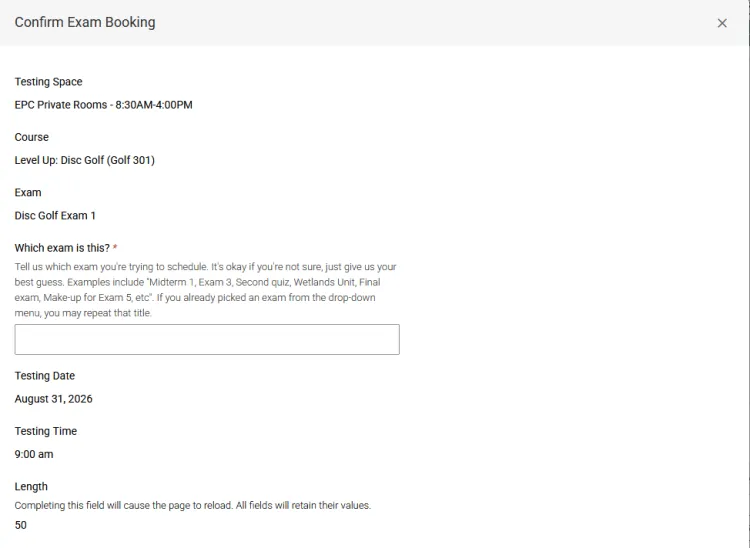
Most of the information in this window is re-confirming what you selected in earlier steps, but there are still some tasks you need to complete. First, you’ll want to fill out the “Which exam is this?” field with the title of the exam you’re booking. If you already picked an exam from the drop-down menu earlier, you may repeat that title.
Scroll down to the bottom of the window, making sure that all information is correct. Before submitting your request, you must check the box stating that you understand the Student Acknowledgement. By booking an exam at the EPC, you are acknowledging that you will adhere to all University of Vermont and Exam Proctoring Center student codes, rules, and policies while testing with us.
To learn more about our codes, rules, and policies, you can follow the link within the “Confirm Exam Booking” window itself, or visit the Exam Proctoring Center Policy page.
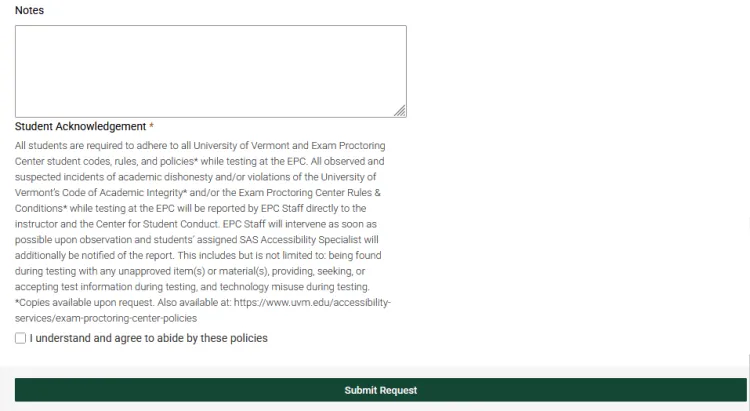
Once you’ve clicked that checkbox, you are all set to click “Submit Request!” Once you do, you’ll be redirected back to the Testing Room module on your Accommodate profile. There will be a banner at the top that reads “Your test room booking request has been submitted.” The request will appear under Pending Booking Requests.

You will also receive an email confirming your submission has gone through, as well as an approval/denial email once your instructor has reviewed your request.
Cancelling a Booking Request
Canceling a Booking Request entails the same process for both Pending and Approved Booking Requests. Navigate once again to the Testing Room module on the sidebar, taking you to the “Alternative Testing Rooms” page.
Scroll to find the booking you wish to cancel. Then, click the three vertical dots icon to the right of the booking name. From there, you should be able to select “Cancel.”
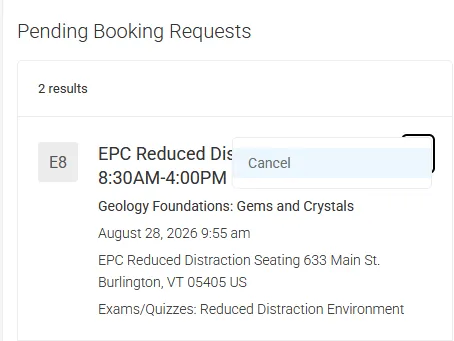
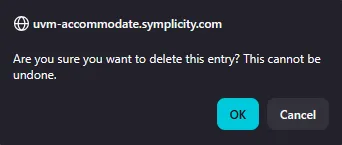
Accommodate will ask you to confirm this action, as once you have cancelled a booking, it cannot be undone. Be sure you have selected the correct booking before fully going through with a cancellation! Once you’ve hit “OK” twice, your cancellation will have gone through.
Rescheduling a Booking Request
Booking Requests cannot be rescheduled within the same week as the original booking date, as our policy dictates a seven (7) day booking deadline. Always cancel your original booking and contact your instructor should you need to reschedule. Either your instructor will allow you to take the exam at the EPC on a date that falls within our booking parameters, in which case students should Create a New Booking Request, or it will be up to the instructor to administer the exams with your accommodations within their department. In the latter case, students should communicate with their instructor and their SAS Specialist in order to facilitate accommodated testing outside of the EPC.
If you have any further questions regarding booking at the EPC, our new processes and procedures, or anything else to do with testing, please email us at epc@uvm.edu.