Instructors wishing to have their accommodated exams proctored by the Exam Proctoring Center must use Accommodate to acknowledge student booking requests, submit your own planned exam times, and upload exam materials and proctoring conditions.
Professors are expected to submit all exam materials and proctoring conditions for a given exam no later than 7:30 a.m. on the scheduled day of the exam at the EPC. If you need assistance with any part of this process, we encourage you to reference the guide below, and you are always welcome to reach out to the Exam Proctoring Center for troubleshooting assistance!
Steps to Acknowledge a Student Booking Request
1.
2.
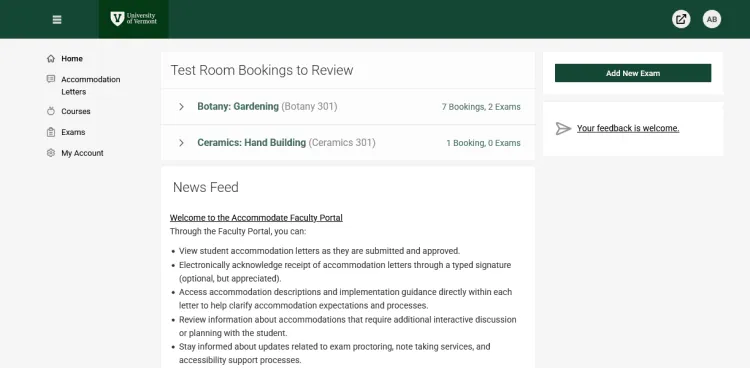
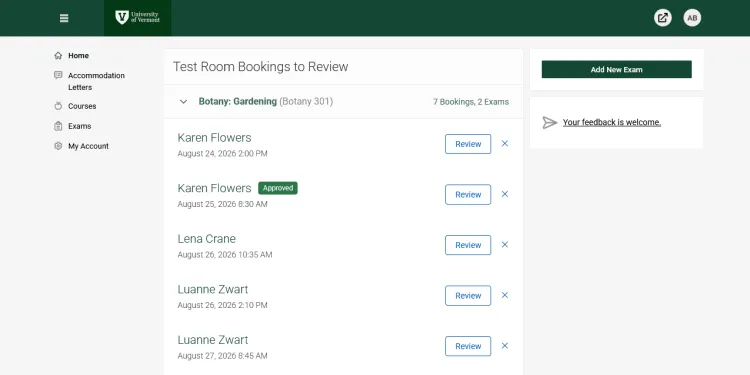
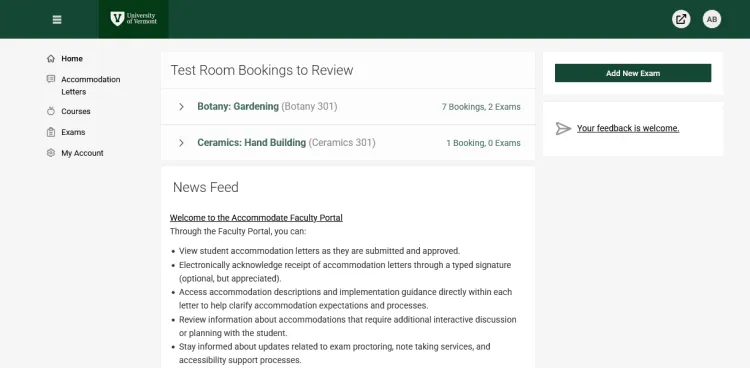
Pending booking requests will appear on your home page, separated by class. Choose the drop-down menu for the class you’d like to review first.
3.
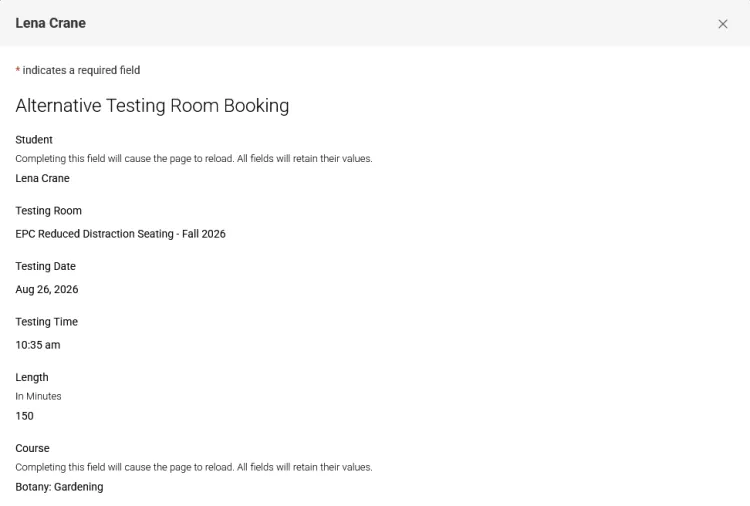
Click “Review” on the booking you’d like to review.
4.
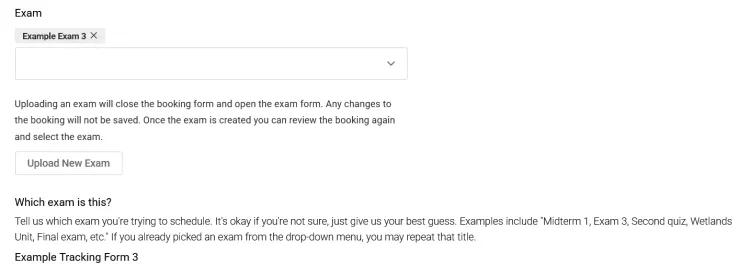
You may add an existing exam to the booking, upload a new exam, or leave it empty until later. Under “Which Exam is this?”, you will see what your student entered as the exam name they’re trying to schedule, which may aid with matching requests to actual exams on your syllabus.
5.
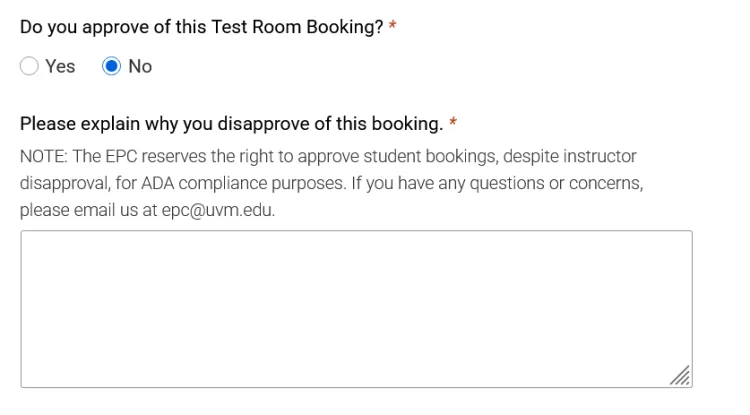
Select “Yes” to approve of the testing appointment, and select “No” to let us know you disapprove. If you disapprove of an exam request, you must tell us why so we can ensure that the disapproval does not violate a student’s rights in terms of ADA compliance.
6.
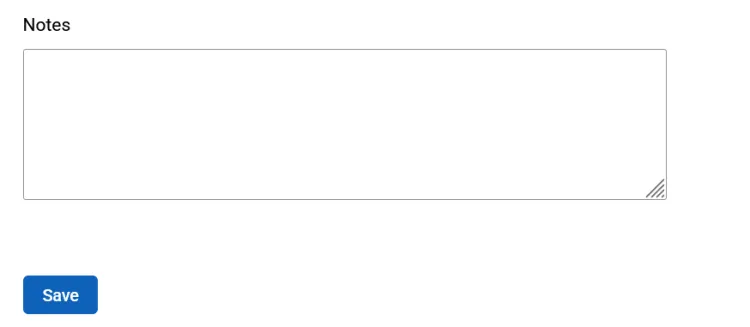
You may add notes to an individual student’s booking if you’d like. Click “Save” once finished reviewing the booking.
7.
You may exit the booking or hit “next” to review the next student if you have multiple requests at once.

Steps to Submit a Brand New Exam
1.
2.
Click the “Add New Exam” button on the right to add a new exam.
3.
Fill out the proctoring conditions and submission details
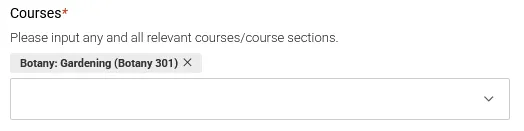
Courses – Select the relevant course(s) for this exam. You may select multiple courses to account for different sections or cross-listed courses. Only courses you are listed as the professor for should populate this field.
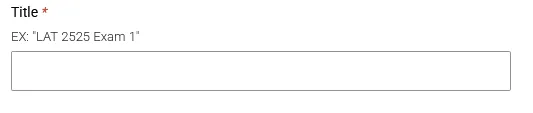
Title – Name the exam.
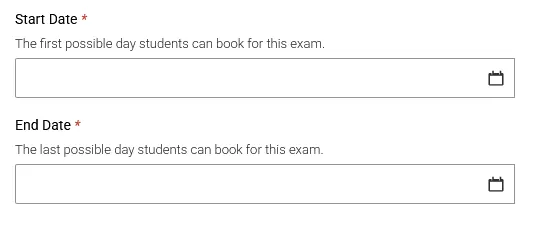
Date Range – Faculty can input their preferred start and end dates for students to be able to take this specific exam. We ask that testing windows be at least three (3) business days long to improve the probability that we will have space for students to test at the EPC.
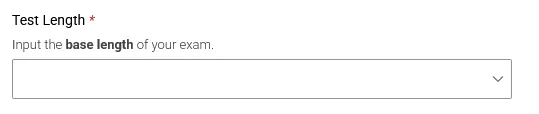
Test Length – Length of time for the classroom exam (Do not include accommodated time).
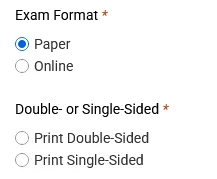
- Exam Format – Is this exam meant to be taken on paper or online?
If Paper – Should the exam be printed on double or single-sided paper?
- If Online – Please provide the following details.
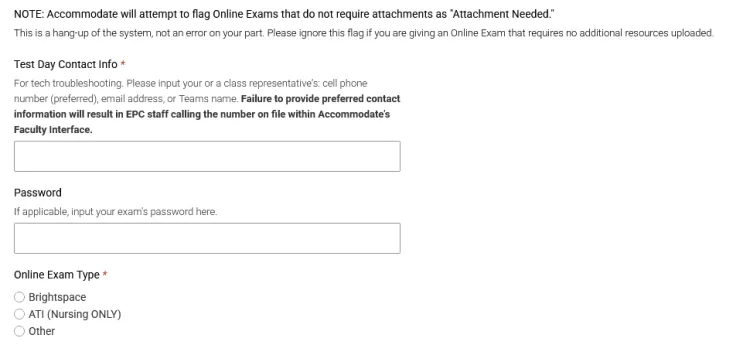
- Test Day Contact Info
- Password (if applicable)
Online Exam Type
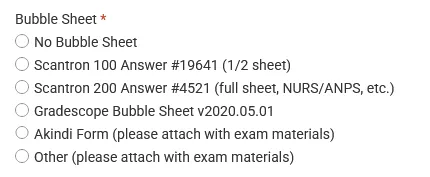
Bubble Sheet – What kind of bubble sheet, if any, should be issued to students?
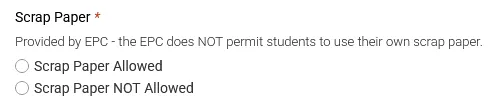
Scrap Paper – Is scrap paper (provided by the EPC) permitted for student use?
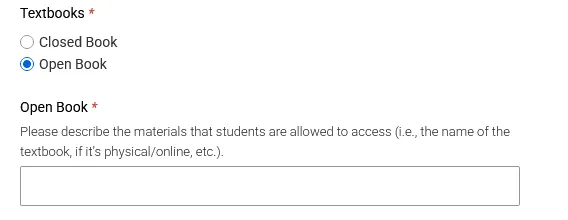
Textbooks – Is the exam closed or open book? If open book, please name and describe the materials students are allowed to access.
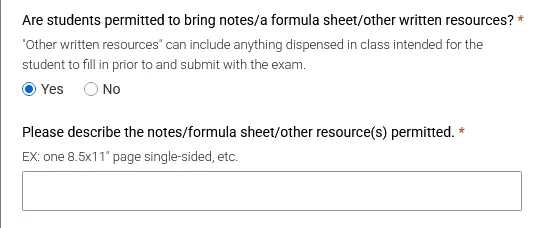
Student-provided Notes/Formula Sheets – May students bring in any notes or other written materials? If yes, please describe what is permitted.
Student-provided Notes/Formula Sheets
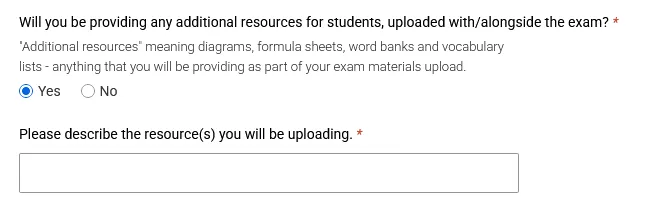
Additional Resources – Will you be providing any additional diagrams, formula sheets, word banks, etc? If yes, please describe what you are uploading.
Are Students Allowed a Copy of their Notes – All exam materials will be collected from a student regardless, but selecting “yes” on this question allows us to create a photocopy of the student’s note(s) for them to return home with. This permission does NOT extend to EPC scrap paper.

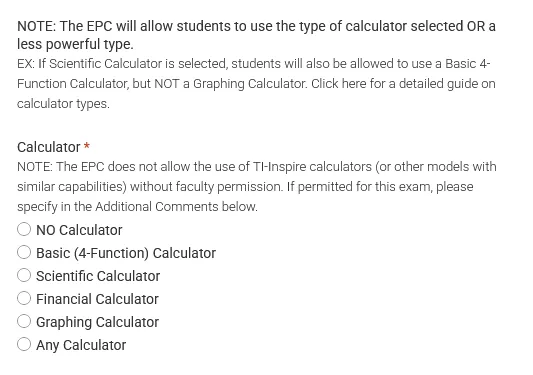
Calculator/Other Materials – Use these fields to specify what, if any, non-written materials your student(s) may access during the exam.
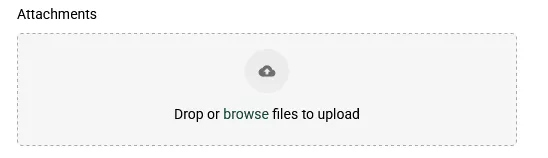
Attachments – This field will appear if you select paper exam or if you indicate that you will be providing additional resources. If you have a copy of the exam/handouts ready at the time of submitting the proctoring conditions, you can upload it using this section. If you do not have a copy ready, please skip this section. Multiple files can be uploaded if you have formula sheets or other supplemental materials for the exam, but please upload only one exam document. The EPC will not issue individualized/unique exams for each student in the same course under any circumstances.
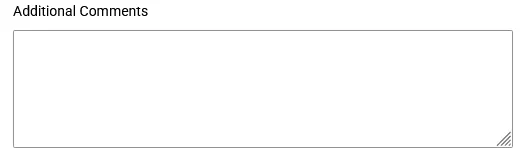
Additional Comments – Please feel free to include any comments or notes you think might be helpful in implementing your exam at the EPC. Please keep your additional comments as brief as possible, as excessively long comments will not fit on our tracking form and may be edited for conciseness by EPC staff before printing.
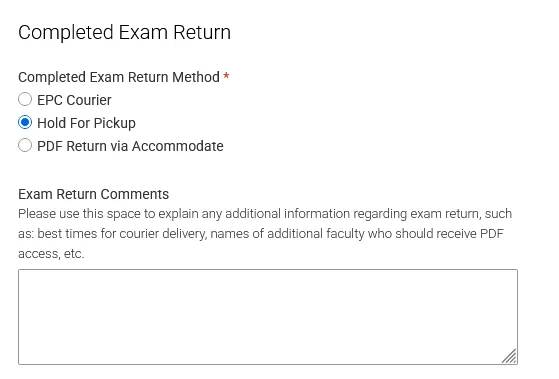
Completed Exam Return Method – Please select your preferred return method here. If you select “EPC Courier”, you will be prompted to pick your department office for delivery. Couriered exams must be signed for by professors or a department representative. EPC Couriers will NEVER leave an exam in a mailbox or slip it under a door--- our top priority is preserving the chain of custody to ensure exam security. Exam Return Comments can be used to provide additional details you feel may be helpful for the EPC to know.
If you have selected online exam and do not have any handouts, you may see a warning indicating that you need to submit a file for the exam. Please feel free to ignore this!
4.
Once you have completed all of the information, click “Submit Request”.

Steps to Review or Modify an Already Submitted Exam
1.
2.
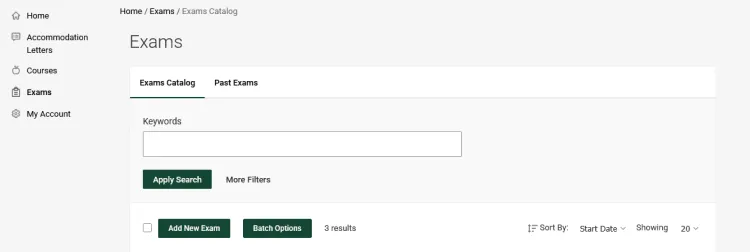
Click “Exams” tab on the right.
3.
Go to “Exams Catalog”.
4.
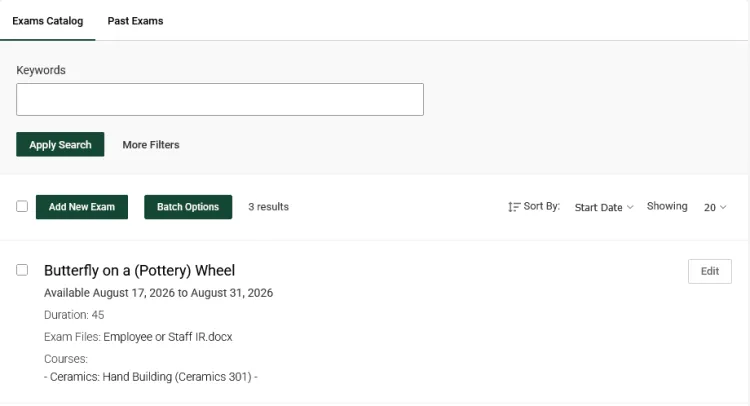
You may scroll down to view all approved exams for this course, or you may use the search bar to narrow your results down.
5.
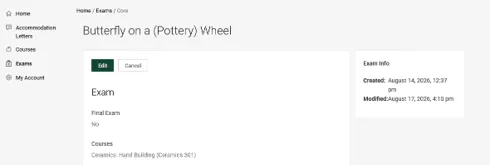
To review an exam without editing, click the name of the exam you would like to see.
6.
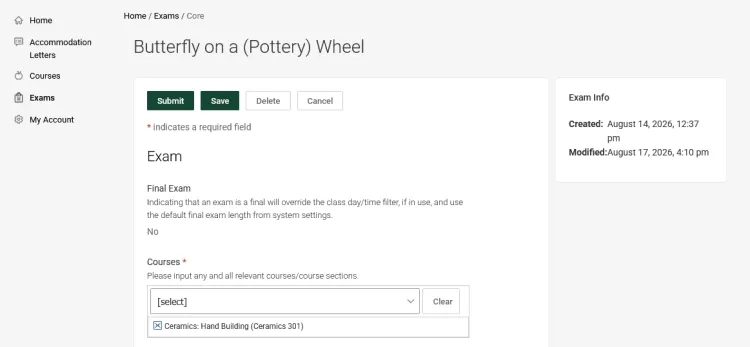
To edit an exam, click the name of the exam you would like to edit OR select the button on the right that says “Edit”. In either case, click “Edit” on the exam you would like to modify.
7.
Make any modifications you may need, including altering proctoring conditions, uploading an exam file, or adding cross-listed courses.
8.
At the bottom of the page, click "Submit".
Steps to Download Completed Exam from Accommodate
1.
2.
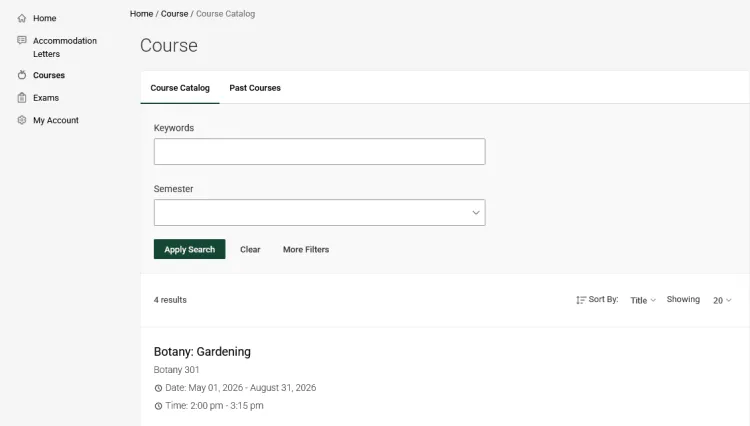
Click “Courses” tab on the right.
3.
Select the specific course you’d like to download a completed exam for (ex. Botany: Gardening (Botany 301)).
4.
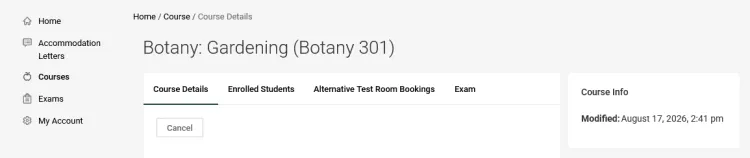
Click the “Alternative Test Room Bookings” tab across the top
5.
Go to “Approved” bookings
6.
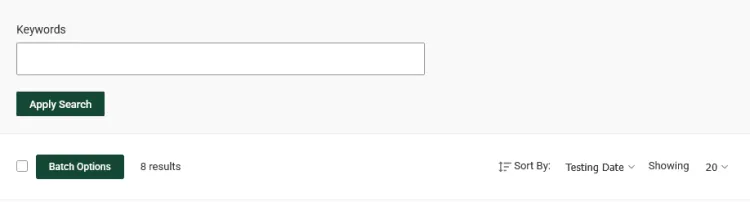
You may scroll down to view all approved exams for this course, or you may use the search bar to narrow your results down
7.
A student with a completed exam upload will have “Completed Exams” on the booking, as well as the uploaded file name.

8.
Click on the file name to download it to your device.
Faculty Consultations
Faculty Consultations
If you’re having trouble with Accommodate, or have questions that are not answered in this guide, EPC staff are happy to assist you! For more information on accommodated testing at UVM, contact the Exam Proctoring Center at epc@uvm.edu, or call (802) 656-5767.