MIGRATING YOUR PCBACKUP
FROM YOUR HOME DIRECTORY ON ZOO, TO THE NEW /BACKUP FILE SYSTEM
1. Create your own directory on the /backup system.
Italicized characters
are ones you type into the telnet zoo prompt below.
Log into zoo with SSH-terminal or Putty, set the terminal type to vt100, and get
to your zoo> prompt. Then change directories into the
backup directory:
zoo> cd /fs/backup
Next, create your own directory in the /backup space using the mkdir
unix command:
zoo> mkdir YourLoginName
YourLoginName is your NetId so the
command should look something like:
zoo> mkdir jstudent
Set the permissions of your backup directory folder by using the chmod 700 command:
zoo> chmod 700 jstudent
Then, change directories into your newly created directory:
zoo> cd YourLoginName
Once again YourLoginName is your NetID,
so the command should look:
zoo> cd jstudent
Next, issue the “print working directory” command,
or pwd:
zoo> pwd
You should see something on the next
line that looks like:
/fs/backup/jstudent
Block or highlight and copy this /fs/backup/jstudent
path
name so you can paste it into fetch, fugu, or WinSCP
2. Upload your files to your newly created /backup/jstudent
directory:
 For WinSCP users, double-click on the path bar (red arrow) and you will see:
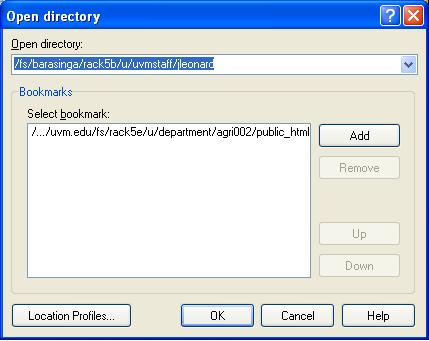 and paste the
path /fs/backup/jstudent
(or in the example below /fs/backup/jleonard) into the Open Directory
space highlighted in blue. Then the WinSCP screen will change to look
something like:
and paste the
path /fs/backup/jstudent
(or in the example below /fs/backup/jleonard) into the Open Directory
space highlighted in blue. Then the WinSCP screen will change to look
something like:
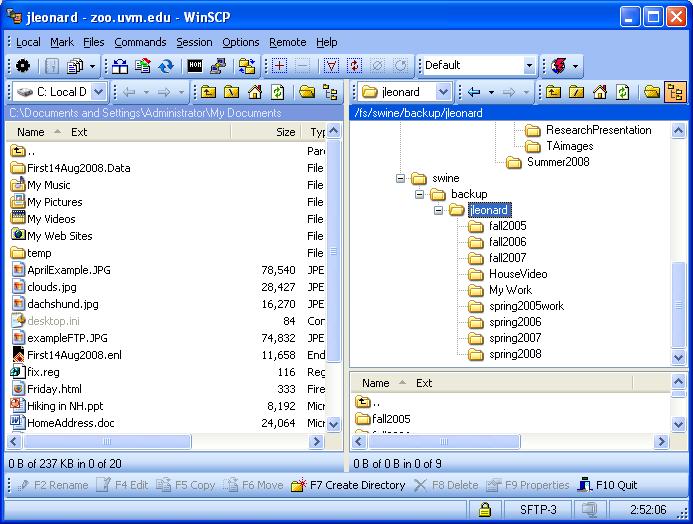
Now you are ready to click drag and drop from your own PC in the left
pane, to your newly create backup folder in the far right
pane. Backup your academic work. You should have no more than a
few tens of Gigabytes of backed up folders and files. Do not
backup music, videos, DVDs, movies etc., unless it is very temporary (1
day) while you are changing personal computers.
3. If you wanted to Remove your PCBackup folder from your home directory on zoo:
Login to zoo with SSH-terminal or Putty. Be sure you are in your home
directory:
zoo> cd
From your zoo> prompt, issue the rm command to remove your
PCBackup folder:
zoo> rm -rf
PCBackup